 @daring-celt
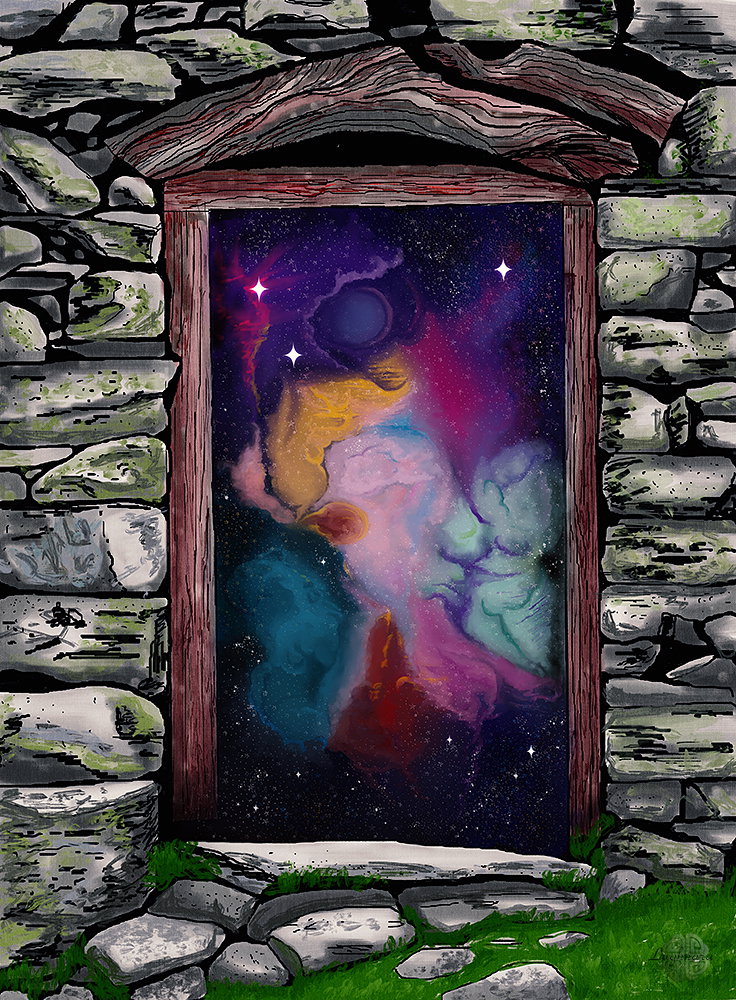
Digital art_2021. The Portal Hi friends! I have the last lesson from a series of studying **Realistic Paint Studio.** One day I got an idea to try to combine it with other graphic programs - for example, **Paint Tool SAI**
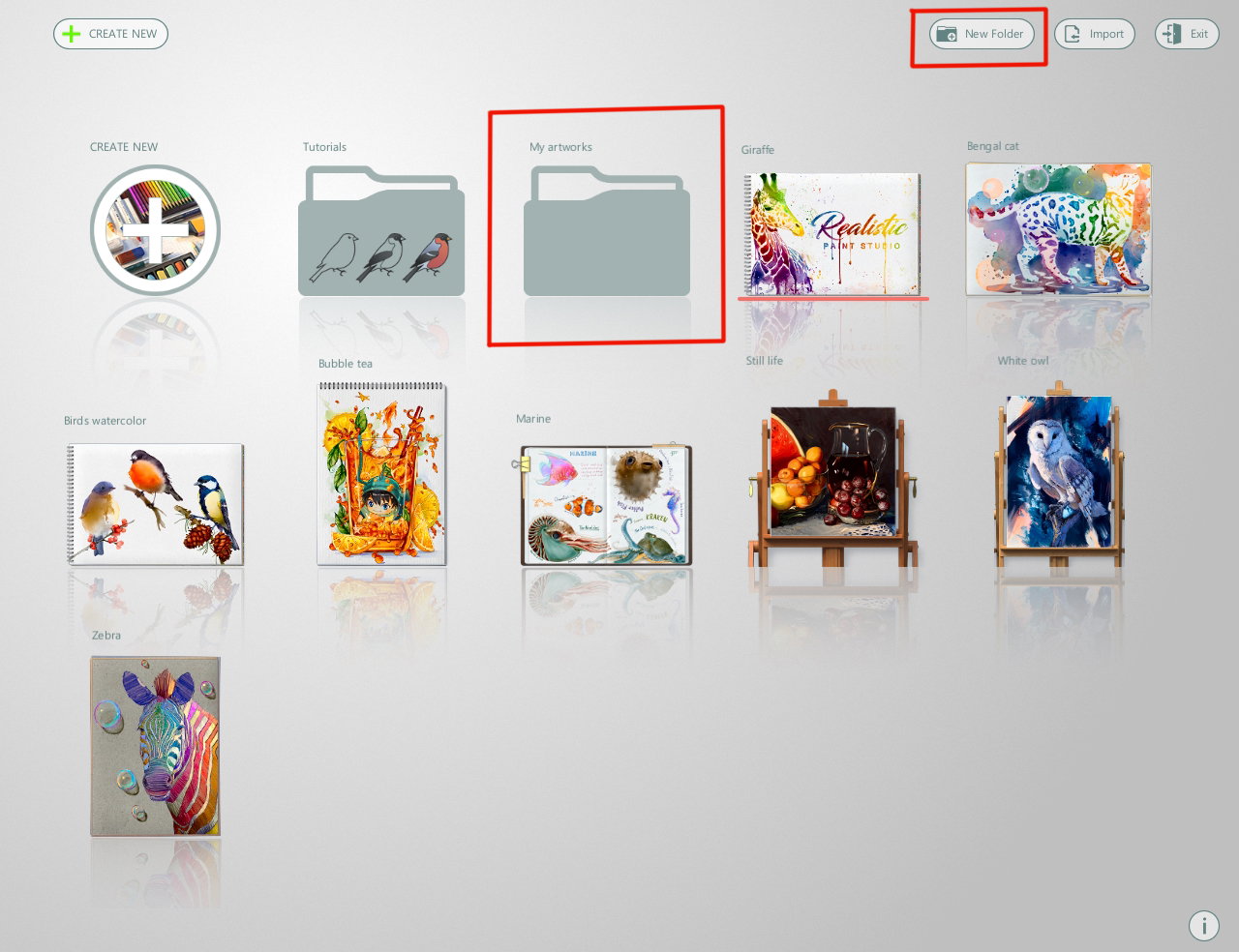
In **Realistic Paint Studio** you can converting its file to .png. This means you can work with it as a separate layer. For the start, I will tell you how I organize my drawings inside the program. When I open the program, I see icons with base sample files and a folder with lessons. But over time, when there are a lot of drawings, can simply get confused in the icons. To prevent this from happening, the program has the ability to create new folders for my own artwork.
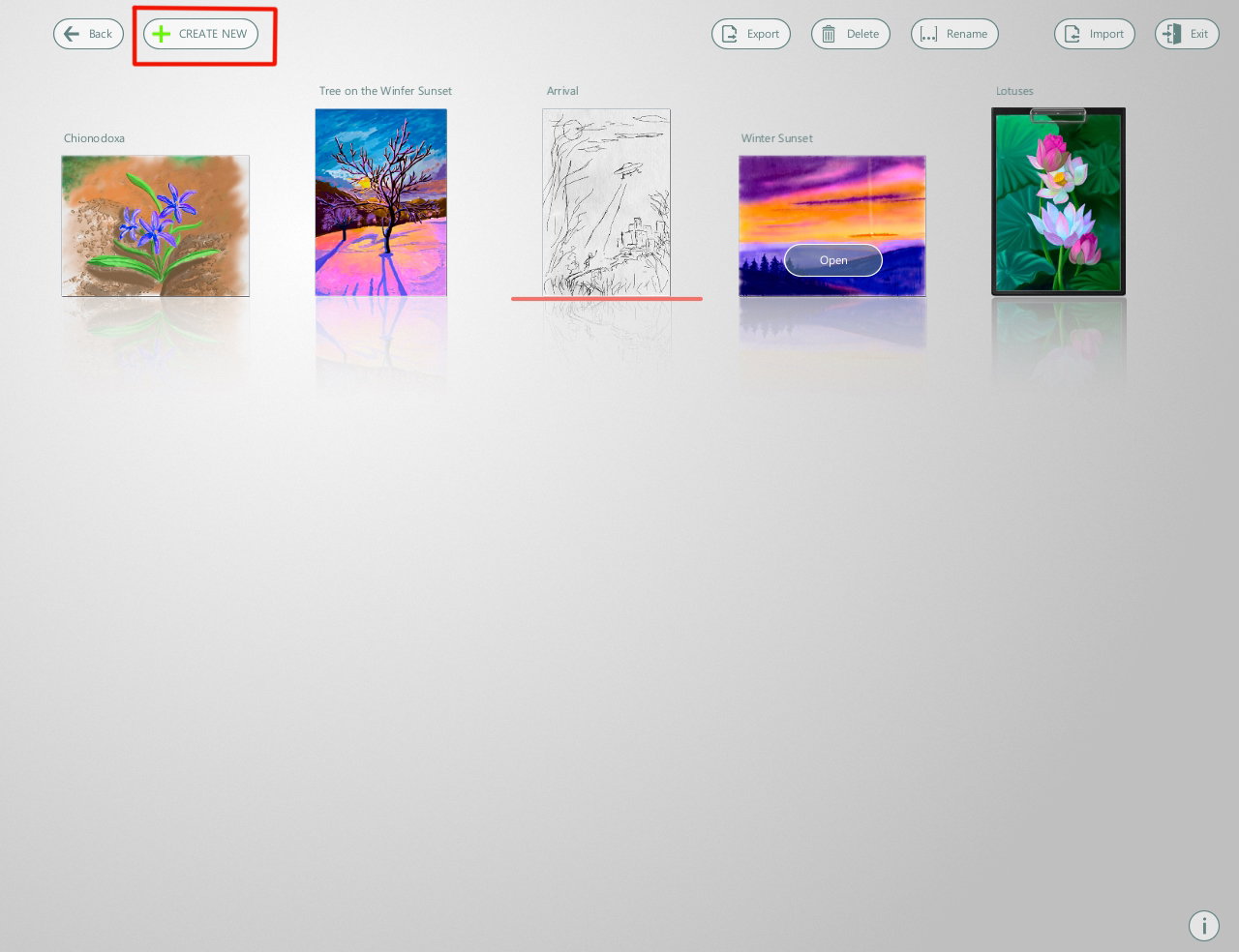
This is what's inside my works folder. I create new file here (with red mark button)
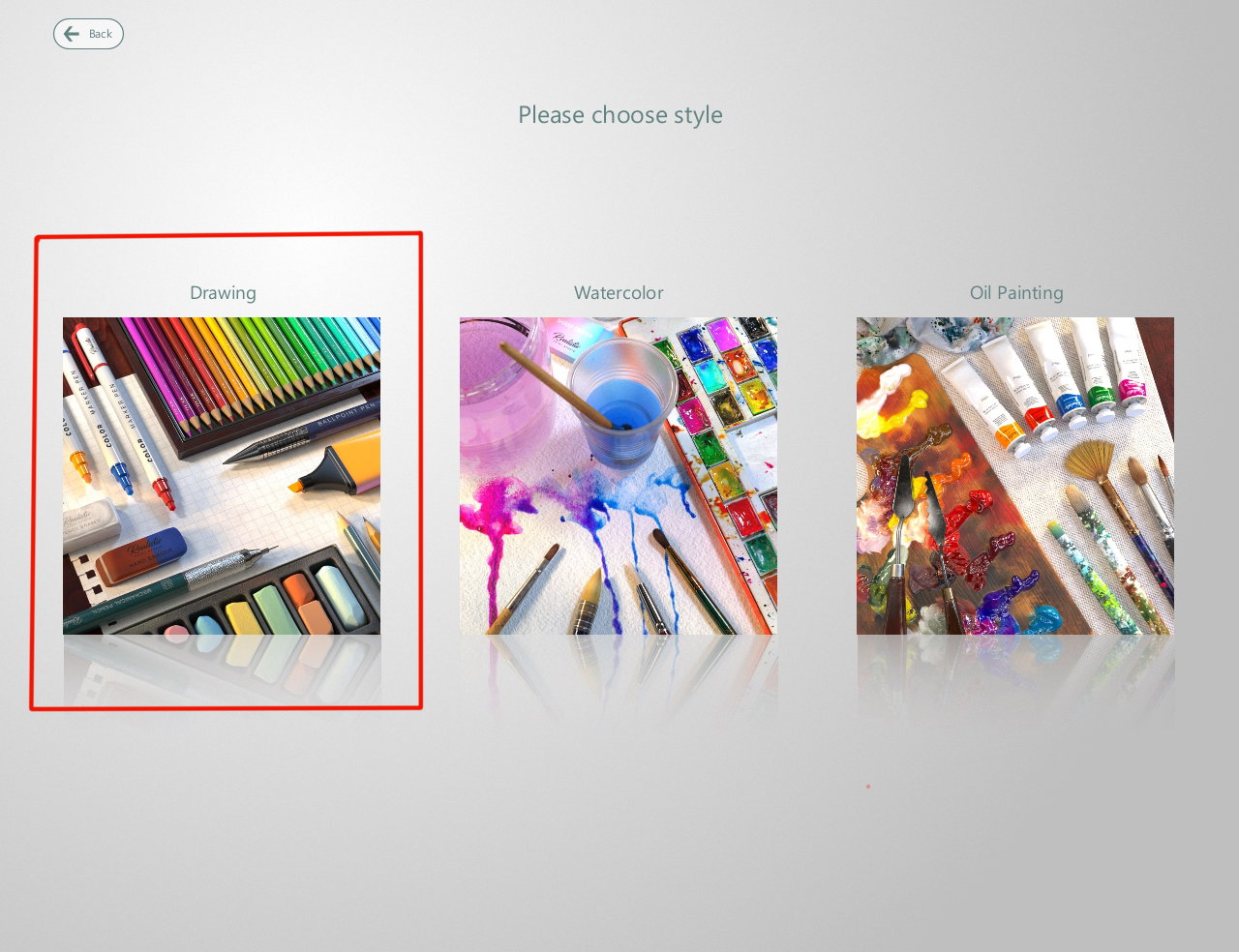
Then I choose an art style - **"Drawing'**, because I want to draw with the same an exclusive tools as last tutorial https://read.cash/@daring-celt/digital-art-2021-chionodoxa-fa3031d2
As always I create a custom file
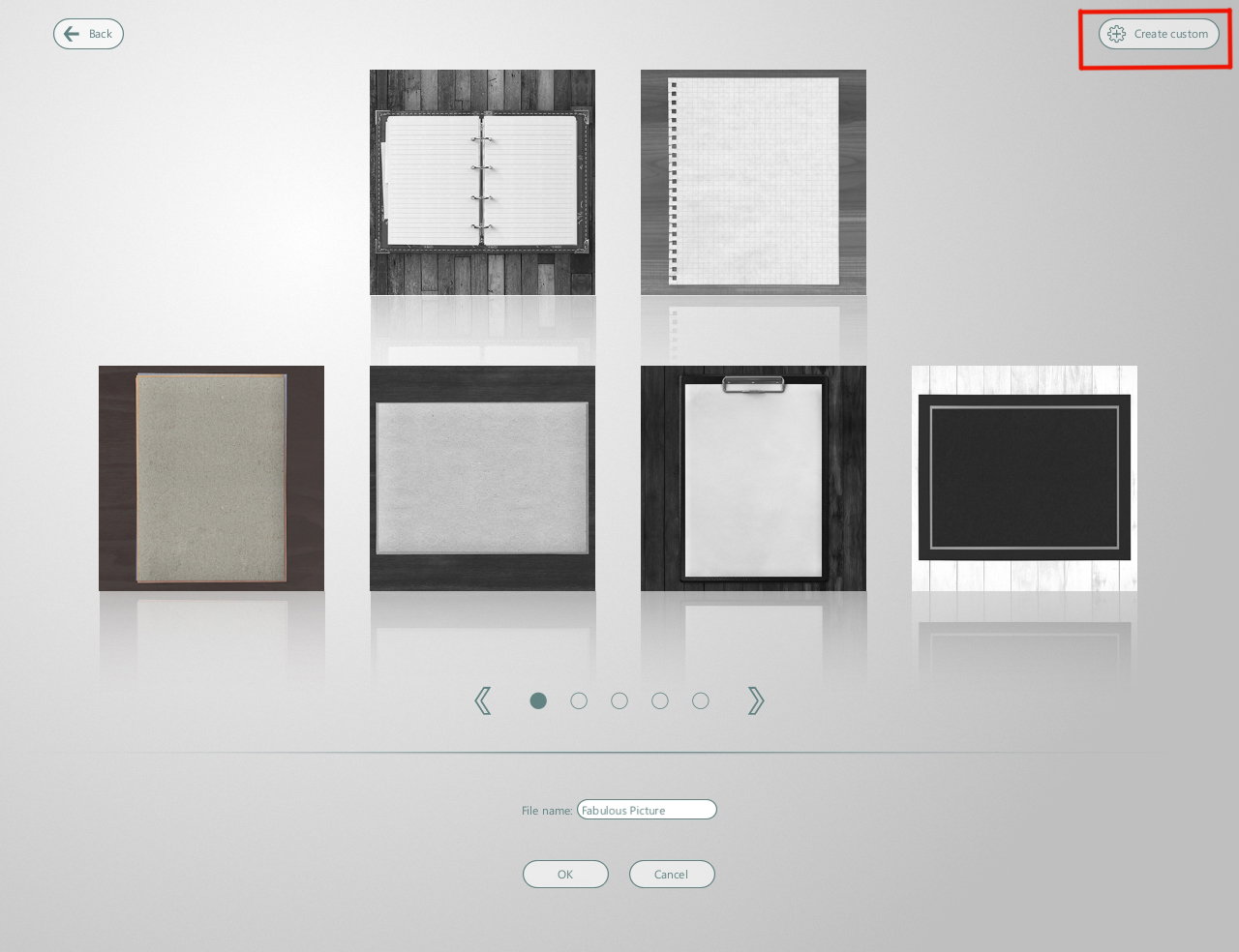
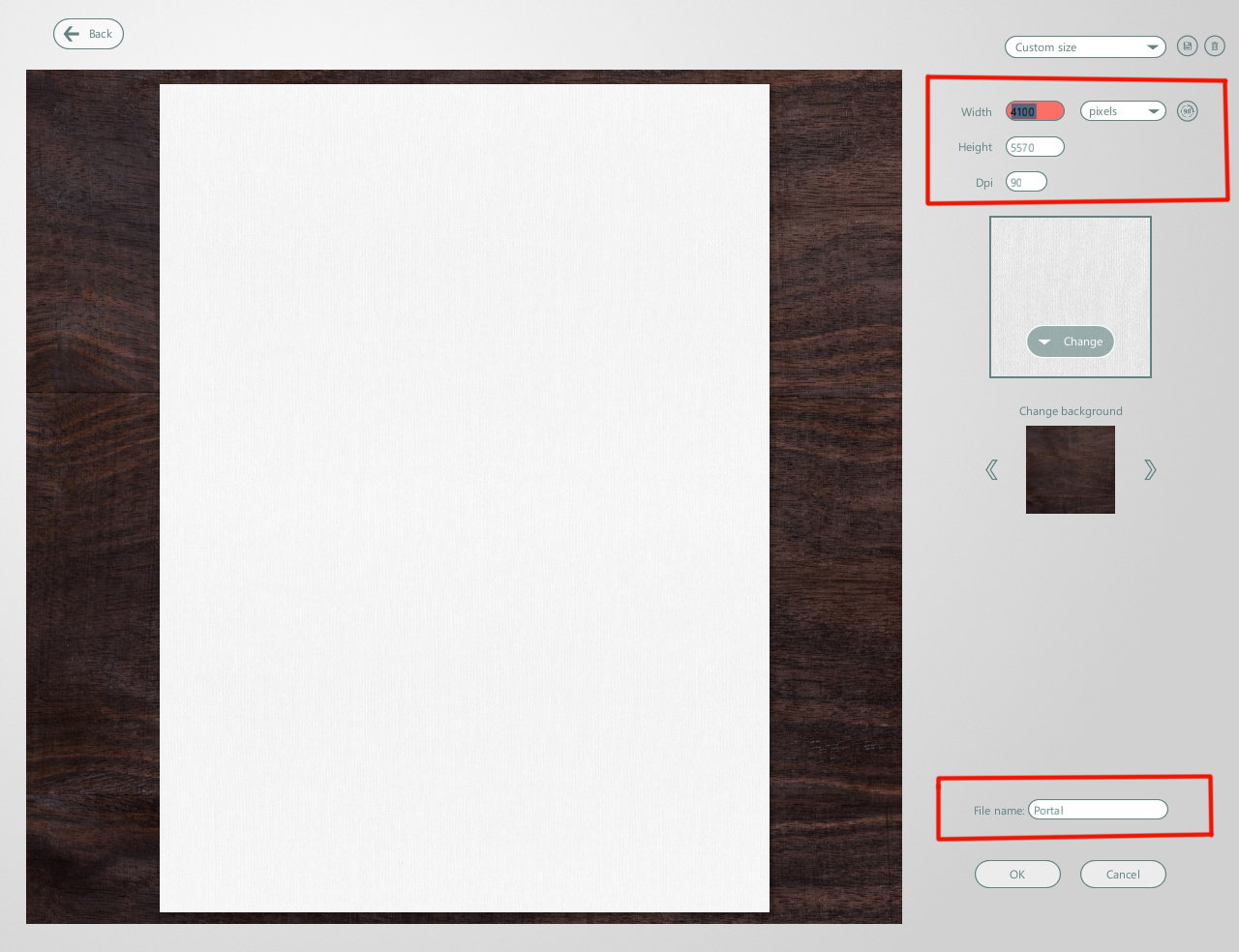
I also select a parameters as I need - in this case, I was guided by the reference At the same step I give the file a name (below the window) https://i.pinimg.com/564x/b3/78/8f/b3788f478359b87467f8f4ef3c91b809.jpg
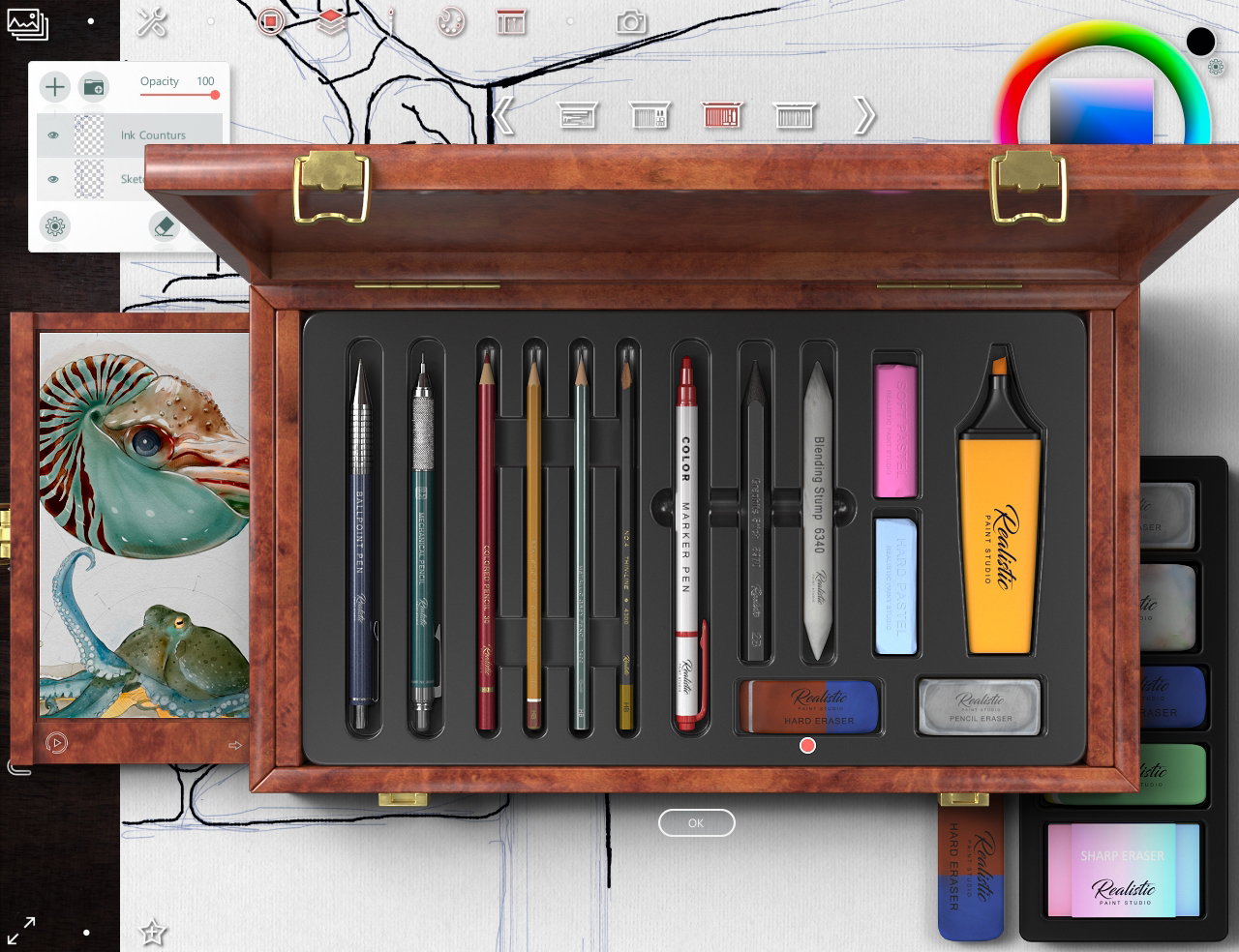
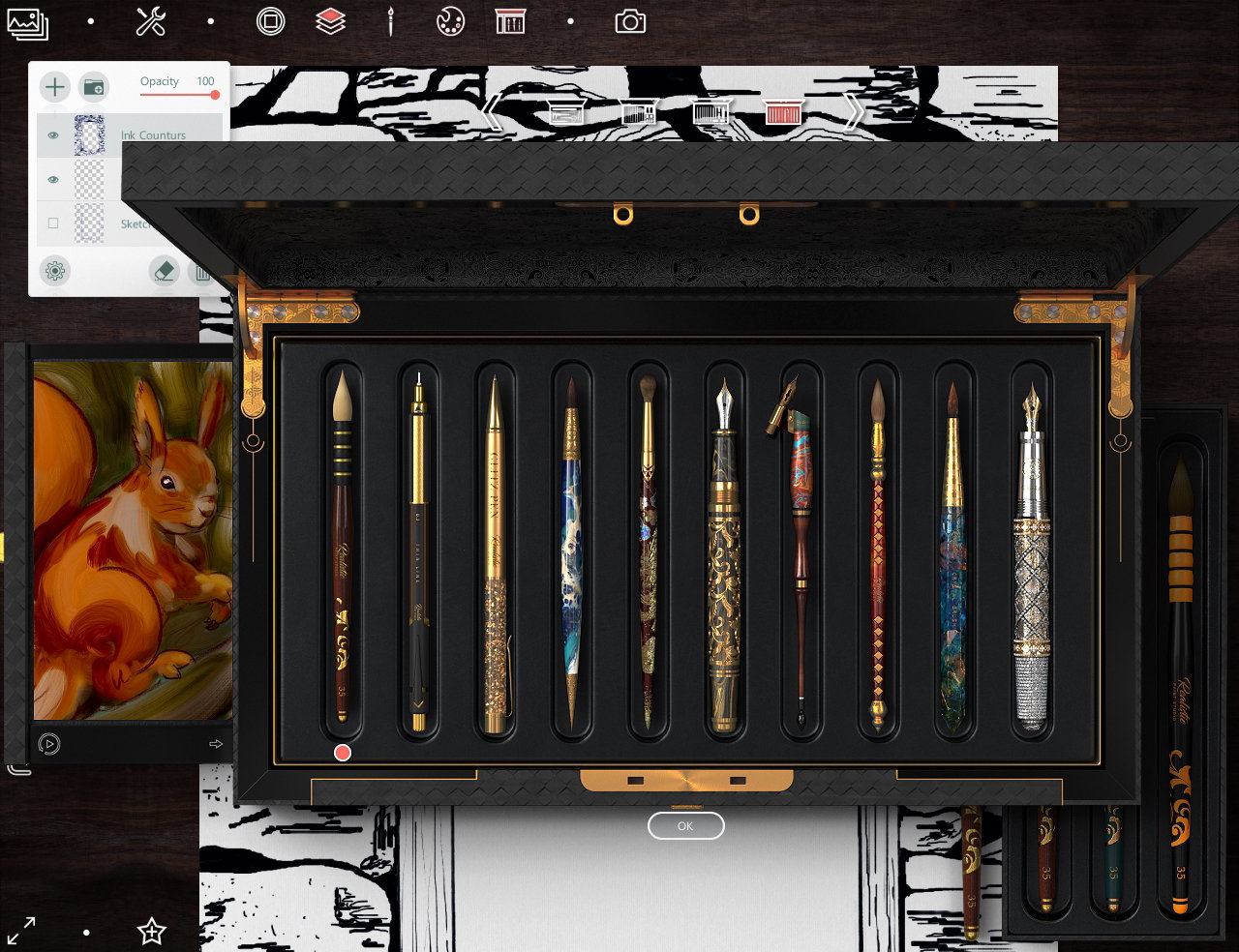
I select the box with the tools I need (using right-left arrows) - the exclusive tool box is last on the box's list.
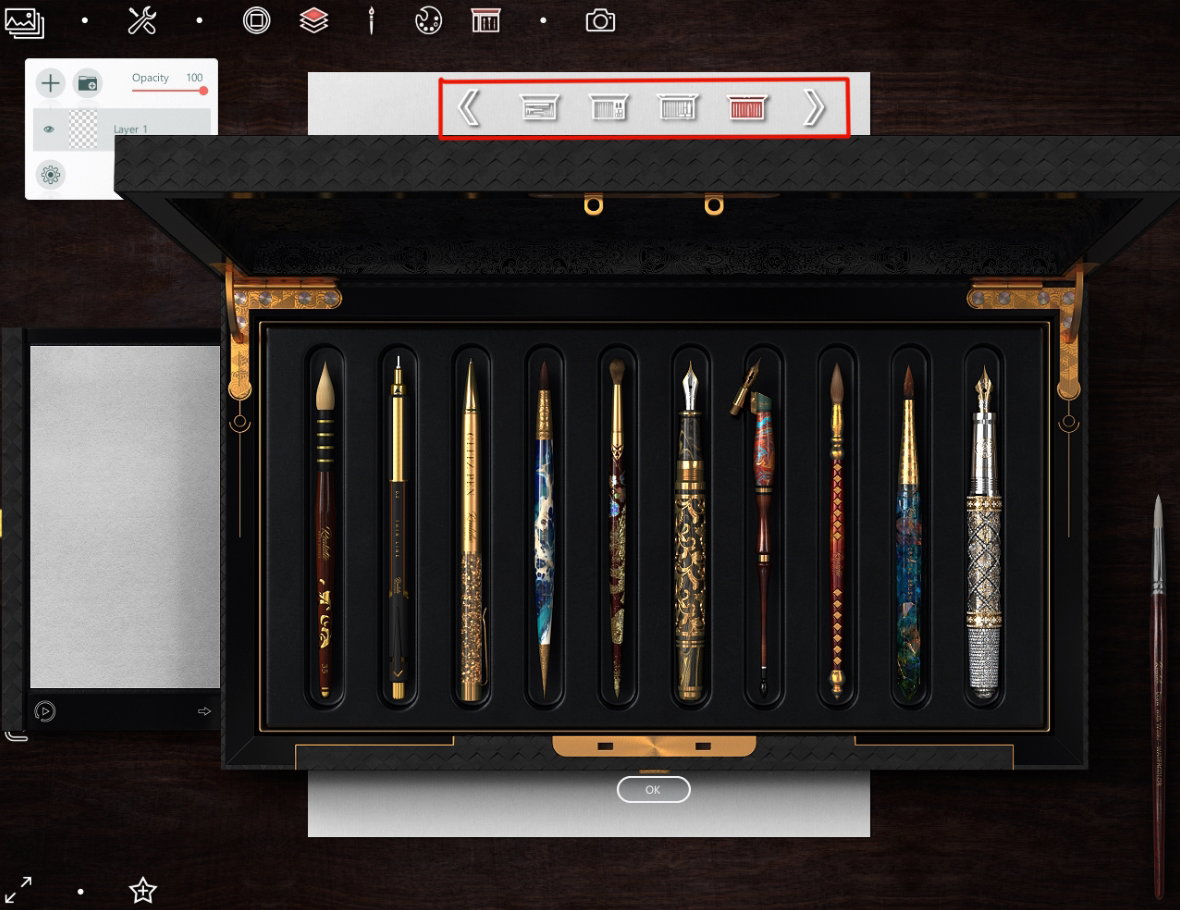
For first sketch I choose a mechanical pencil
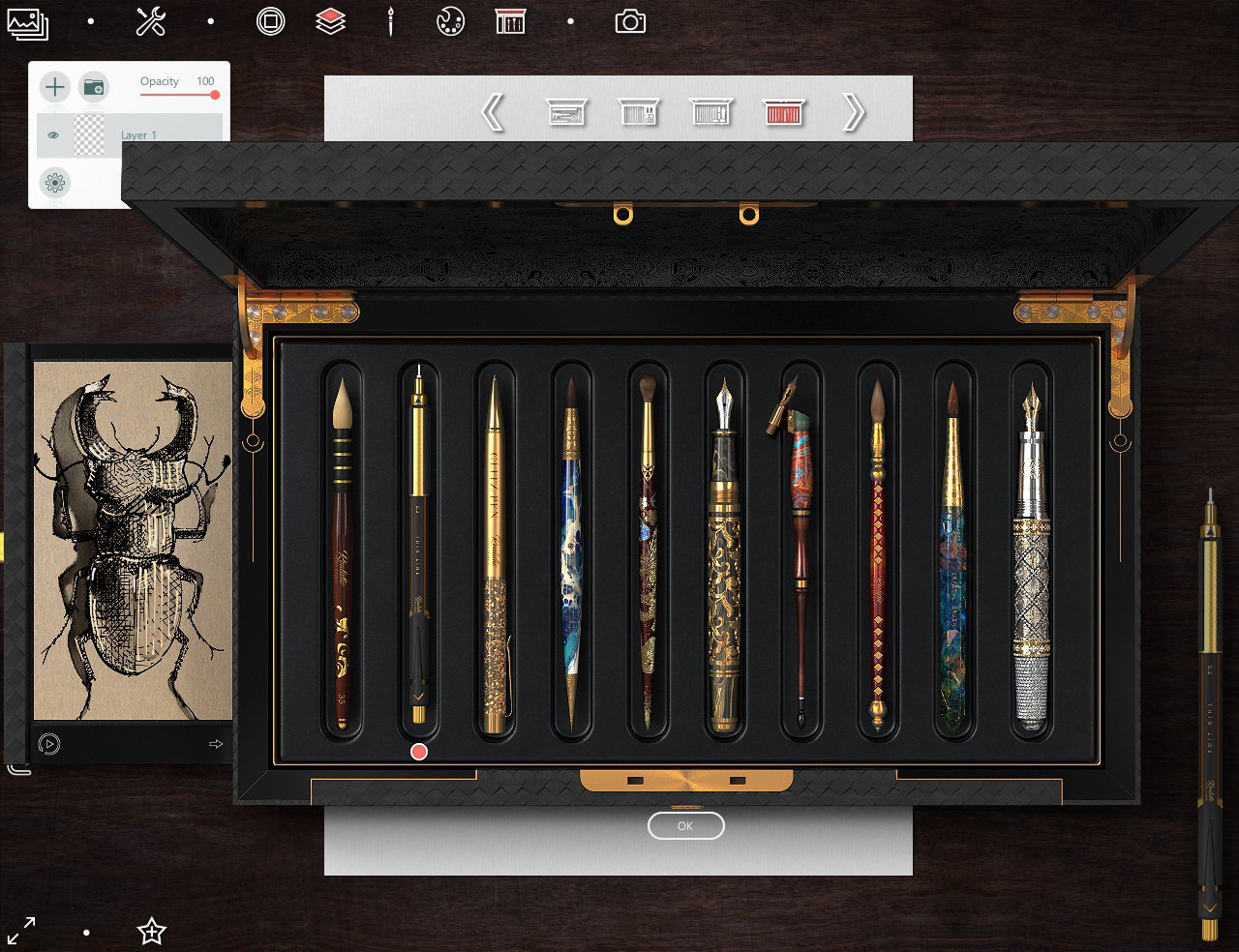
Make some strokes for a sample - yes, it does!
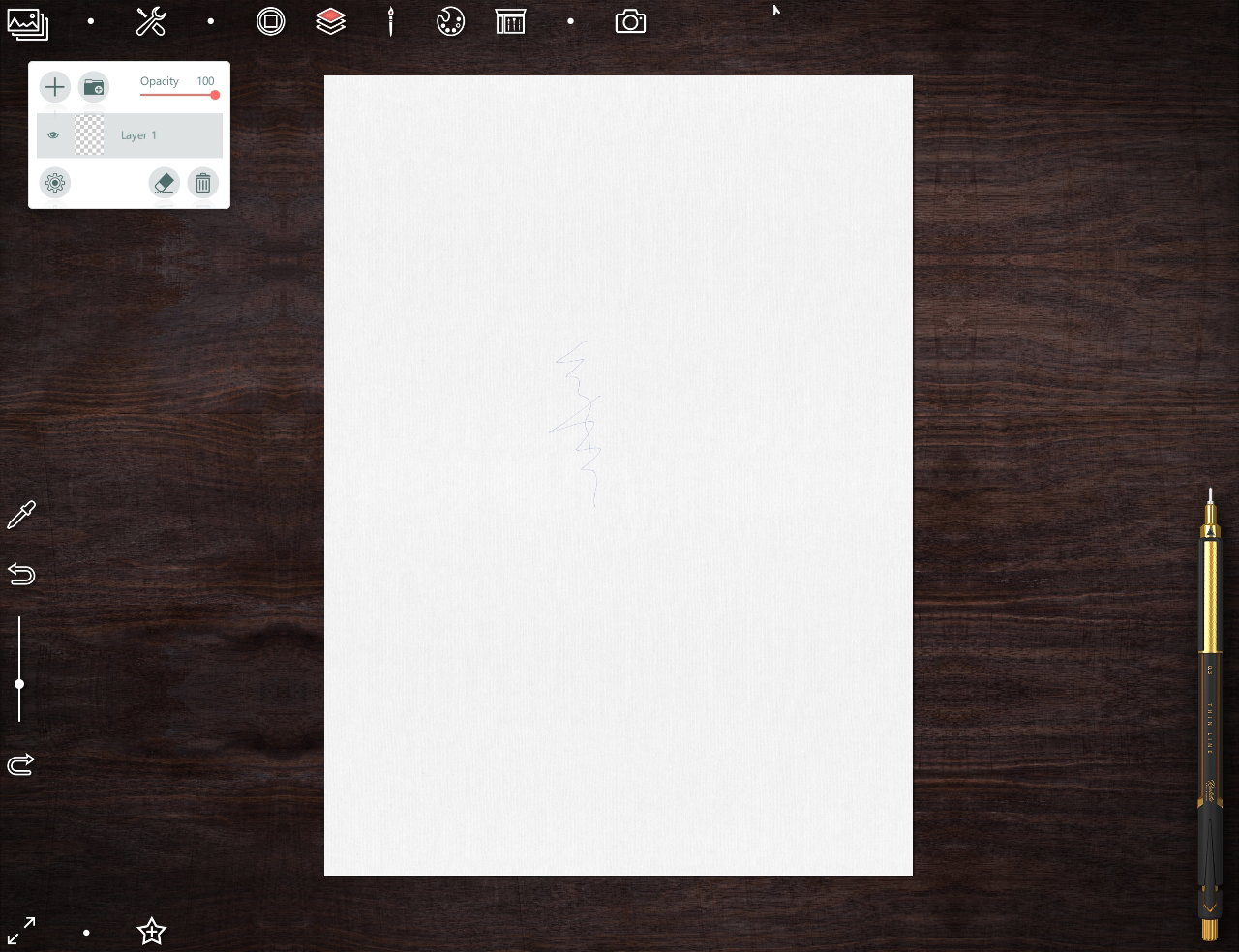
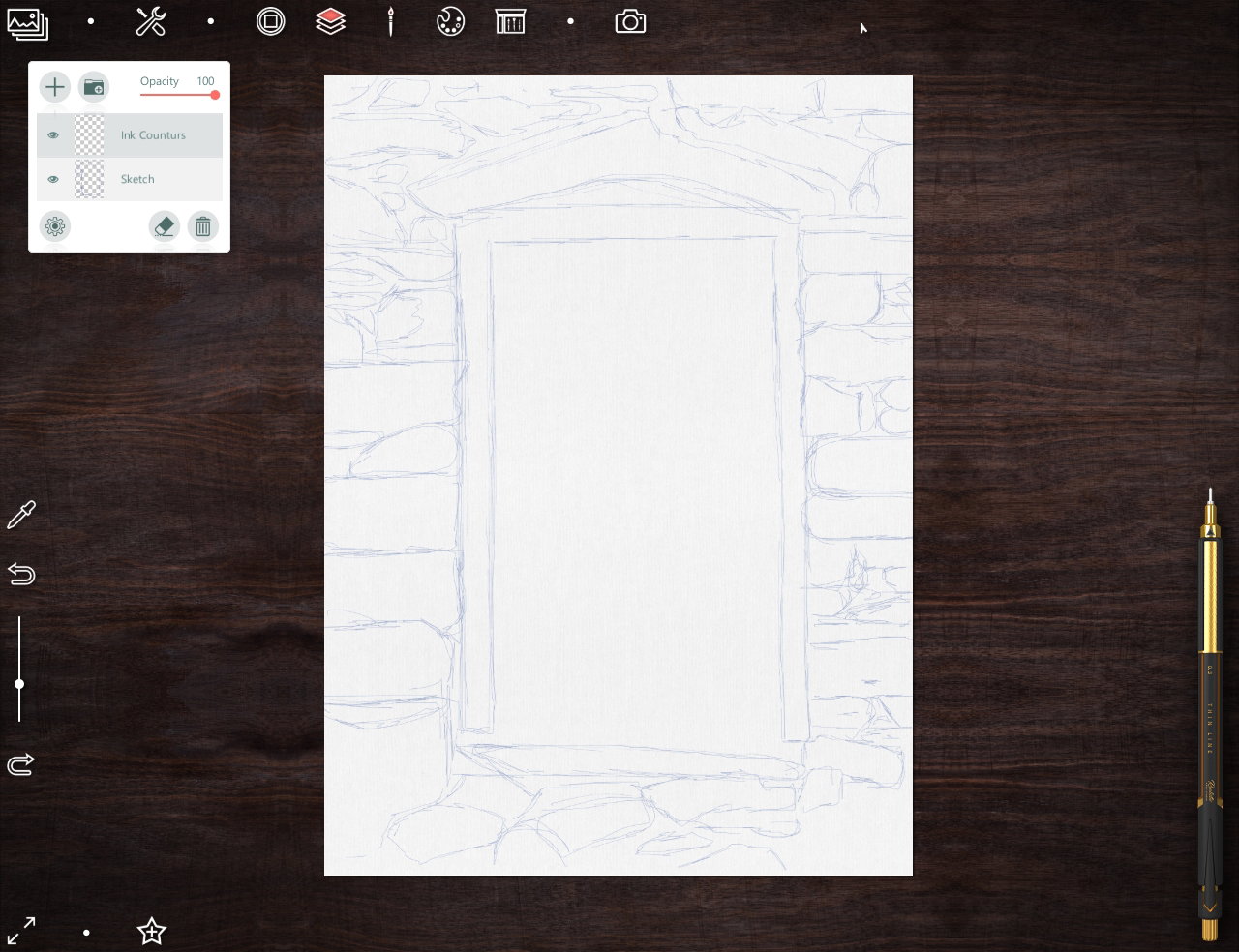
Sketch
Create a new layer, select **Fountain pen** (with a standard nib for writing) and stroke a pencil paths
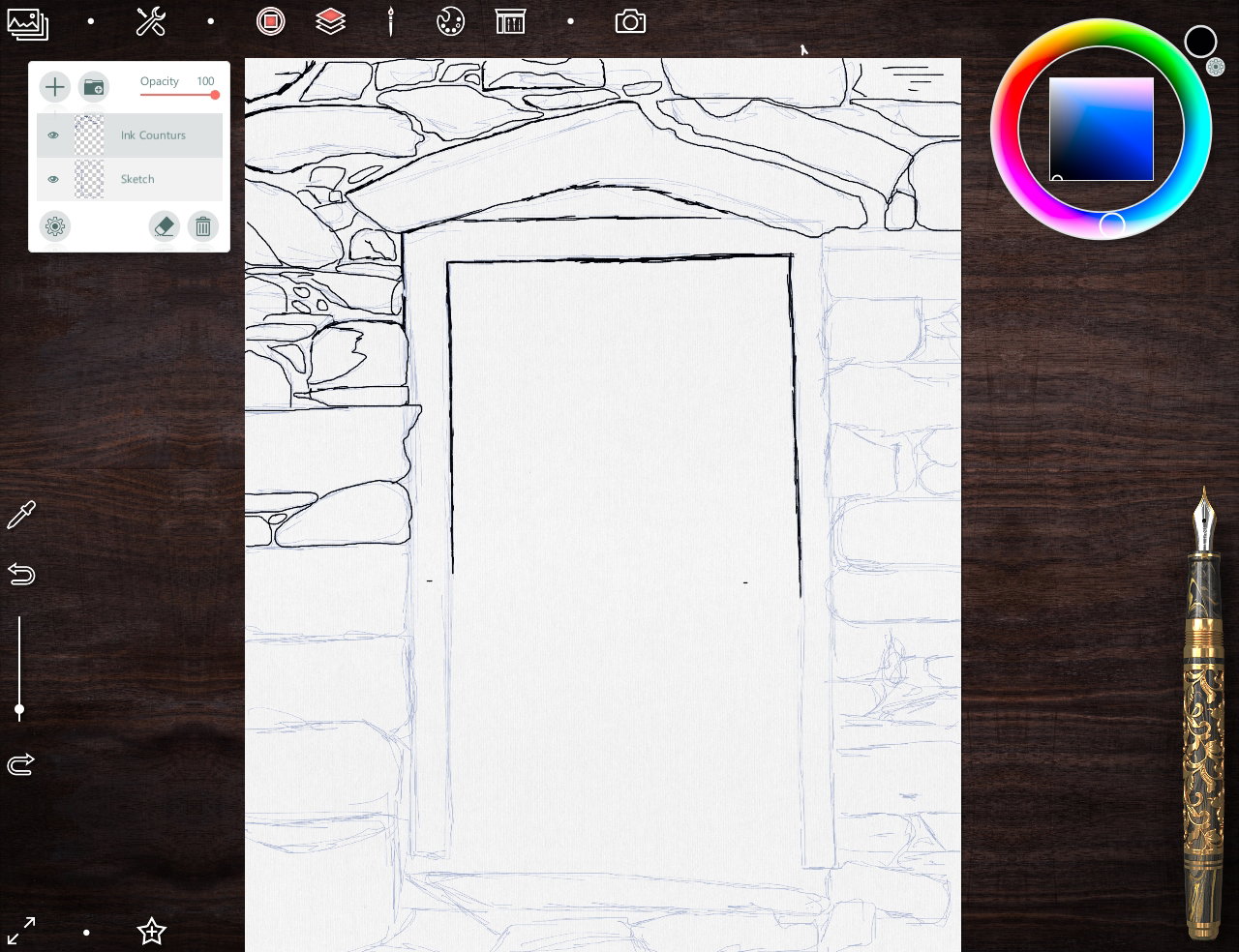
Unnecessary strokes can be erased using an eraser from the standard sketch tool box
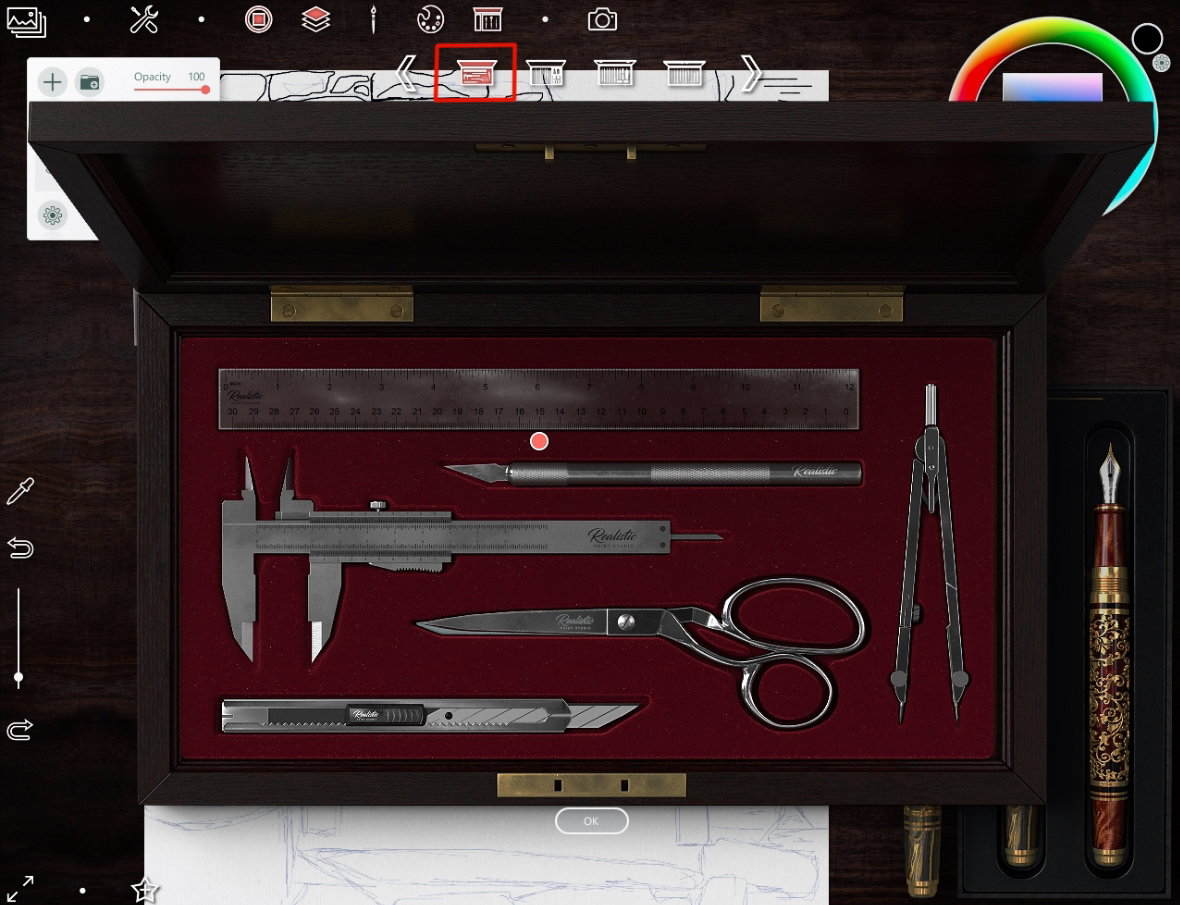
If a line that should be straight looks a jitter, can choose a special tool box (first icon marked with red). Here you can select a ruler and work with it like a real tool
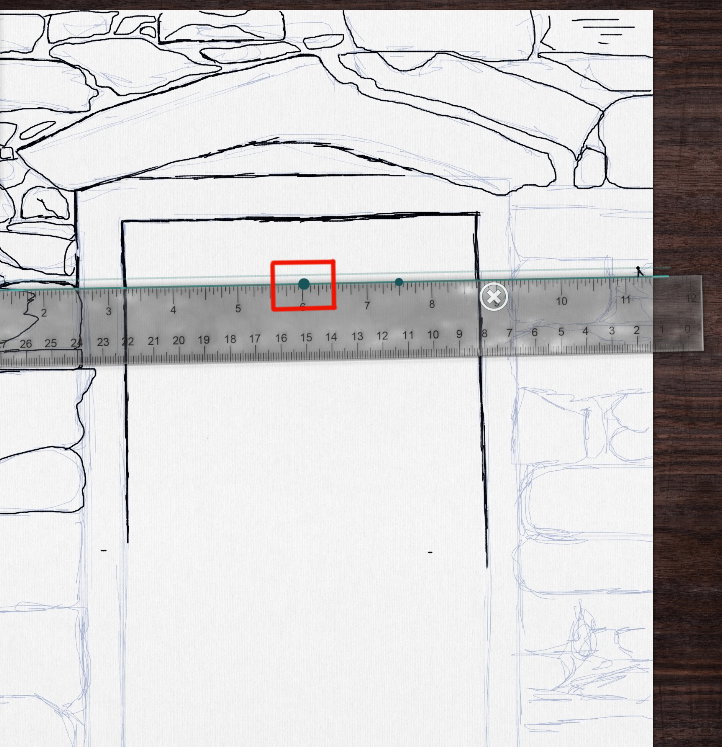
There are two blue round markers on the ruler. Large center marker moves the tool across the canvas
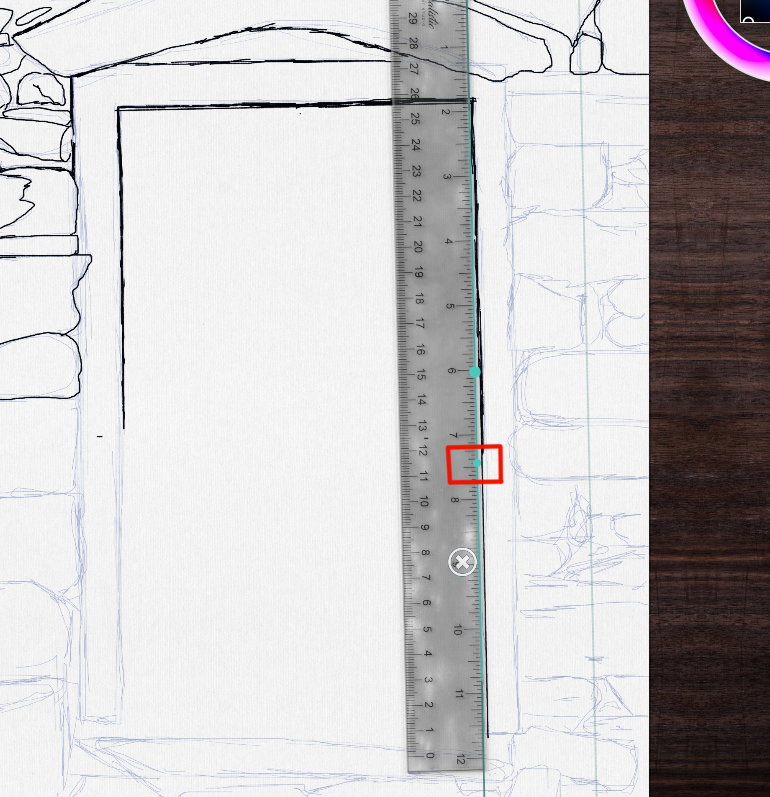
And if I pull on the right small marker, to can expand the ruler vertically or diagonally, or as I want
And finally, all strokes are outlined.
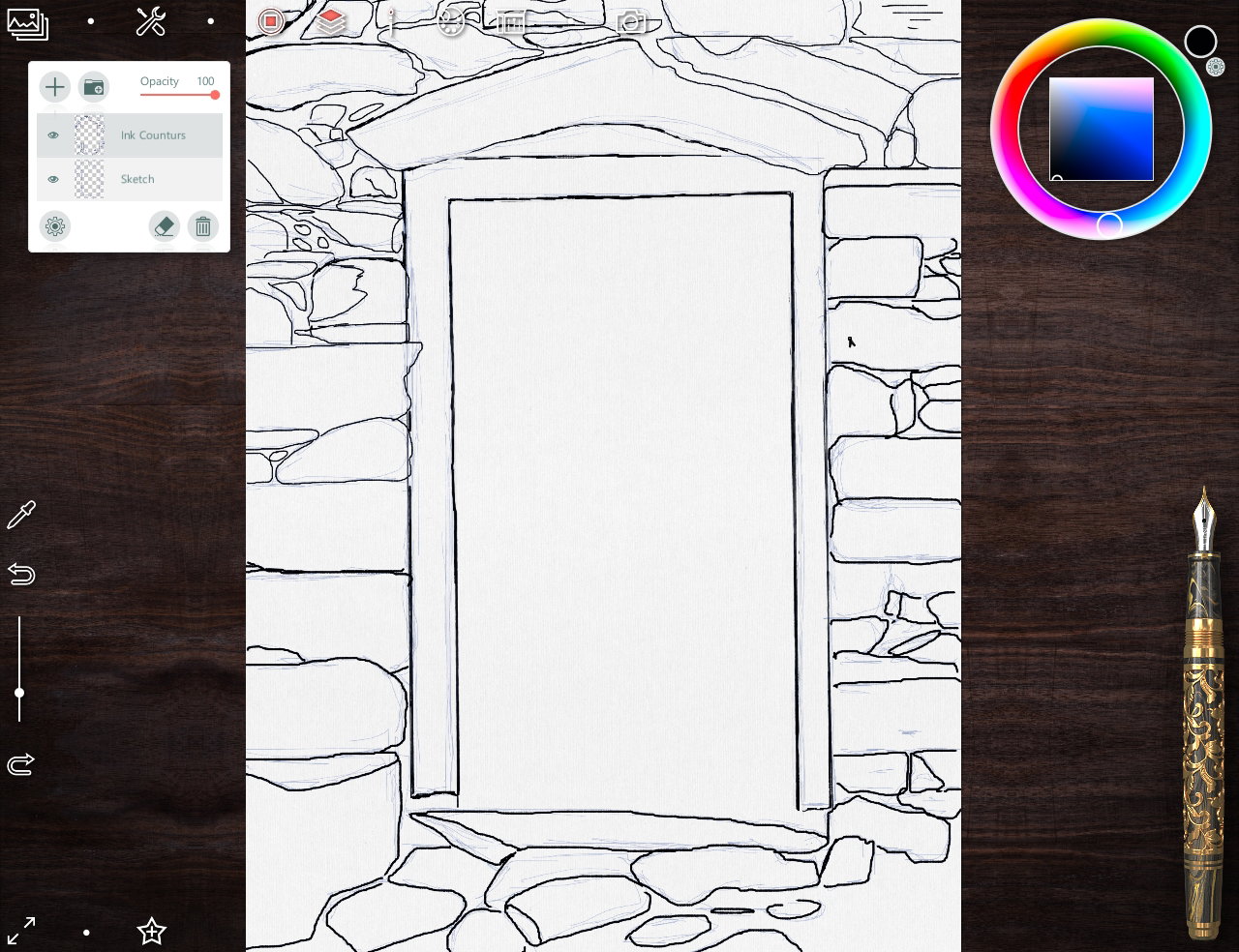
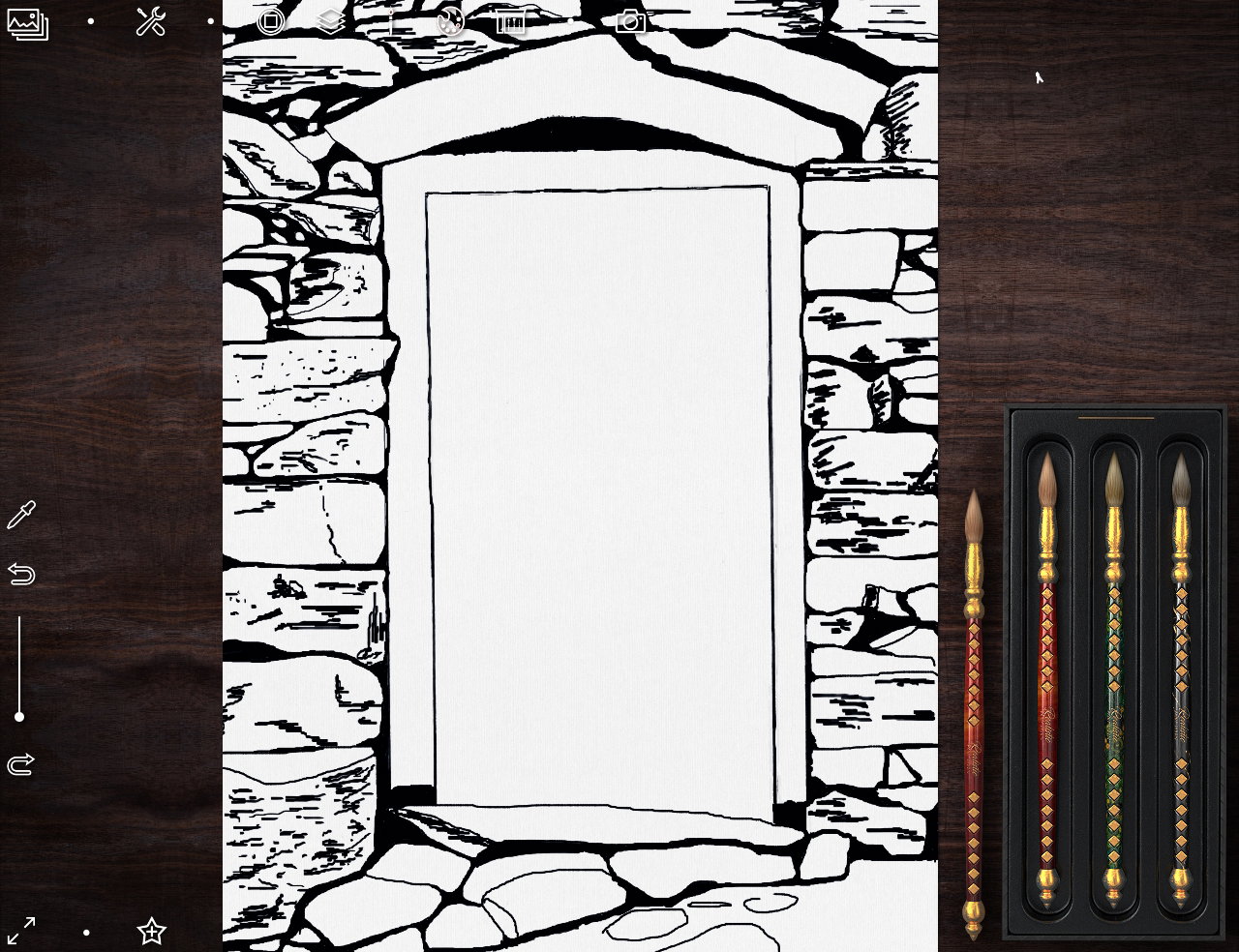
So, I choose **Artistic brush** from exclusive tool box and drawing an areas between a stones
It turned out quite realistic, like traditional ink, right?
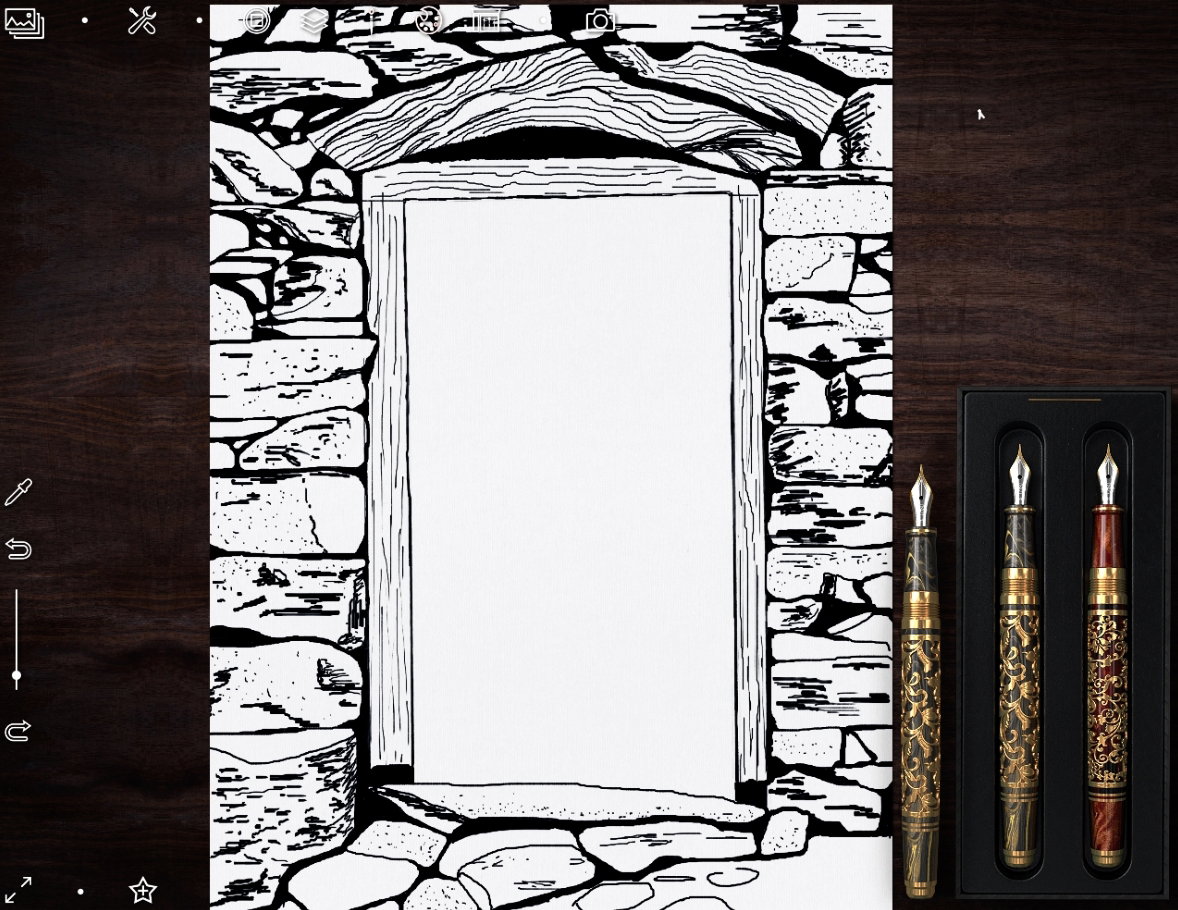
To create the wood texture, I use **Fountain pen** again. Also, using **Fountain pen**, I add small details to the texture of the stones.
Now I want to tint a stones as if it were done with ink diluted by water I create new layer below the ink outline layer. Choose **Artistic brush** again. Interestingly, the first brush in a set of brushes applies a color tone...
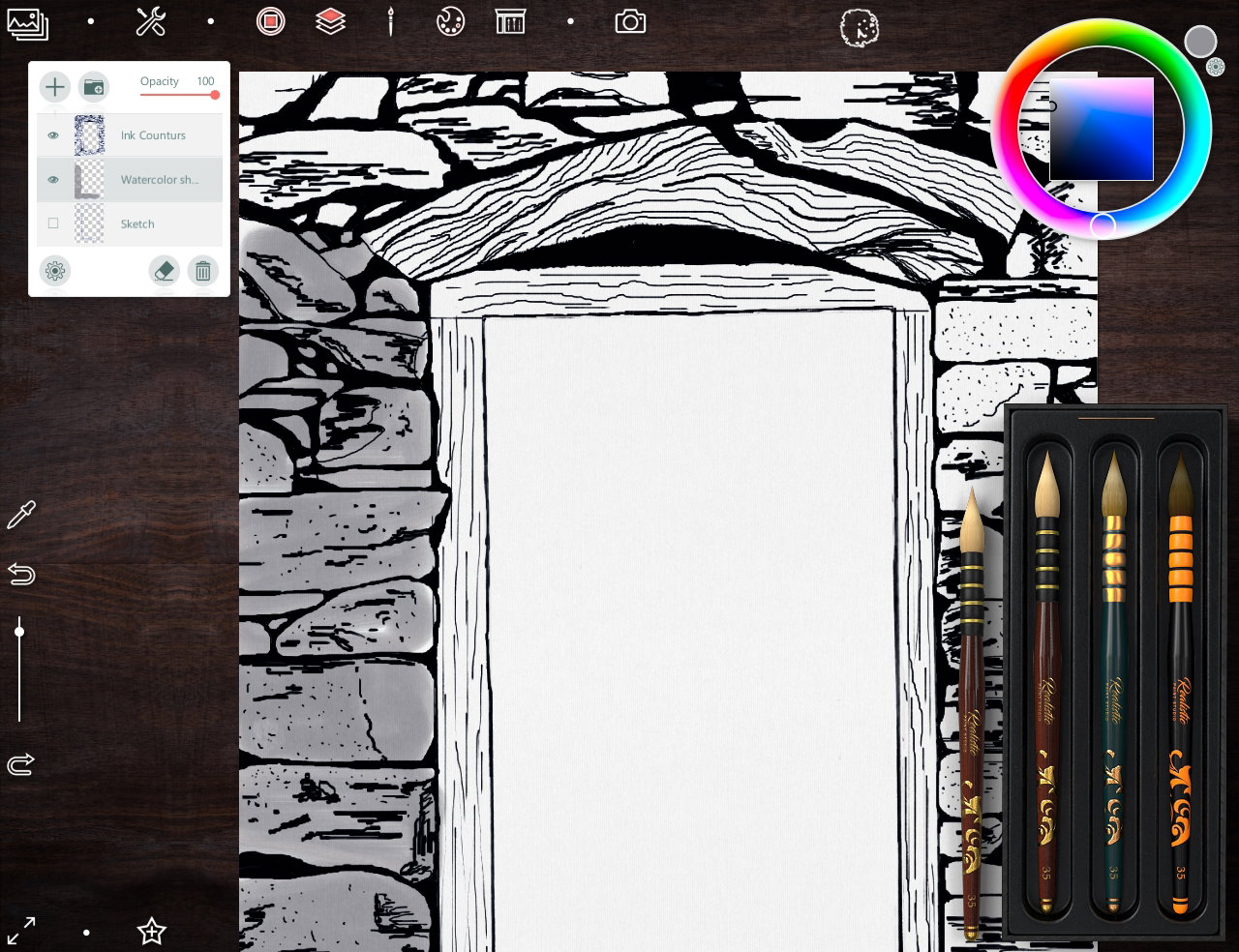
and the third (right) brightens individual areas.
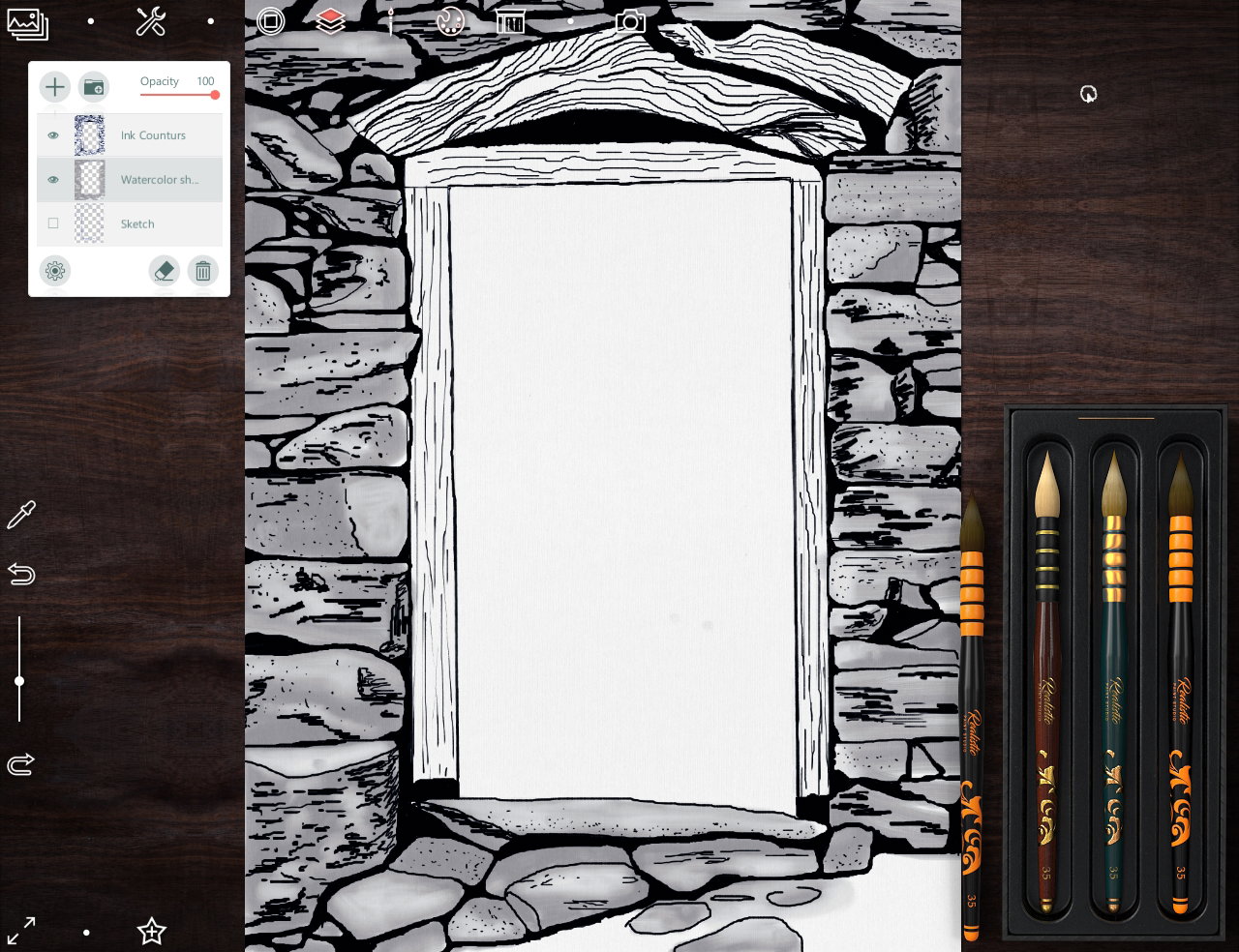
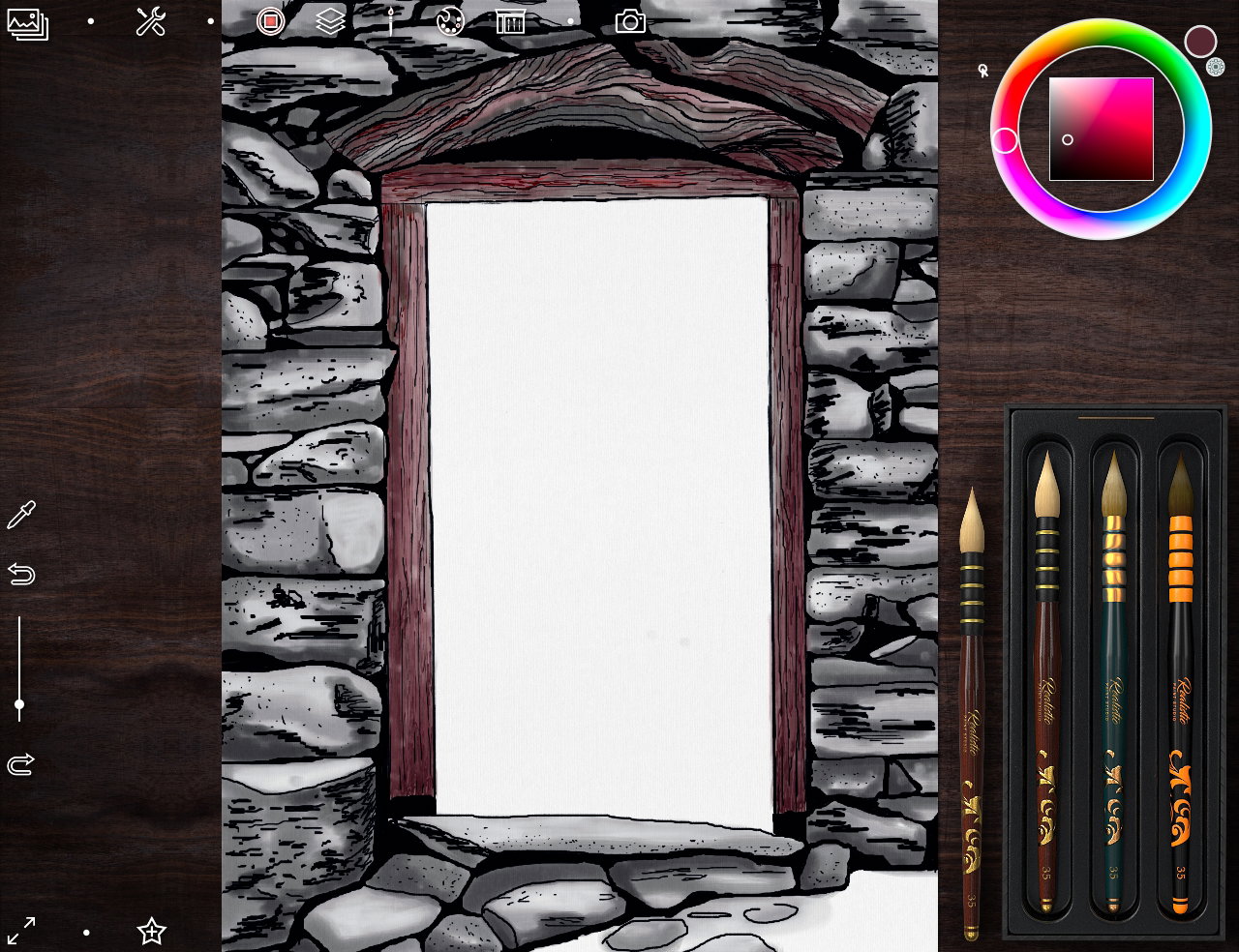
Then I choose suitable color and with the same brush and a little bit with **Fountain pen** I draw a tint of wooden fragments
In order to paint a grass and a moss on stones, I'll choose the following set of brushes named **Glass brush**
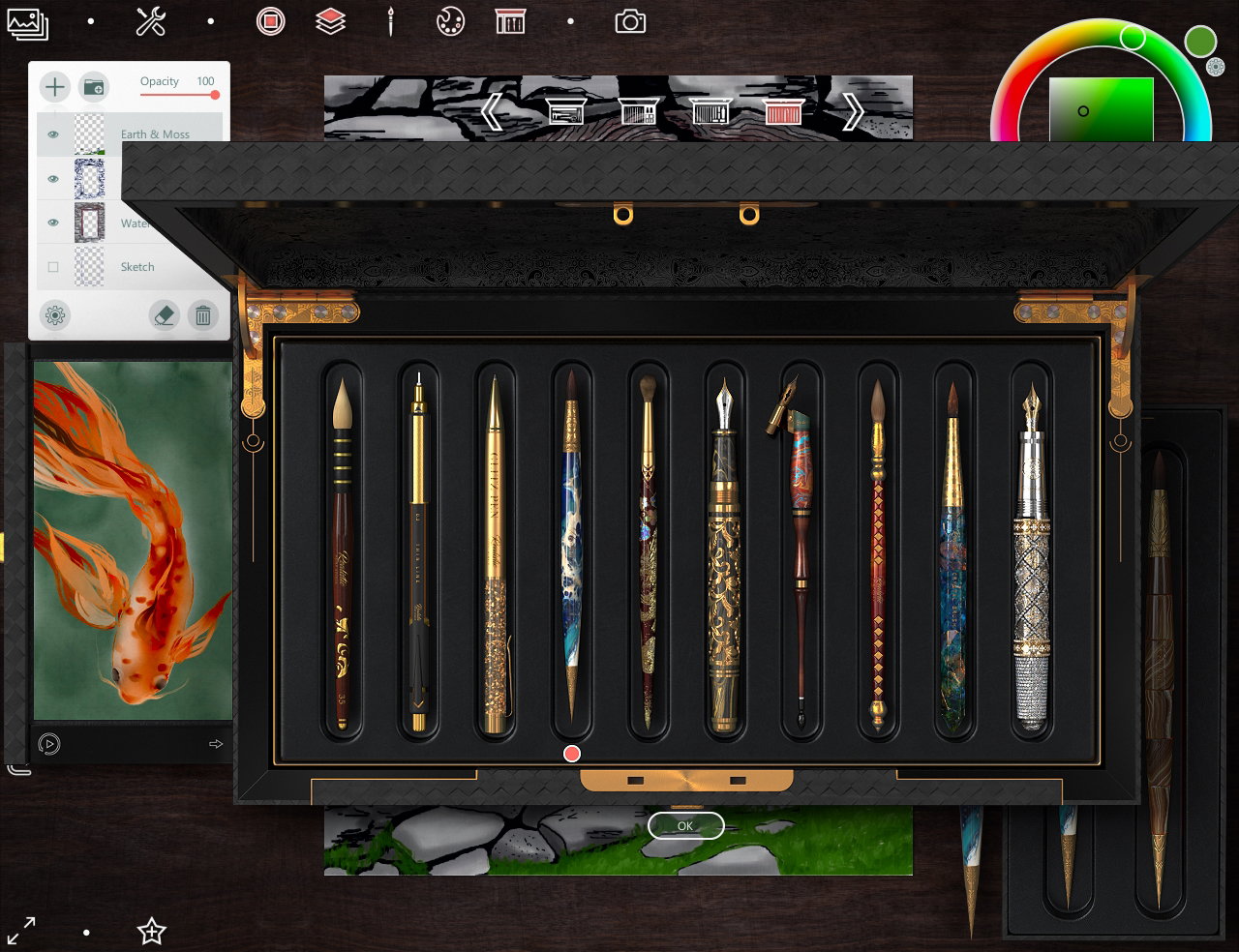
Select some shade of green, I draw it on new layer (above all layers)
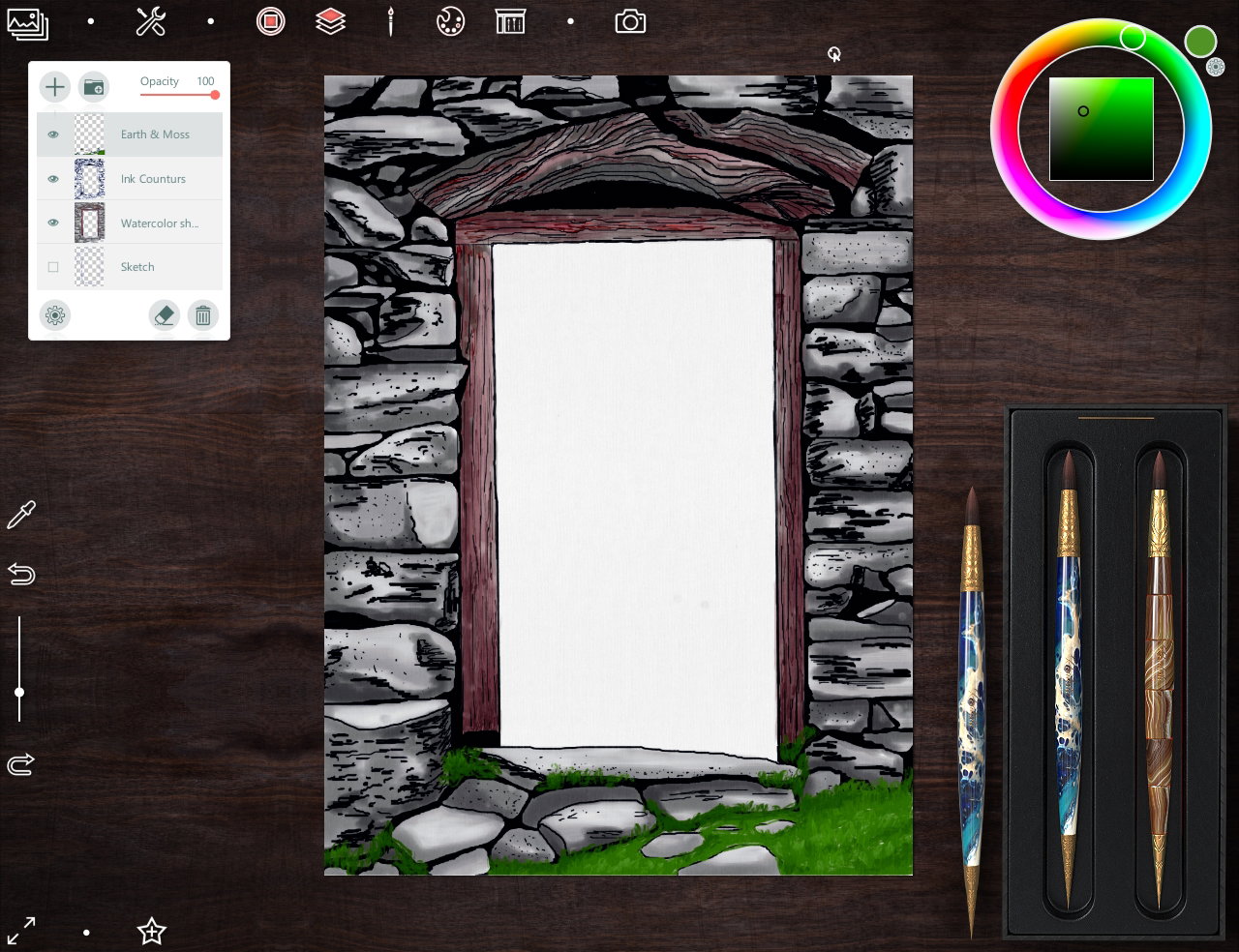
Something like this is the picture.
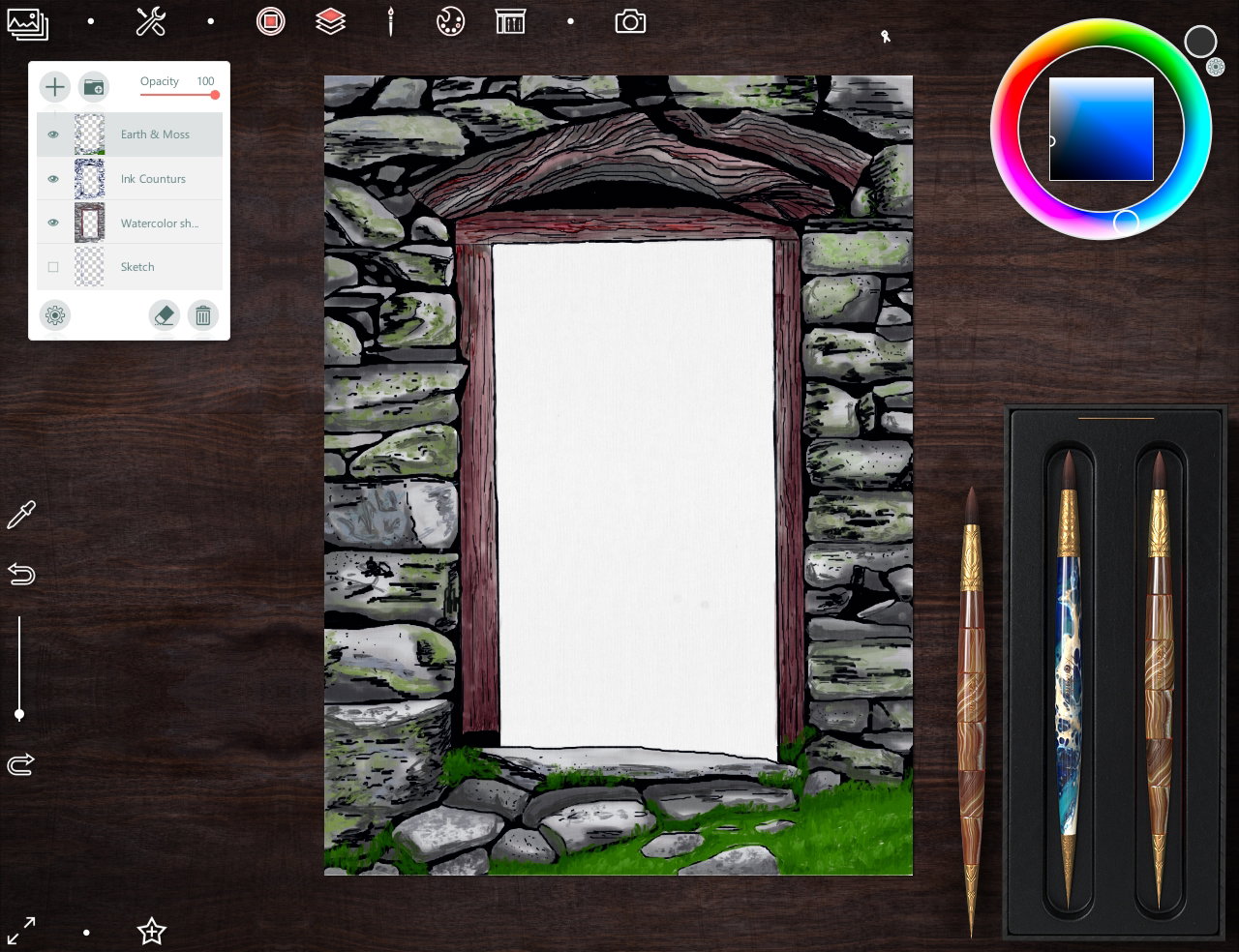
Then I save a artwork as a .png
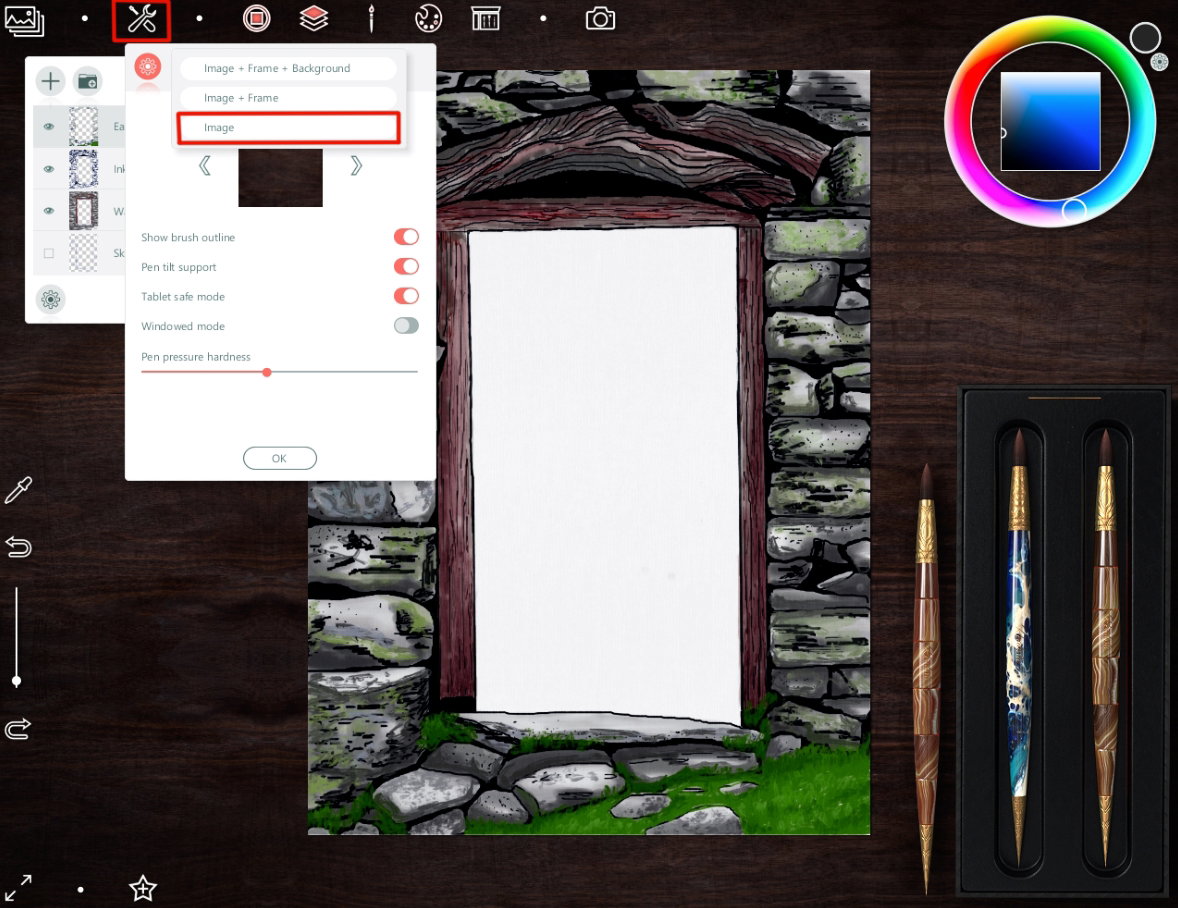
So, next step I open the saving file in **Paint Tool SAI** Unfortunately, transparency in PNG is not supported when saving from **Realistic Paint Studio** ((
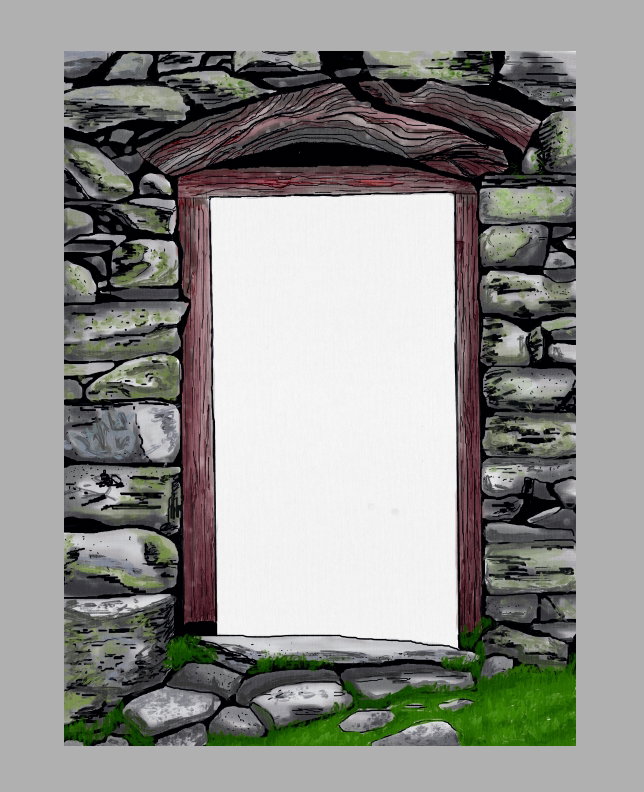
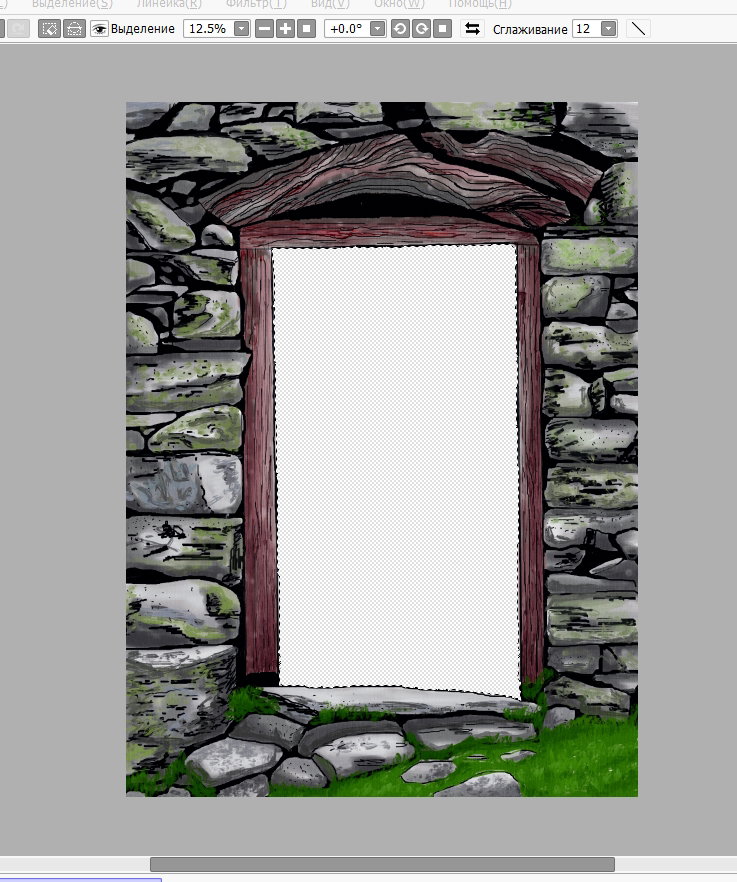
Use the **Magic Wand** and the **Eraser** I remove white area of a door.
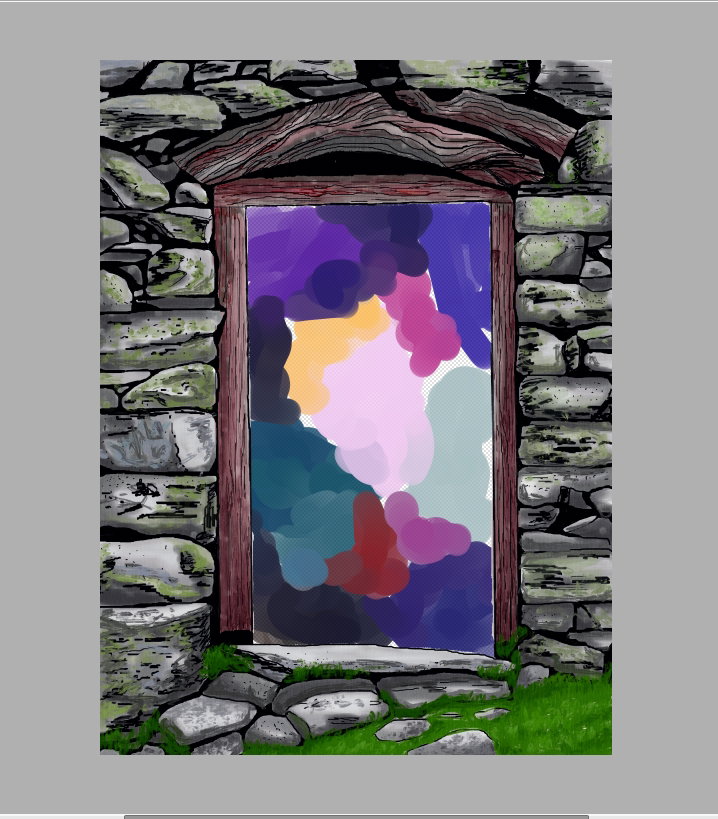
Then I create new layer below layer with door and draw a space area
To make it feel like there is a really dark space behind the door, I add another layer below first layer and fill it with black.
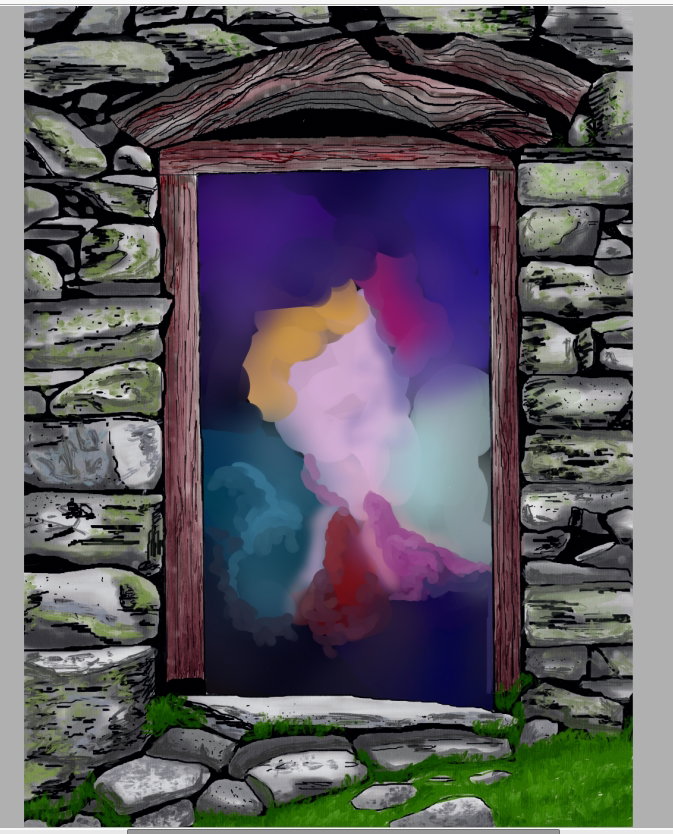
Details
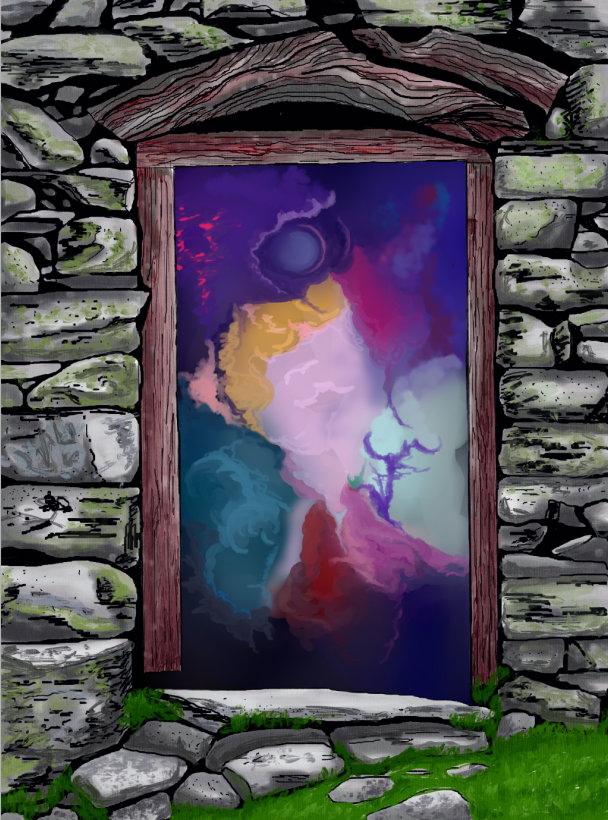
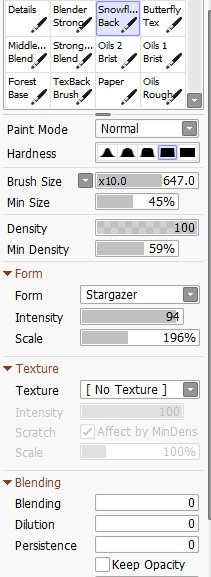
If you forgot, I paint in SAI with the same brushes - **Oil Brist 2**, **Watercolor**, **Ink Pen** and sometime as here, **Cloud brush** Then I added a new layer and make a star texture with special brush
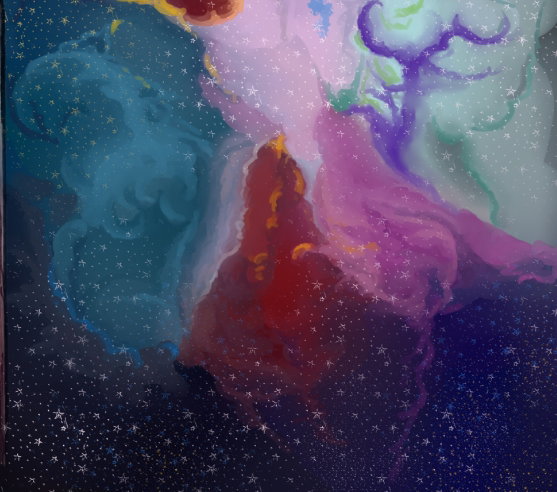
Not very realistic, but attractive view
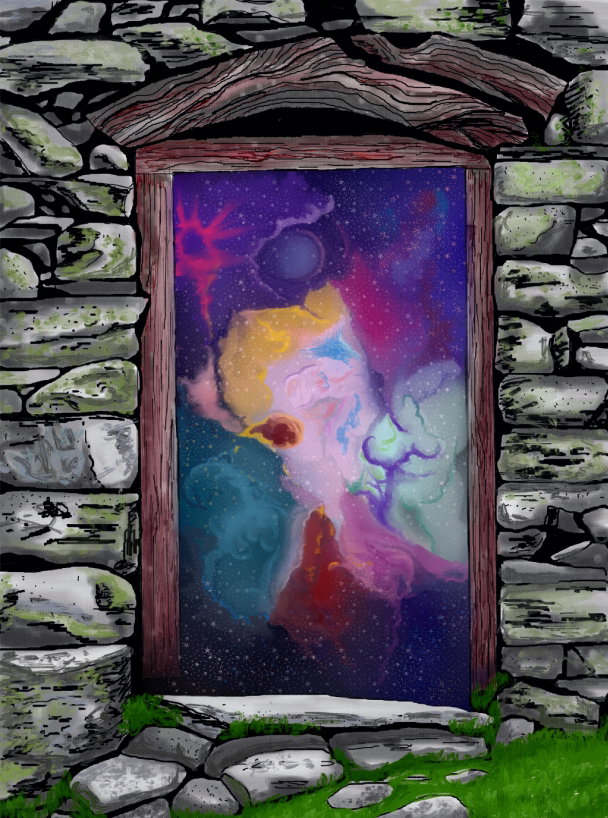
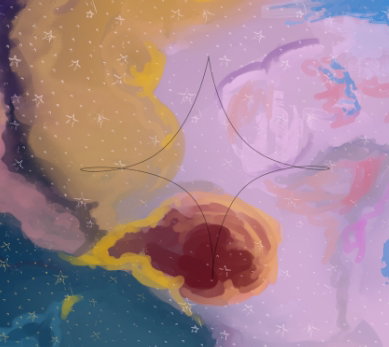
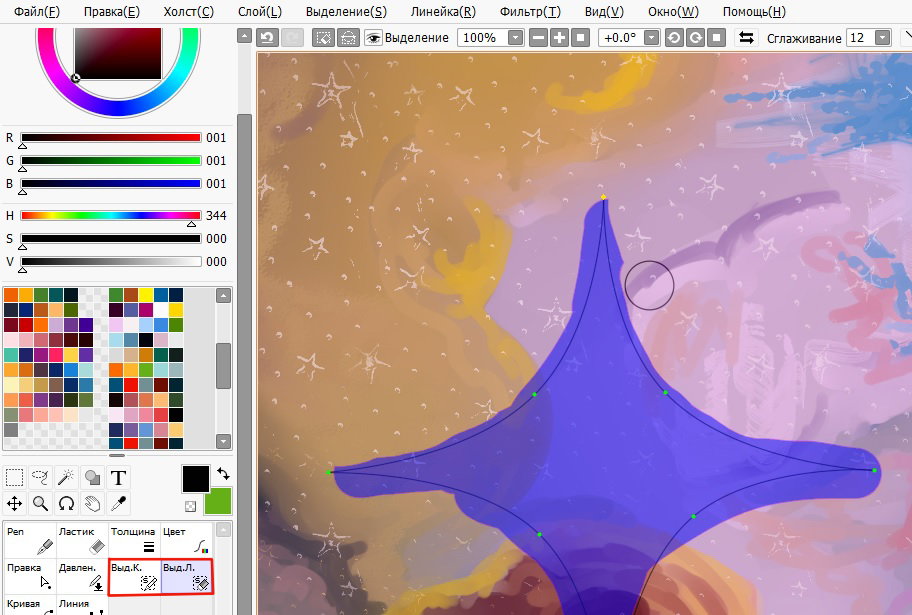
In **SAI** I can create stars using vector layers and **Pen** and **Edit** tools
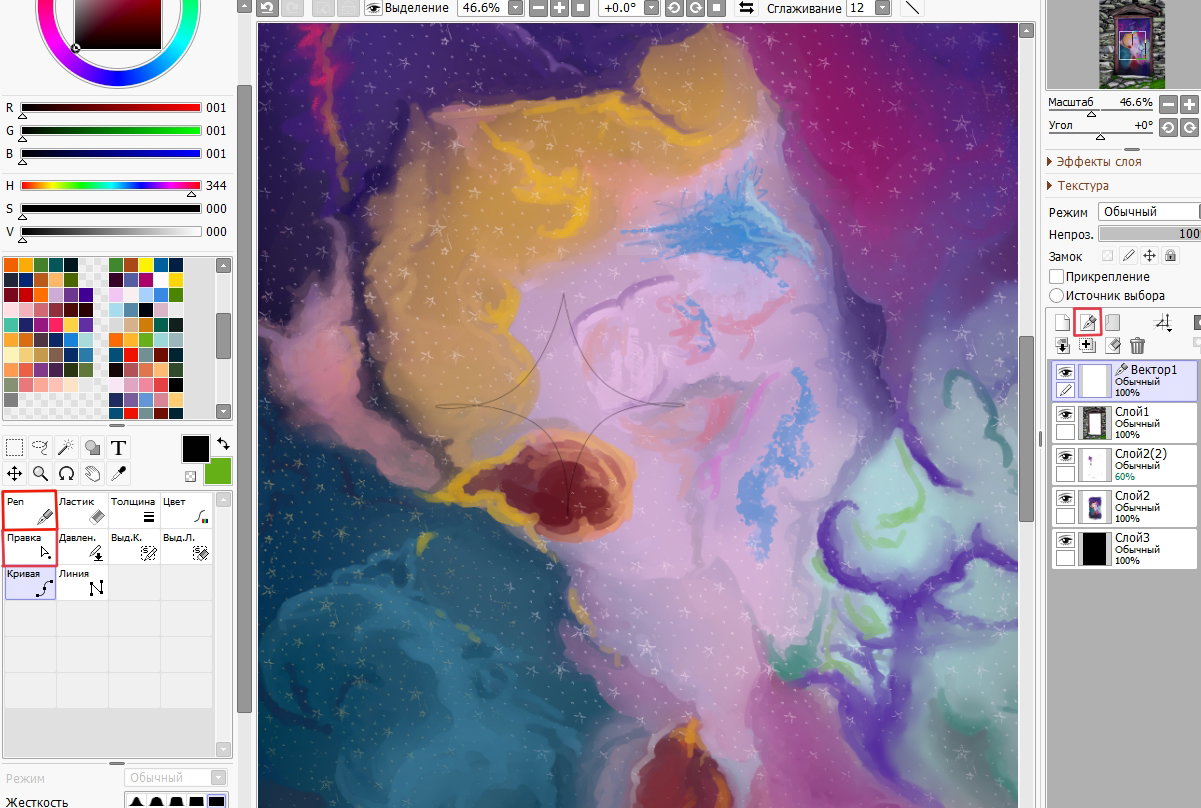
With **Select** and **Select Eraser** vector tools
And fill on new (raster) layer
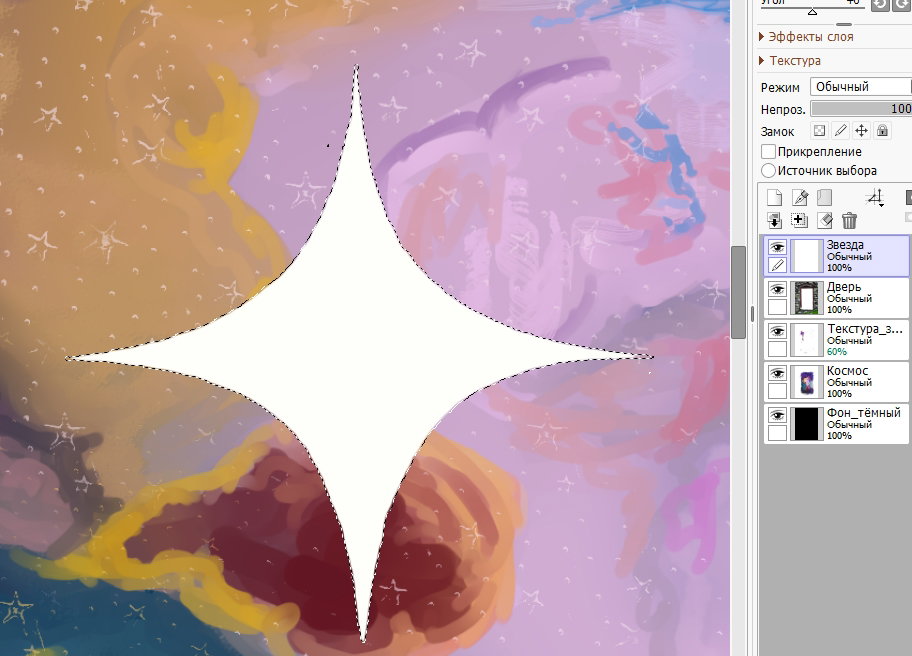
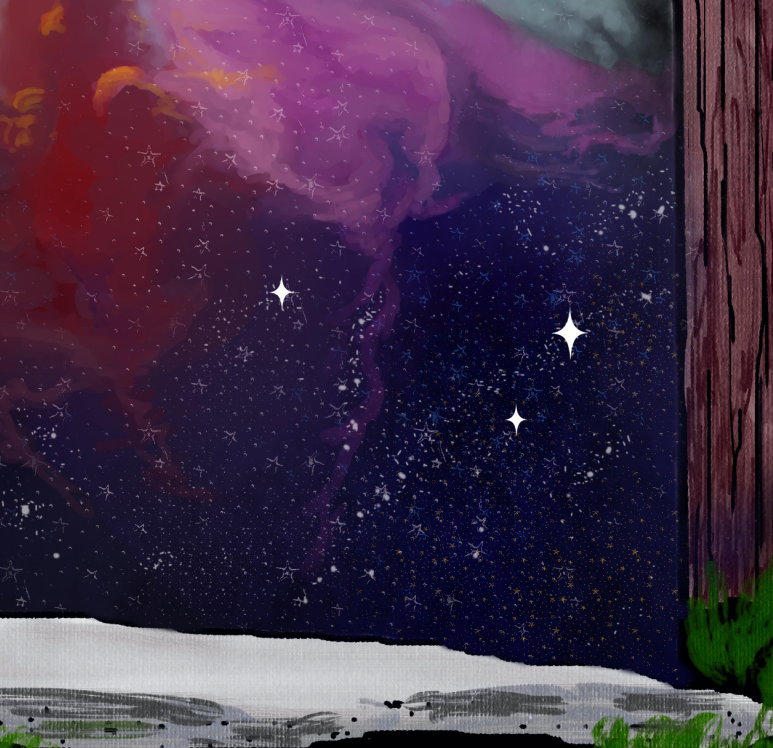
I like it!
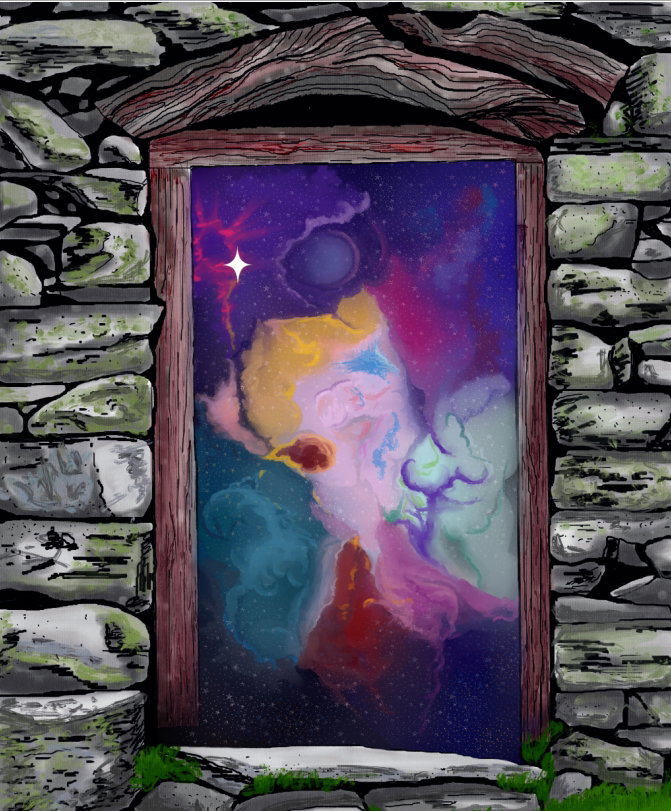
I create some star layers, resize with **Ctrl+T**
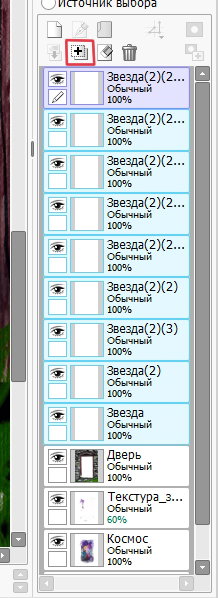
Then merge them in one layer (with red mark button)
Then I copy new layer and blur it with **Gaussian blur** to make a shine for stars
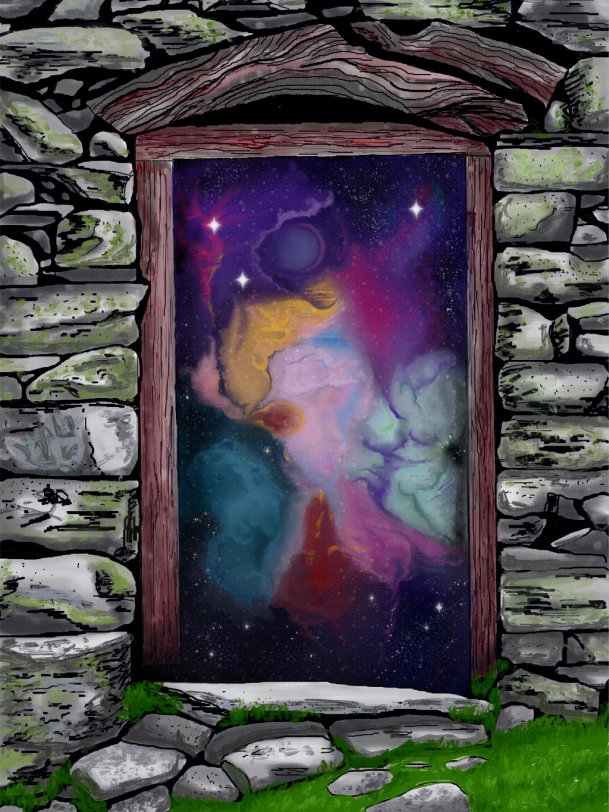
Finally color correction in **Photoshop** Artwork is ready!
Thanks a lot for your attention to my tutorials! Have a nice and creative day! With Love...

7 comments
Oh again my favorite software. I love this app and all its cool features. You have created a very attractive and magical image. What a nice feeling to look out the window at this beautiful sky...
Many thanks! I also really like this program. I hope this is not the last tutorial in it
Надеюсь я когда-нибудь воспользуюсь вашими уроками. Как всегда красиво и даже загадочно! Так и хочется шагнуть в эти двери и посмотреть что там. Столько ярких красок сплелись вместе.
Спасибо))) Я стараюсь писать так, чтобы эти рисунки можно было повторить как в цифре, так и обычными красками) Так что буду рада, если пригодится! ;))
Wahhh it looks realistic but still have the animated look in it❤️
Thanks! I think digital painting will never completely replace traditional painting. It's a separate art form.
Indeed, different difficulties as well