 @Kelzy
How to Screen Cast Your Phone to PC to Vice-versa
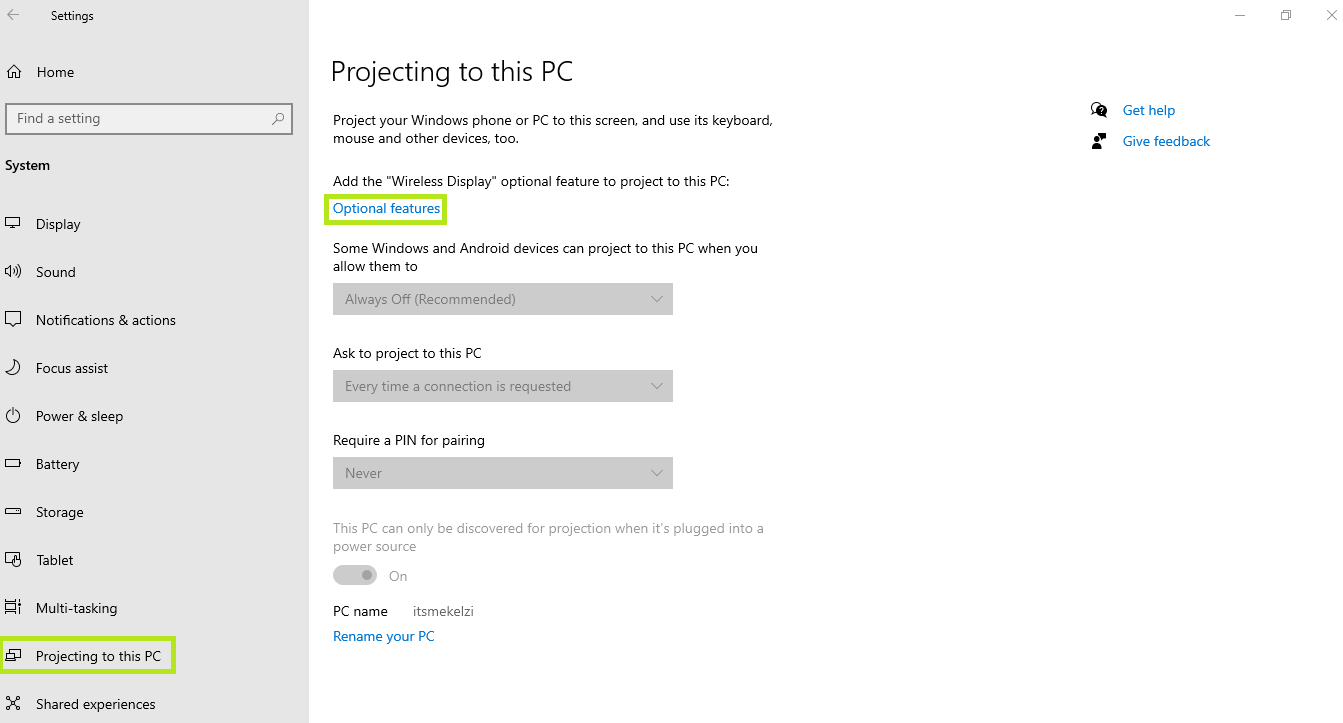
Do you also get curious how others can connect their phone screen to their PC? Have you explore your phone and try to do it but still noob to connect it? Well I guess most girls can relate because we don't have that long patience in terms of tech thingy just like guys. Or it's just me? Haha. I have a feature of Screen Cast or Screen Mirror in my phone but I don't know how to use it, until last Saturday my curiosity got an answer. I did research and glad that I finally made it! I shared my happiness in noise.cash and most girls wanted to try too and ask for a guide. This article was requested by @imanagrcltrst , @Pachuchay and @Adrielle1214 . Hope this helps. So for today's blog I will gonna show you How to Screen Cast your Phone to PC to Vice-versa. **Let's go!** First, go to the **Settings** of your PC. Click **System** then **Projecting to this PC.**
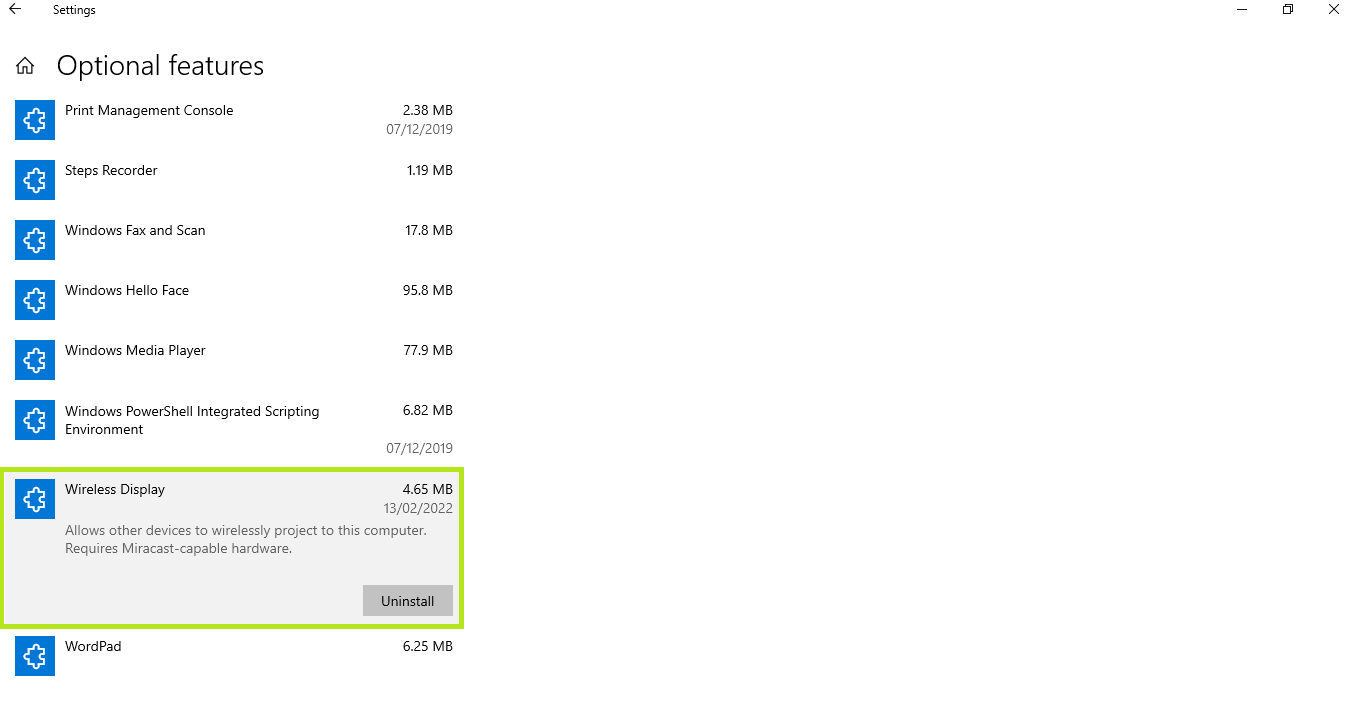
Click the **Optional Features** to **Install the Wireless Display.**
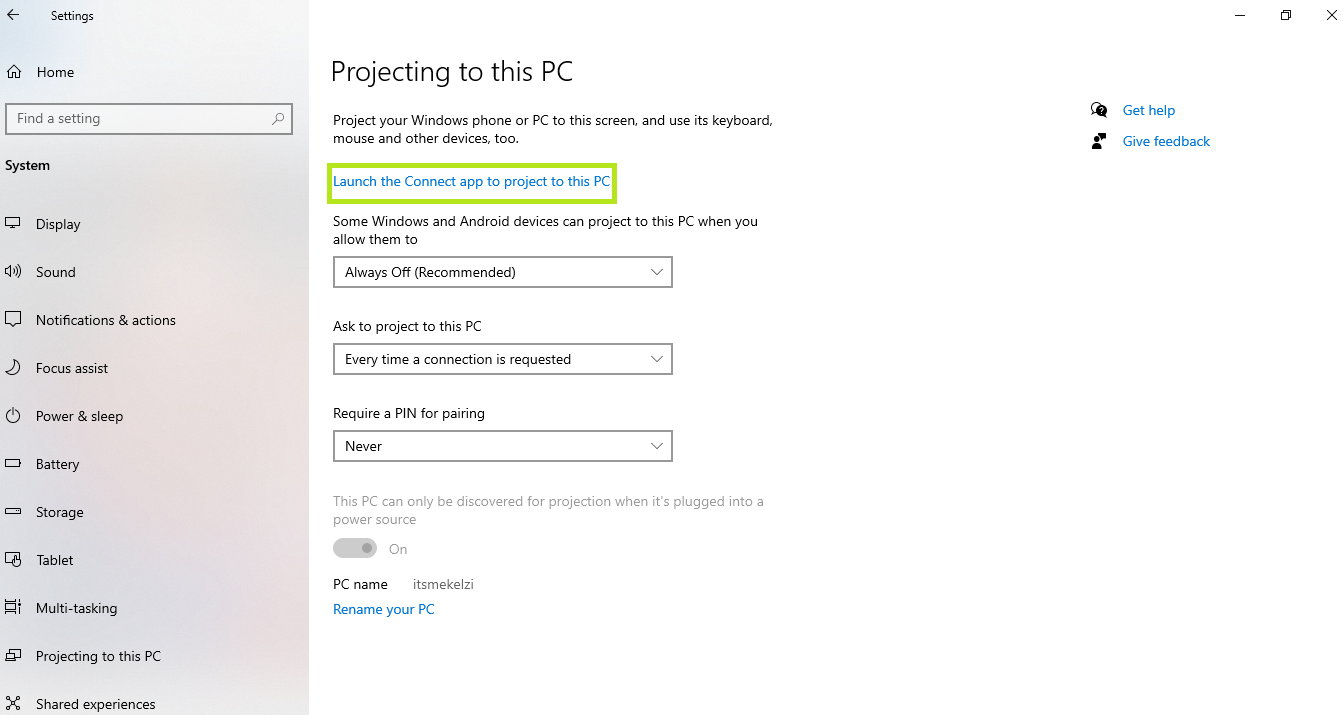
Then go back to **Projecting to this PC** and click the ****Launch the Connect app to project to this PC******.**
Next, set up your phone. Click **Screen Cast** or **Screen Mirror** in your phone then wait to appear the device name you will gonna pair. Then there you go! You can now view your phone screen in your Windows.
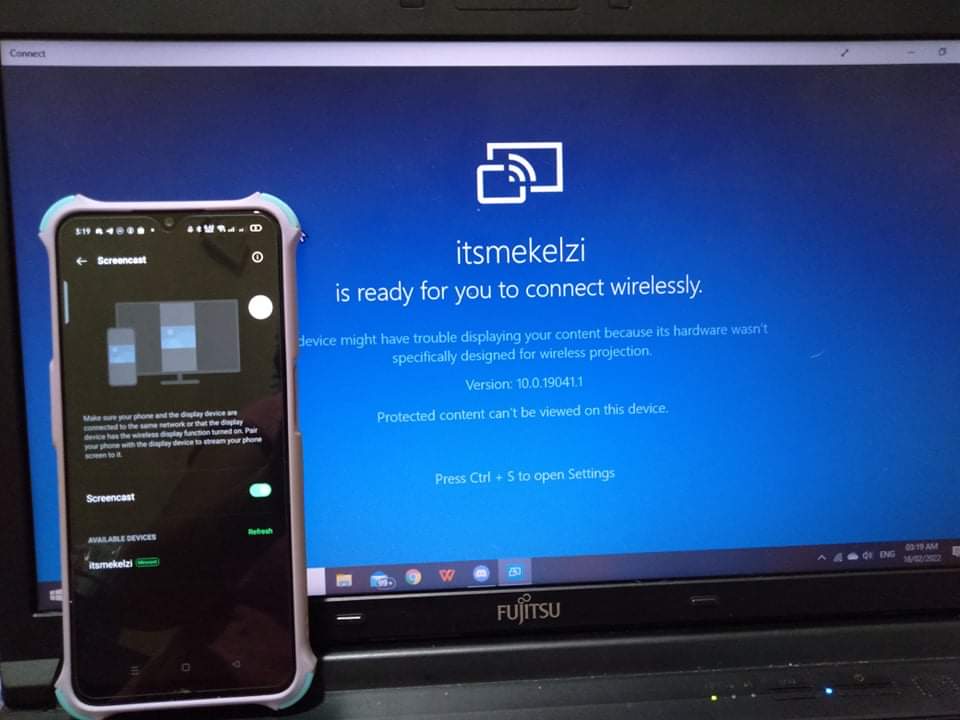
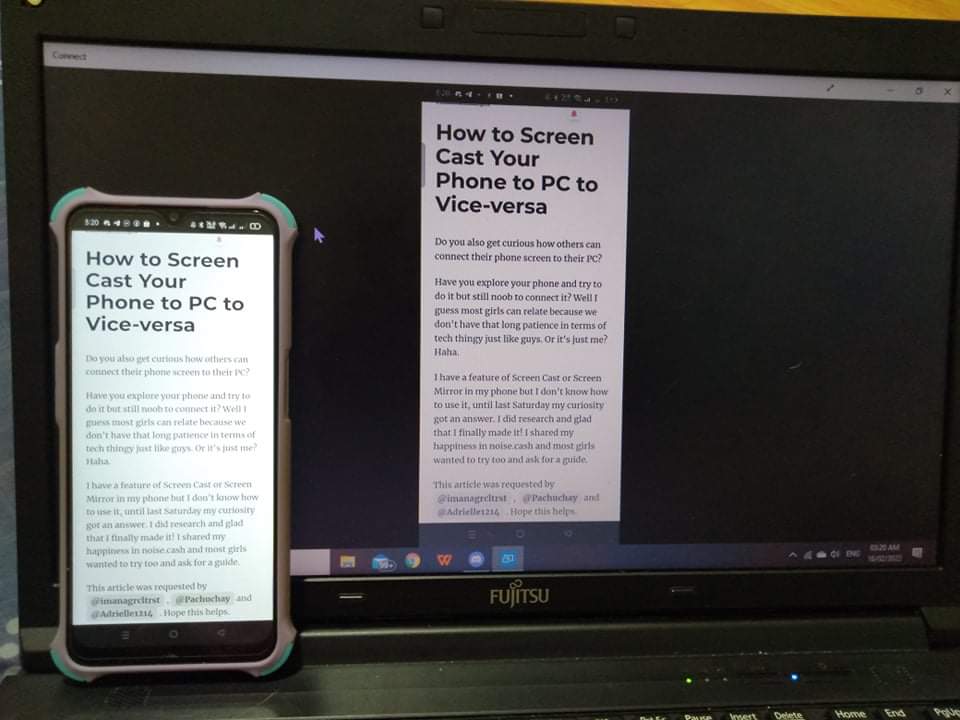
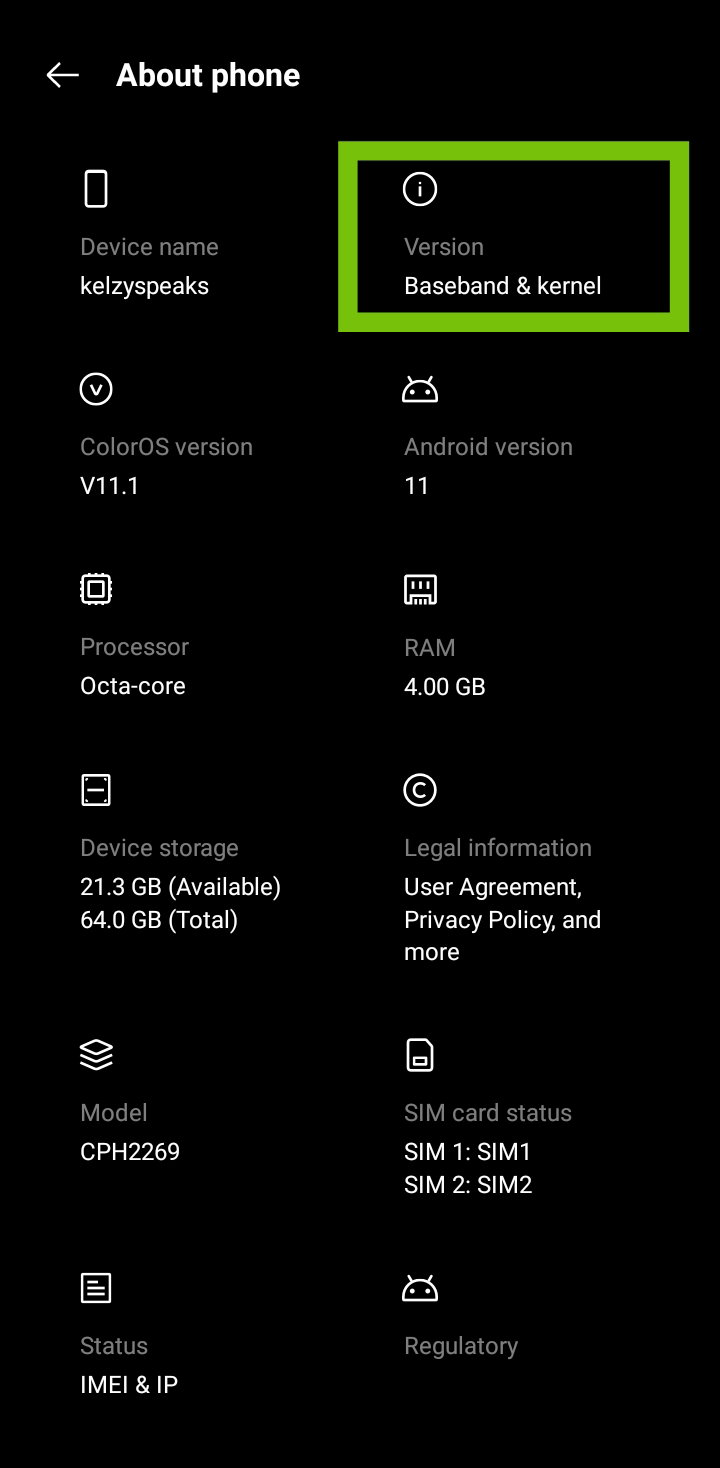
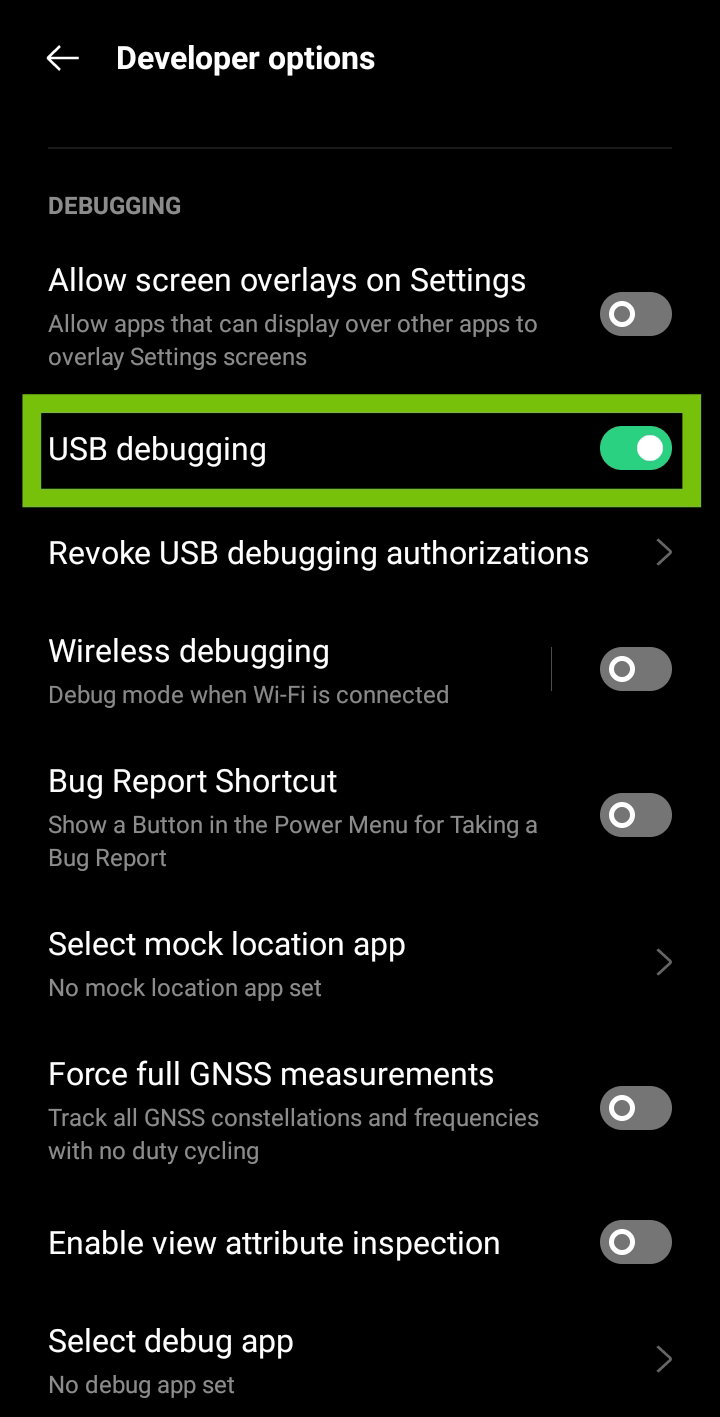
Note: You can only view your phone screen in your Windows but you cannot control it there. And also both should be connected in the same network However if you want to control your phone screen via your PC, I found a way also to do it. So let's continue. I learned from vloggers in YouTube about this SCRCPY (Screen Copy) application that will help you control your phone screen to PC to vice-versa. Of course before I install it, I did double research and found out that SCRCPY is safe and free mirroring application. Please "DYOR" also to know more about this application. **If you're done then let's do this!** First you need to activate the **USB** **debugging** on your phone. To do that, go to **Settings.** Click the **About Phone** look for **Version** then click the **Build Number.** Tap it several times till it says **"You're in a Developer Mode".**
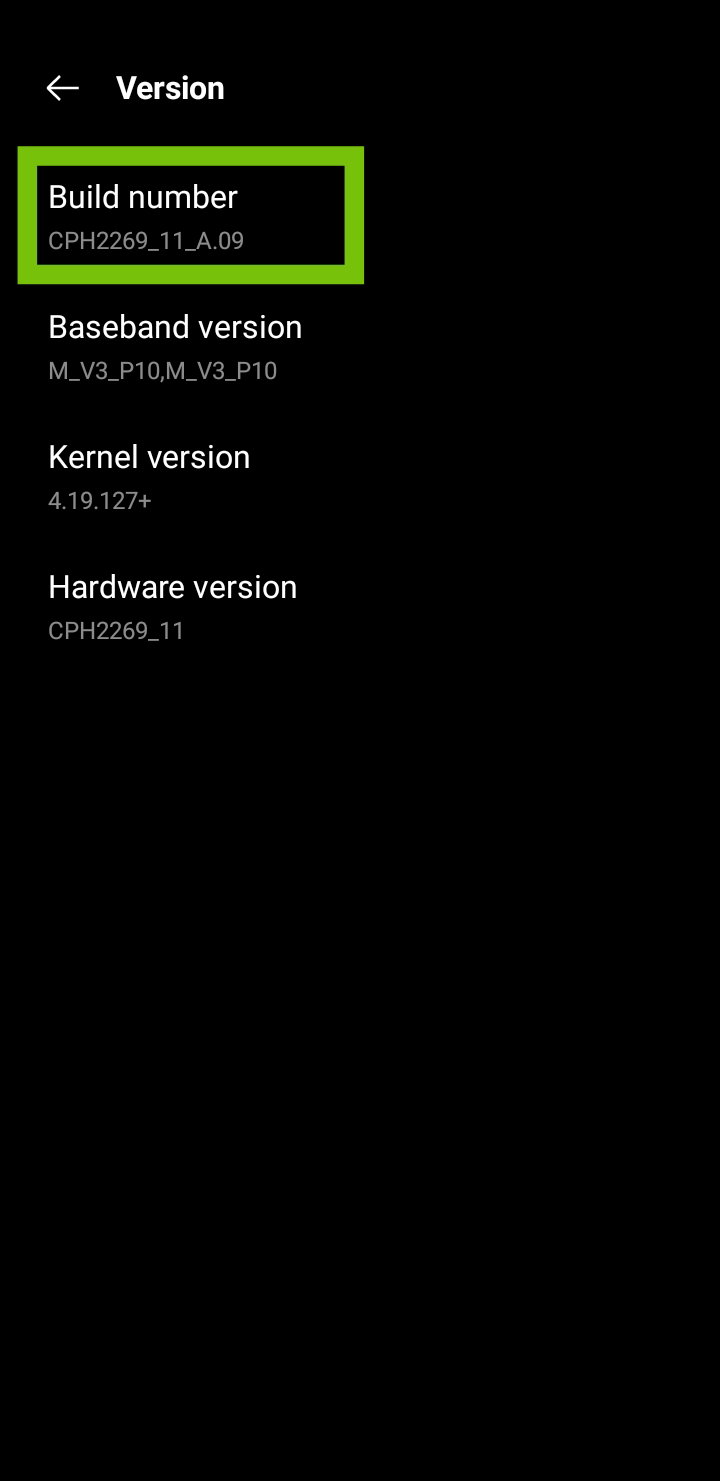
Then go to the **search** feature of your **Settings** then look for **USB Debugging** option then turn it on.
Next we will going to set up our Windows. First we need to download the SCRCPY application. Here's the file to get it. Scrcpy File https://drive.google.com/file/d/1iMCr5p-E5ZPhVqFXUb9b6rZVCTkcDBno/view?usp=drive_web Download and extract the file and you will view it like this.
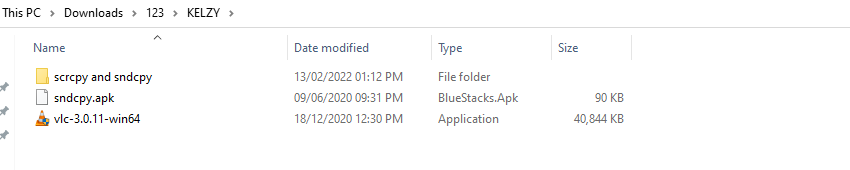
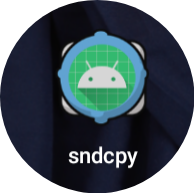
Download the VLC. Click next till it finished. Then download and install the Scrcpy apk to your phone. To do that, send it via Bluetooth or transfer it using your USB cable. This is what it looks like.
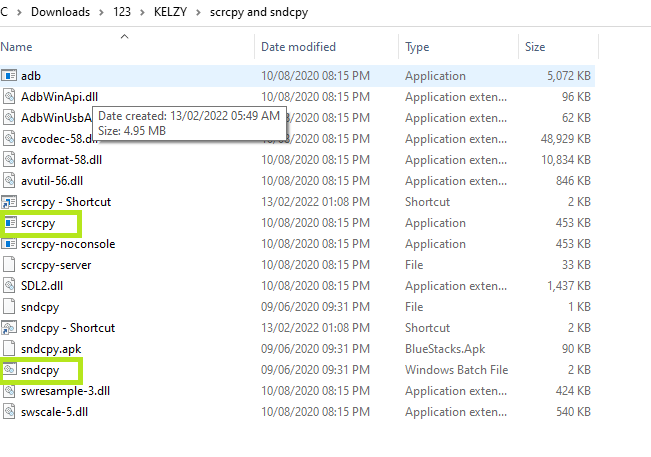
Leave your USB cable or connector there cause that is also the important thing to control both of your screen. Go to **scrcpy and sndcpy** folder. Click the ****scrcpy**** to finally run the screen mirroring then minimize it to view only your phone screen. If you want to connect also the audio just click the ****sndcpy**** to allow it.
Just make sure your **USB debugging** is **on** to run this process. Hope you understand this tutorial. Feel free to ask if you have trouble with this guide :) By the way, shout out to Ate @Bloghound for sponsorship. Love you Ate <3


Hi! Let's connect to my other socials (✿^‿^) Noise Cash | Hive | Steemit | Twitter | Telegram https://noise.cash/u/Kelzy https://peakd.com/@kelzyspeaks https://steemit.com/@itsmekelzi https://twitter.com/@itsmekelzi







40 comments
i realized..maganda pala pag mcontrol sa laptop ang phonenoh.. para mabilis lang mg interact sa mga apps .. nag mumultitask kasi ako.. hehehe
Oo te ganon ginagawa ko hehe kasi minsan parang na absorb na ng phone kamay ko parang namanhid na may kuryente na ewan kaya want naman maglaptop. Or minsan while sulat tapos pahinga interact sa phone pero dun na din sa PC.
Wanna try this Sana kaso sira na Yung laptop ko hehehe. Anyway thanks for sharing. Bookmark ko na Para maishare ko din sa mga walang Alam.
Ay thanks te 😘
You're welcome sis
Ohhh try ko to lateeer, bookmark ko muna. Eto pala yung pinost mo sa noise na tutorial article na inabot kang 2 haha
Wait nacurios ako sinong pusa ka sa noise haha 😹
Hahah si Charlotte po meow
Ay ikaw pala tu ming meow 😹
Woowww galing nmn nito kelz! Must try tlga. So helpful nito!
Let me know if di nagana te 😁
At tlgang pinagpuyatan mo ito bhe ha...thanks for tagging my natutunan ako hehe
Sabihin mo te kung nagana a hehe
Yeeey! I will surely need this in the future sis. Thanks for this. Gonna save it hihi
Thank you dito beh, try ko to later!
You're welcome let me know te kung nagana 😊
ok beh, subukan ko mamaya after ko magsulat
Will save this. Try ko sa laptop ko hehe
Go go go 😸
Uyyy okay na din ah pero question, kapag nag cast sya sa laptop mo, ganun lang din talaga sya kalaki be? I mean dj masu-zoom?? Naka portrait lang sya sa laptop tas size lang din ng phone ang measure nya.
Oo mehehe phone screen size lang din. Lumalaki pag naka rotate to landscape sakop hehe
Ohhhh galing nyan ah. Para ka na bang naka 2 monitors kapag ganyan sis or ang advantage lang tlga is ung meron sa phone nakikita mo na din sa laptop?
Hmm parang ganon 2 na monitor ko hehe kasi oks mag interact sa phone kesa laptap e pero pag magsusulat naman sa laptap hehe Both haha kasi malaki malabo mata ko e need malaki mga letters haha
Meron din akong screencast pero hindi ko alam gamitin. Salamat Kelzy!
Try it na 😸
Masubukan nga! Hahaha thankyouuu mare pero baka nga matapon ko cellphone ko in the process kasi napaka slow ko hahahha
Kalmahan mo lang 😂 haha
Hahahha oo mare, kaya ko to ! 😂
Actually I too wanted to ask yesterday about this but I couldn't just because of my hesitations. I'm glad that someone asked you 🙃it will be really helpful for us who did not know how to connect our phone to our PC until now so thank you for sharing this.
You're welcome :) Let me know if you got problem doing it. Happy to assist :)
I'll save this for later ❤. Thank youuuu!
Uyy bebe khalid hehe sige sige go 😊
Looks like it's similar process to mine. I rarely make use of the cast feature on my phone, I make use of an app called "PC remote", it has all the features I need which includes projecting my phone's screen to laptop (or laptop screen to phone), controlling my laptop with my phone, using my phone as a mouse or keyboard and so much more. You can do more research on the app (PC remote), it's somehow similar to scrcpy
Does it totally wireless?
Yeah it is wireless, you can either connect it with Bluetooth or WiFi
OMG, this will be helpful once nakabili na ako ng lappy sama soon na. Thanka dzaii OMFG
Ay akala ko sa lappy ikaw nagawa artikol. 😸
Wala me lappy, sira na huehue. Niihian ng walangyang pusa ampt. Pwro if meron man mas bet ko pa rin sa cp mag type hahaha
Kinabahan tuloy ako baka ihian ni Nini yung akin
Halaaa. Ang late ko nang nabasa nito, Ate. Hehe, sorna agadddd. 🙈 So, ayorn. Medjo madali lang pala s'yang (Screen Mirror) na gawin. Siguro mamaya or bukas eh gawin ko na din sya. Well, sana. Hehe~ thank you dito, Ateee! :*