 @MoreGainStrategies
edited
more from that month
@MoreGainStrategies
edited
more from that month
Here is the Quickest Way to Make a 1-Hour-Version of a Song

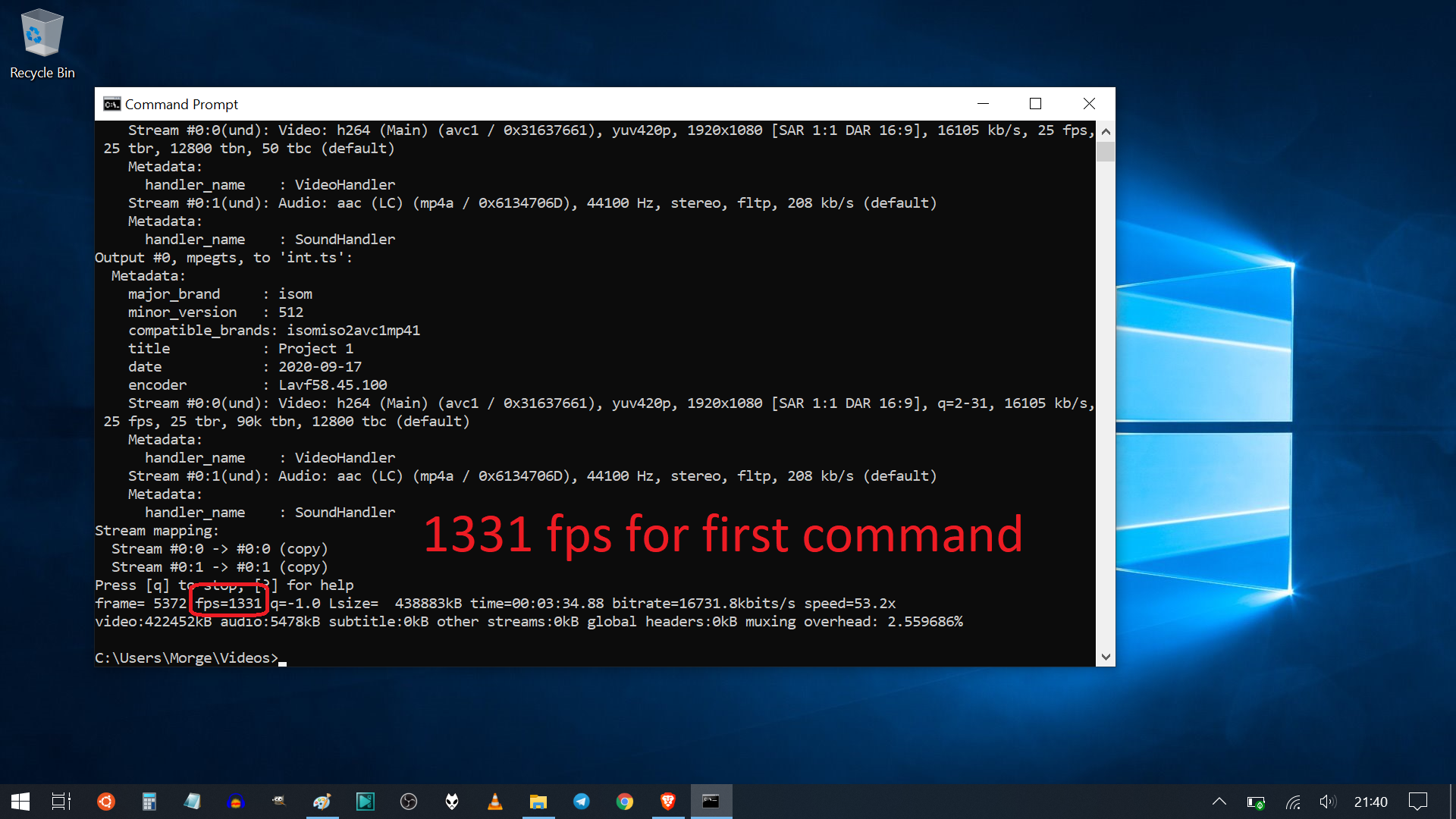
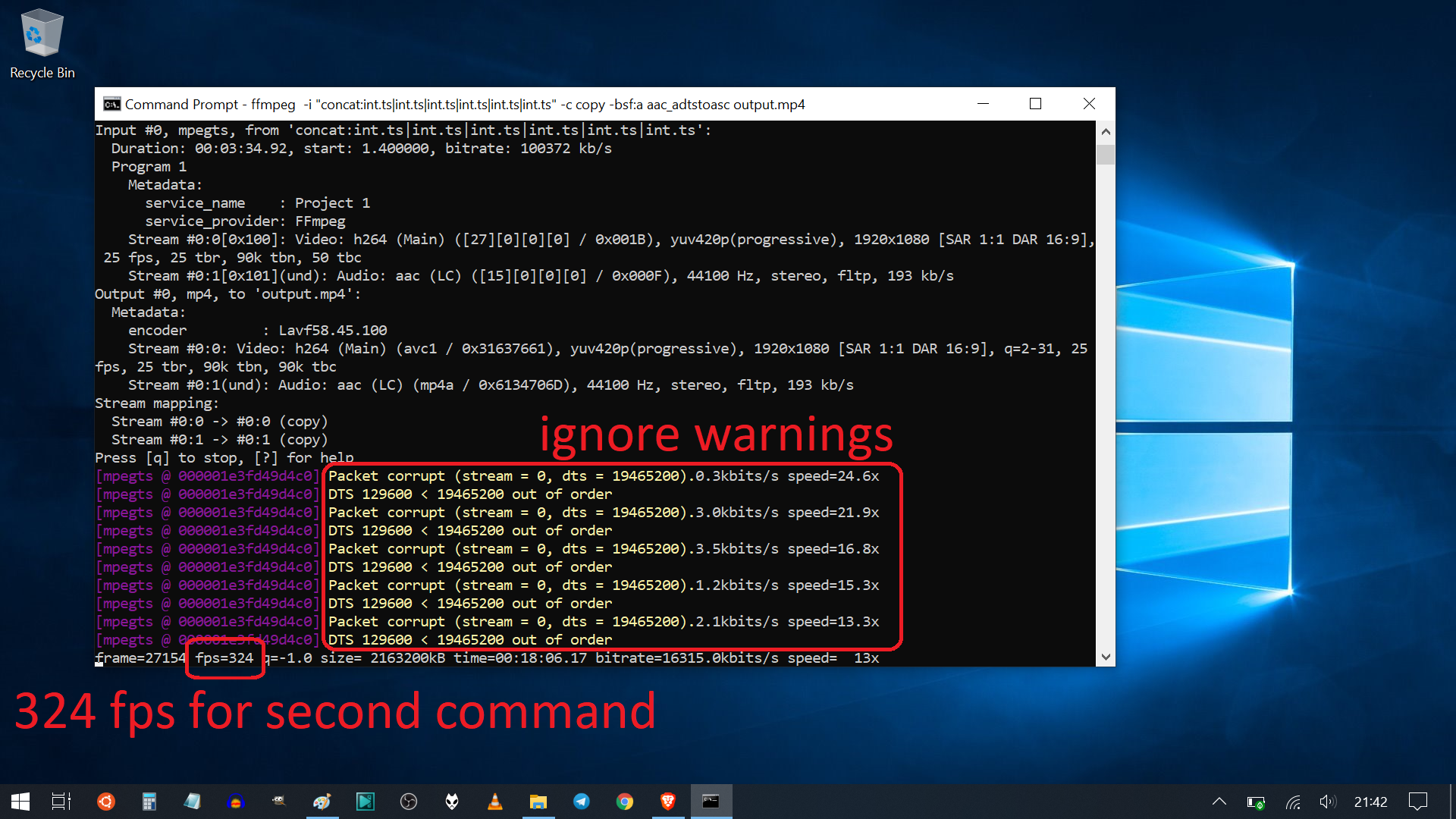
Do you have a song stuck in your head? And you want to play it over and over and over again? We have all been there, haven't we? And we have all seen them on YouTube: 1 hour versions of songs. How much work is it to create a 1-hour-version ourselves? And what would we need to make one? And how exactly can you do it? I will answer all these questions and show you how it's done -- so you can do it yourself. Some general information first: A 1-hour-version of a song is just a loop of a video. That means that the same video is repeated multiple times. This is actually a special case of what is called a *concatenation*. A concatenation is basically putting things like words (or in our case videos) one after another. Example: The concatenation of the words "bed", "car" and "house" is "bedcarhouse" -- which makes no sense, but that is what the concatenation of these three words actually is. Some things to consider Ok, so we want to repeat the video. We could install a video editor, import the video multiple times and let the video editor do its thing. Yes, that is true. But that process is very slow and additionally, the video will be re-rendered. That might lead to some quality loss. We want to avoid rendering the video material again. The advantages should be obvious at this point: No quality loss and it's super fast. On my pretty slow laptop I achieved more than 300fps with the method that I will show you for a FullHD video. fps stands for frames per second. A video consists of individual frames (think of pictures). One second of video might contain 25 frames or 30 frames, for example. The more fps our computer achieves, the faster the video is finished. For comparison: The method which I will show you achieves more than 300 fps. Rendering that same video in a video editor would lead to about 15 fps on the same computer. Therefore, the method which I will show you is more than 20 times faster. The steps I assume that you are using Windows 10 as your operating system. It should be exactly the same or very similar for older versions. And if you're using Linux, you probably know how to adapt the steps. If you're using macOS, you need to know how to adapt the steps, because I certainly don't. 😅 But I believe it is very similar. Have the video as an MP4 file. There are ways to download videos from popular video streaming platforms. DYOR (Do Your Own Reasearch) for that. 😉 Install *ffmpeg* as explained here. Honestly, it is not very user-friendly to install, but it is well worth installing. https://github.com/adaptlearning/adapt_authoring/wiki/Installing-FFmpeg And it's absolutely free. RTFM (Read The eFfing Manual) https://trac.ffmpeg.org/wiki/Concatenate#samecodec Ok, I'm joking. I read it for you, of course, so you don't have to. 😉 We use a modified version of the example code that we can find in the section called "**Using intermediate files**". ffmpeg -i song.mp4 -c copy -bsf:v h264_mp4toannexb -f mpegts int.ts ffmpeg -i "concat:int.ts|int.ts|int.ts|int.ts|int.ts|int.ts" -c copy -bsf:a aac_adtstoasc output.mp4 And here is what the code above does: The first command transcodes our MP4 file called *song.mp4* to an MPEG-2 transport stream (whatever that means) which we call *int.ts* (*int* stands for intermediary). The second command concatenates the transport stream *int.ts* multiple times without any quality loss. In the example below, we concatenate it 6 times. If you need to concatenate the video more often, just copy the command into a text editor such as Notepad and add some additional *|int.ts*. If you need to concatenate the video less often, just remove some *|int.ts* accordingly. The resulting video is called output.mp4. The example above assumes that our video song.mp4 uses the H.264 video codec and AAC audio codec by the way. And that is the song we use I chose this song for the 1-hour-version. https://youtu.be/QLWQ_QhpSbA Step 1 is obtaining the MP4 video file and naming it *song.mp4*. Let's make the 1-hour-version All we need to do is to open the command line: Click the start button (or hit the windows key) and type *cmd*.
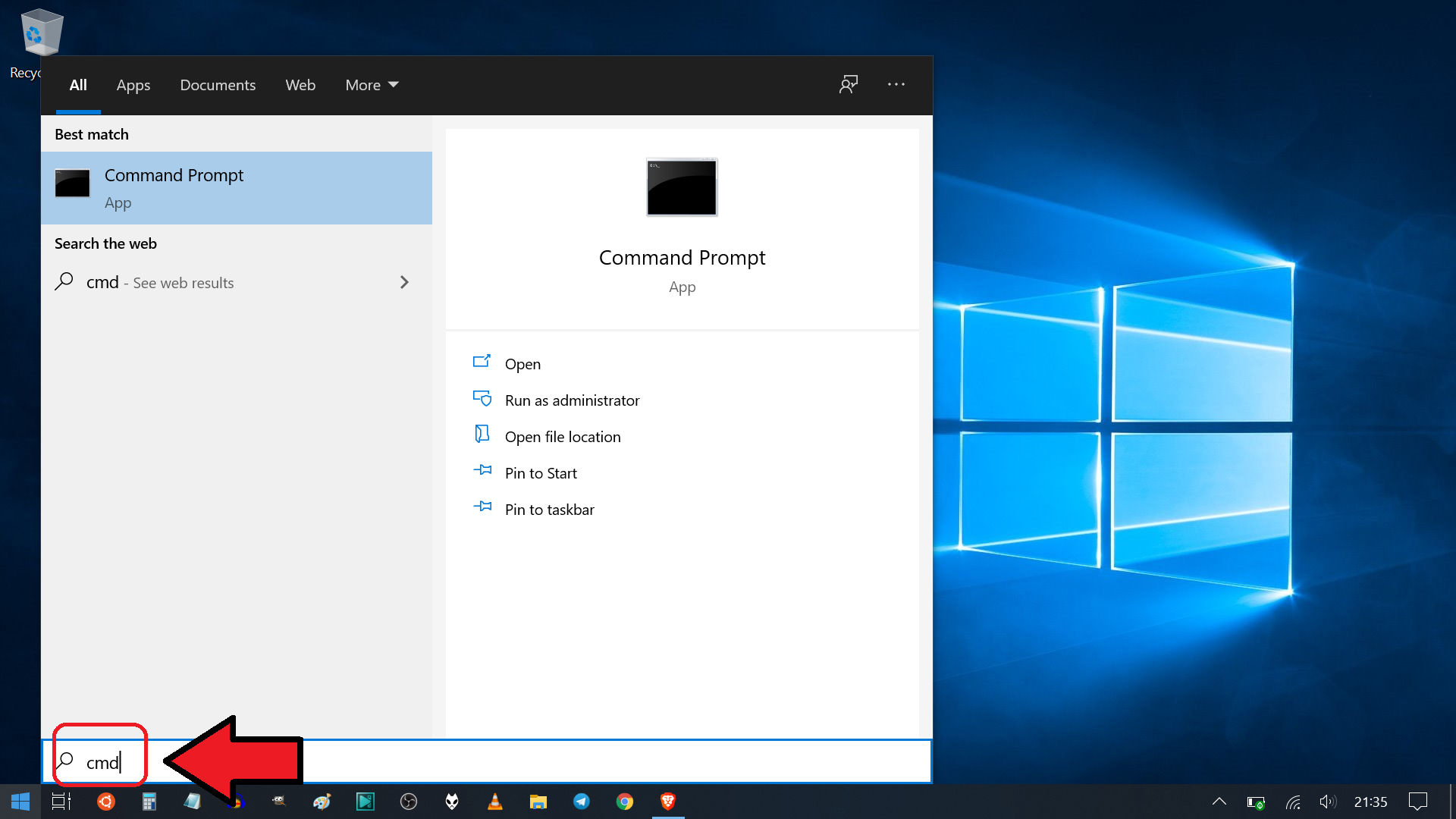
Then hit the enter key on your keyboard. You will see something like this.
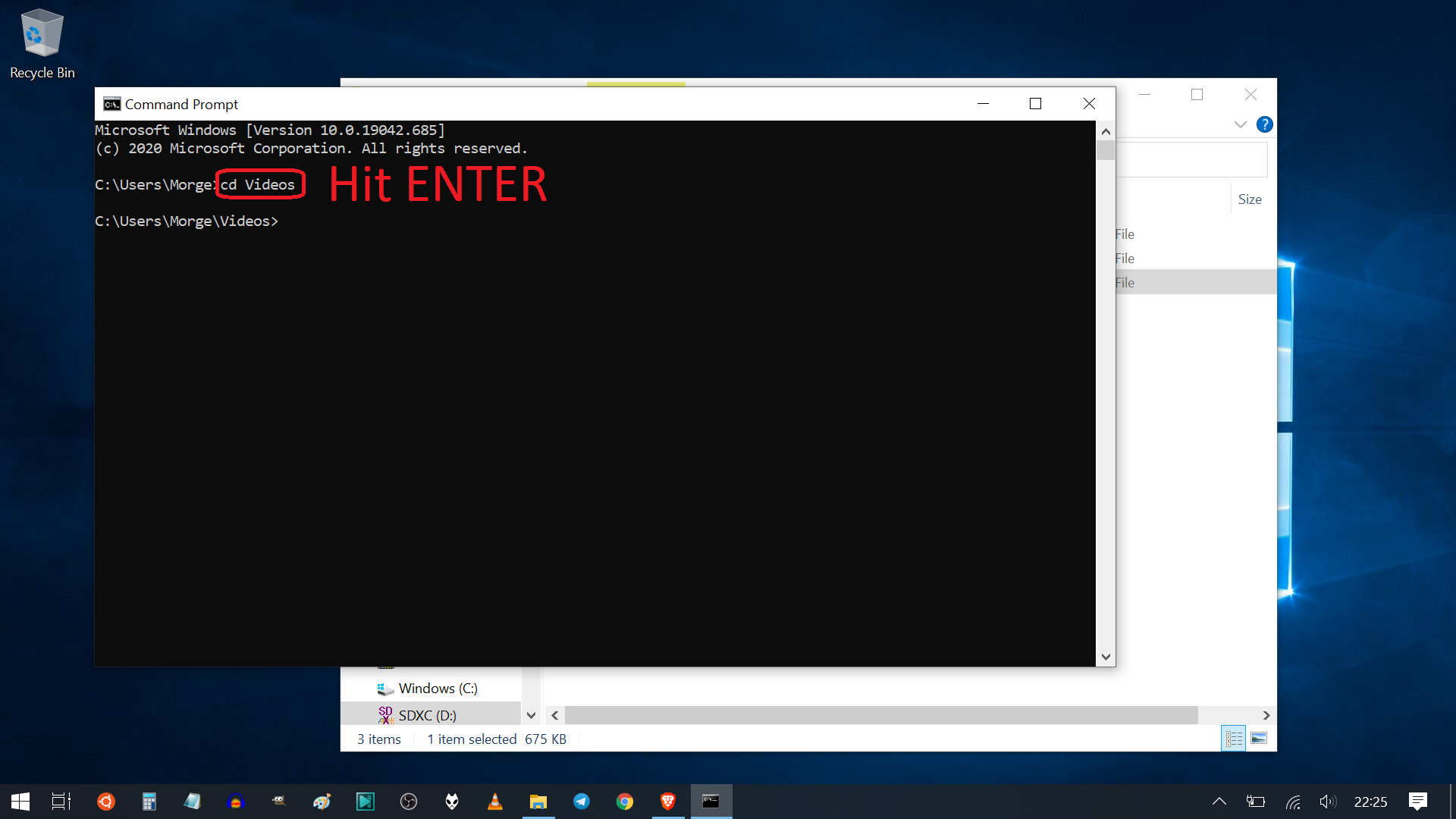
Navigate to the directory in which the file *song.mp4* is located using the *cd* command. Copy and paste the example commands into the command line and wait a bit. You will see lots of text that you can ignore. The process is pretty fast. Once it is finished, check that the resulting video *ouput.mp4* works and has the length you wanted. If everything looks good, you can delete the intermediate file *int.ts*.
That's it. Now you have your very own 1-hour version of your favourite song. If the copyright allows it, you may even upload it to YouTube, like I did. https://youtu.be/dDjzcMfa1yA I used a song which is copyright free, modified the song and made my own music video for the song. You can read about the process in this article. https://read.cash/@MoreGainStrategies/be-one-of-the-first-people-in-the-world-to-listen-to-this-song-b993bce8 Giveaway I almost forgot the giveaway! The first 10 people who leave a comment here under the article and post a link to this article on noise.cash will receive a tip of $0.1 each. If you put extra effort into your comment and your post, I will double that amount! Please include a link to your noise.cash profile in your comment so that I will find you on noise.cash where I will send you the tip.


25 comments
Edit: The video should work now. Previous comment: In case you're reading this article early: The video is still uploading. 🙈 The resulting file is about 8 GB large. And the upload takes longer than I thought... 🙈
We're processing the video. Check back later. 😴🤪
Oh no, you came too soon. 😅🙈
Are you serious? Still not ready lol. 😂
I have just realized that my laptop went into standby while it was supposed to upload the video. That's why it takes extra long now. 🙈
But to make up for it, I have added a giveaway. 😁👍
Done! 😂
This is the video you made an article too some time ago. You gave a comparison of its original version and your own. Yours is the groovier one 🎶❤
Yes, this is true. In this article I show how you can make a looped of any video. I use my video as an example to demonstrate the technique. 👍
This is surely an effective tutorial. Came here from a post of tired_momma on noise.cash 😅
I thought so. 😊 Did you also write a post on noise.cash so that I can give you the tip?
I just did. Sorry, I forgot about that. I was too overwhelmed to comment. https://noise.cash/post/102jp4z1
I have sent the tip. 😊✌️
Already received it. Thanks!
You're welcome. 😊✌️
I would really love doing that however I don't have a laptop to use.LOL it would be great to listen to your song on a straight full hour. Will be waiting for the video to be uploaded. 😉😉
Thank you. 😊 The video has finally finished uploading. 😊
I'm still waiting for the video to upload ... I'll be back later
The video should work now. 😊
https://noise.cash/post/l4mv68m1
I have just sent you the tip. 😊 Thank you for being part of the giveaway. ✌️
I'll gonna try this later. Thanks
I want to try this but unfortunately, I don't have a laptop. I hope there's a software that can be use in mobile phones. I just want to ask, are you a programmer? It seems that you know a lot about computers such as linux. ___ Btw here's my noise.cash post https://noise.cash/post/18gxr66l
I have just sent you the tip. I did some programming in the past, but I'm not an expert. 😅 However, I have used Linux for a couple of years before switching back to Windows 10. I have to admit that Microsoft really did a good job with Windows 10. I used to hate Windows 8. 🙈 If you have an Android phone, there is probably a way to make this method work, too. I will have a look into that. Maybe there is even an app for that that makes the process much easier. 😅
Sorry for the late reply😆 Thanks for the tip! Oohh maybe termux can handle that😆