 @Just1dood
edited
more from that month
@Just1dood
edited
more from that month
How to use QR code to tip in Noise.Cash
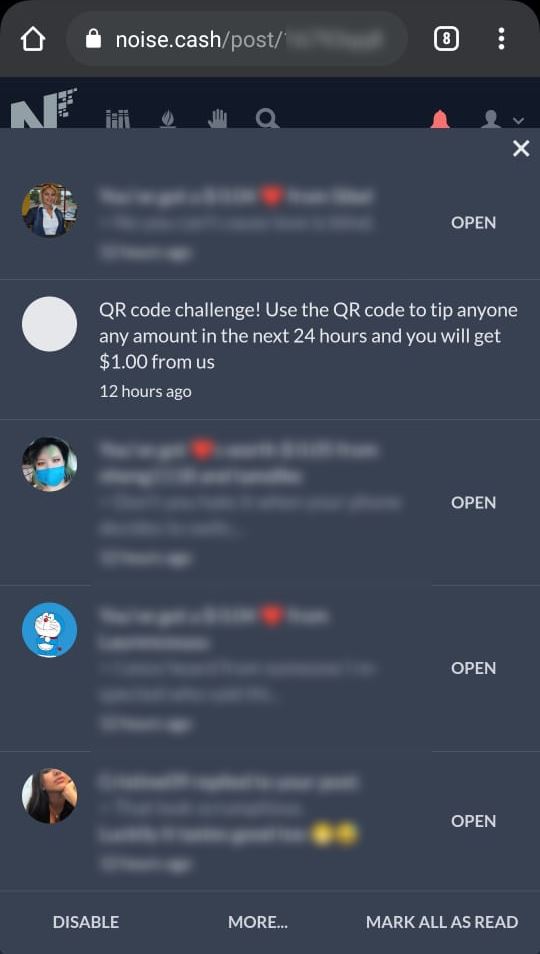
A Pleasant Surprise **15 July 2021, Somewhere in the Metaverse - UplandDood (@Just1Dood)** [*NOTE: My profile link at Noise.Cash -* *https://noise.cash/u/UplandDood*] Yesterday, I noticed a different message when I clicked to check on my Noise.Cash notifications. There was an unfamiliar "**Challenge Message**" from an unknown sender. It sounded too good to be true. I took the risk and clicked on the message. Nothing happens. The next logical step was to send out an S.O.S. asking if anyone know how to complete this challenge, which sounds simple enough - tip anyone any amount using the **QR code and be rewarded with** **$1.00 in BCH**!
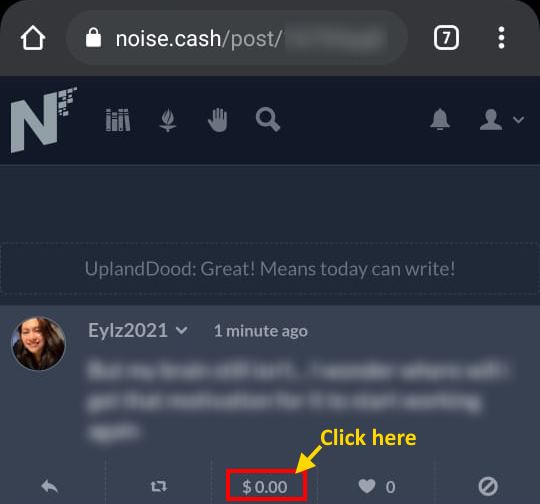
A friend of mine @Eylz2021 messaged me with the instruction on how to tip using the QR code. I tried it but unfortunately my Noise.Cash wallet was linked to an Atomic Wallet and I didn't want to figure out how to get it to work with the QR code when tired. Since it was late, I'd decided to link my BCH wallet at Bitcoin.com to my Noise.Cash wallet before going to bed. I'd only signed up for a Bitcoin.com BCH a few days earlier and it has no funds in it. I'd decided to try again in the morning. I was thinking that I should have some tips in my new wallet by morning. [*NOTE: If you don't have a BCH wallet and would like to get one, you can sign up for a Bitcoin.com BCH wallet through this* ***link****. It's a link from my Bitcoin.com app and I'm not sure if it's a referral link. I don't think it is.*] http://play.google.com/store/apps/details?id=com.bitcoin.mwallet Some BCH in my Bitcoin.com Wallet In the morning when I checked, I'd received $0.02 worth of tips and it's sitting nicely in my new BCH wallet! It's only fitting that I try my first QR Code tip on my friend, Eylz, so I replied to her message and proceeded with the QR Code tipping steps. For the benefit of those who are new and trying to figure out how to do this, let me take you through the steps, with a visual guide. I prefer to be guided visually so I assume my readers are the same too. Step 1: Click on the "tip icon" at the bottom center of the message
Once you've clicked on the "tip icon", a new screen will pop up. Make sure your browser allows pop-ups. You will then be presented with a screen with the QR code options as shown in the image below:
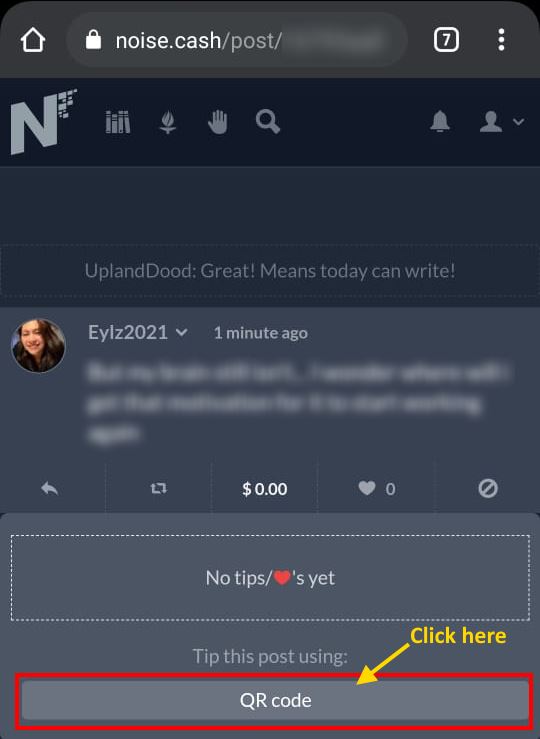
Step 2: Click on the "QR code" button (*refer to image above*) Simply click on the QR code button at the bottom of this new pop-up screen and you'll be taken to a new pop-up with the QR code and the recipient's BCH wallet address.
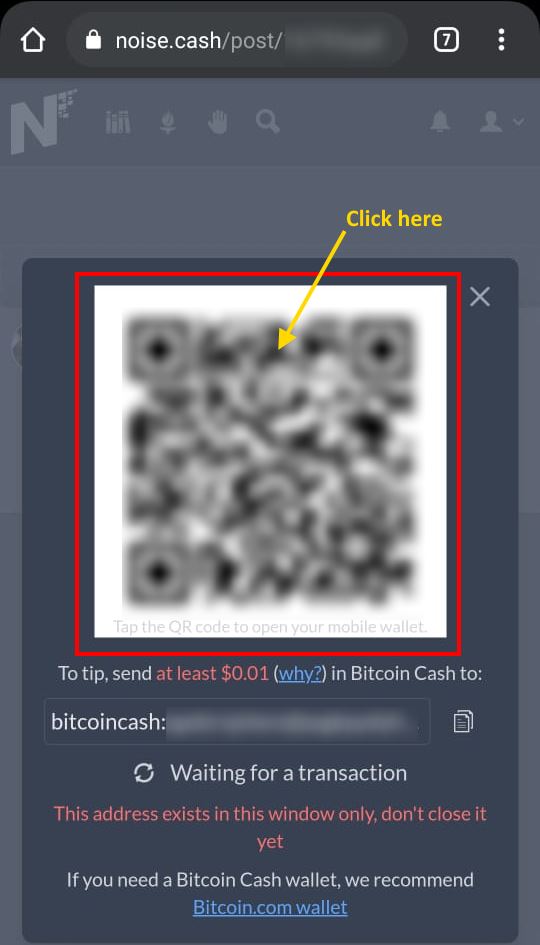
Step 3: Click on the "QR code" image (*refer to image above*) Next, click on the "QR code" image as highlighted in the red box per the image above. You will then be finally taken to your Bitcoin Cash wallet. In my case, it's my BCH Wallet at Bitcoin.com. Here, you will see the recipient's address at the top. The amount will show $0 until you enter a value. You can select "SEND ALL" or enter an amount using the numerical keyboard below. You will also see where the fund will be sent from. In my case, it'll be from "My "BCH wallet" and also the available balance in the wallet. In my case, $0.02. Noticed that the "Continue" button at the very bottom is greyed out. You will not be able to click that before a send amount is entered.
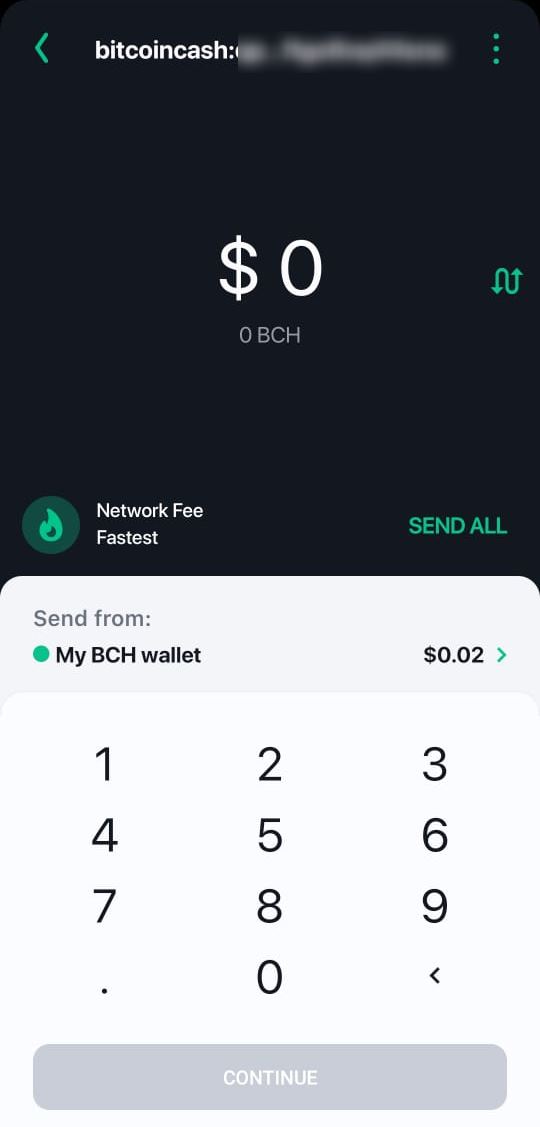
Step 4: Enter the amount to send & click "CONTINUE" (*refer to image below*)
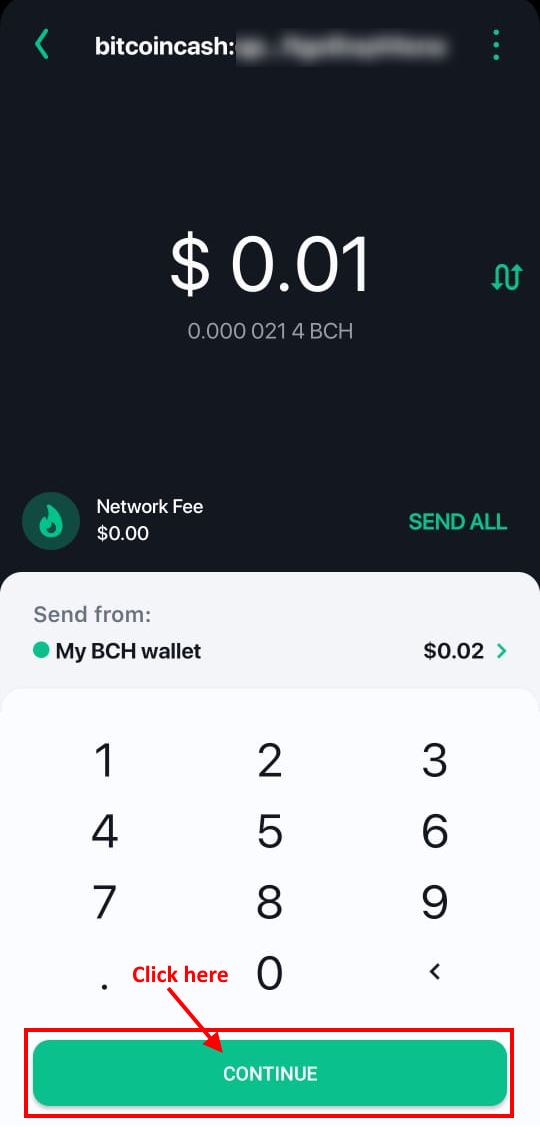
The first time, I had tried entering $0.02 but it wouldn't let me. I think it's because that would mean I'll be overdrawing since I'll need to have some left for transaction fees. So, I changed the amount to $0.01 worth of BCH and I was able to continue. Step 5: "SLIDE TO SEND" Once you've clicked to "CONTINUE", you'll be taken to the page where you can double-check: The Recipient's Address Type of Cryptocurrency you're sending (for Noise.Cash tipping, it's Bitcoin Cash) The wallet the BCH is sent from (in my case, "My BCH wallet") The network fee for this transaction The amount the recipient will receive (in $ and in BCH equivalent) And if all the above is correct, the last selection is to "SLIDE TO SEND" to the recipient
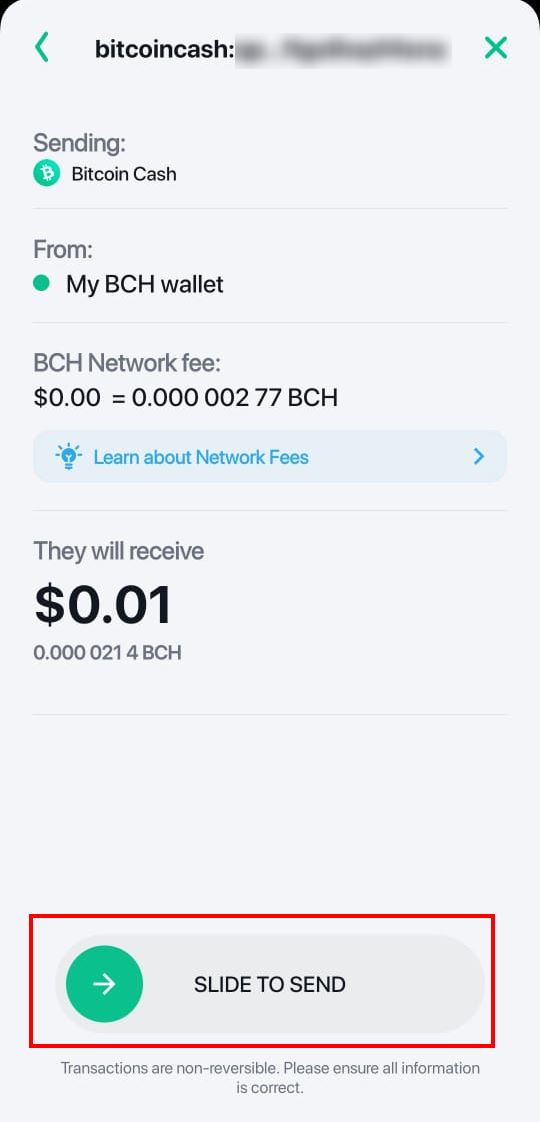
Once you've done that, the payment has been sent. That's it! It's as simple as that. You'll get the following screen to inform you that your tip has been successfully sent.
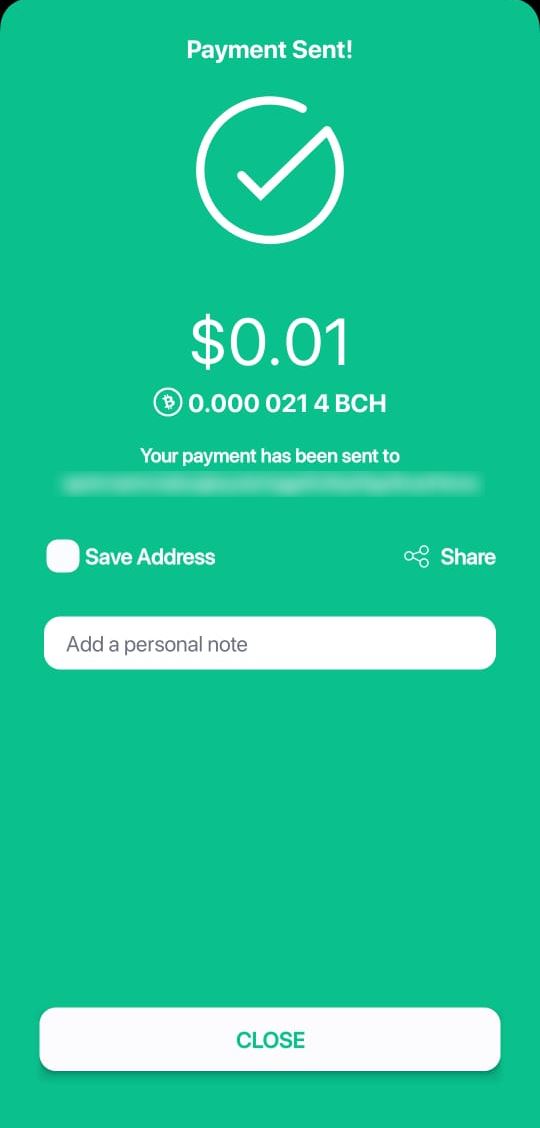
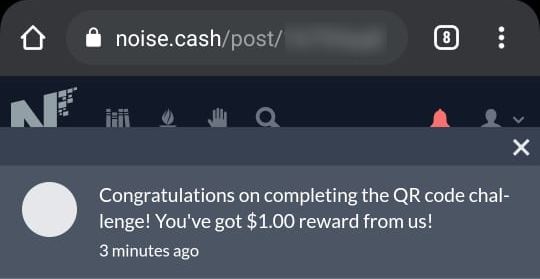
More BCH in my Bitcoin.com Wallet Almost instantaneously, I had received the reward that was promised. I received the following congratulatory message, "Congratulations on completing the QR code challenge! You've got $1.00 reward from us!" In fact, I'm not sure why but I had received it twice. Whoever "us" is/are; thank you very much. I hope this simple guide has been helpful to you. Stay safe and see you in the next article.

**Sources:** All images are mine.
Thank you again for dropping by. Have **fun with English**. Remember to share your experience in the comment section. Do drop by to say hi at my following addresses. I promise I'll be at home :) NoiseCash: **UplandDood** https://noise.cash/u/UplandDood Twitter: **UplandDood** https://twitter.com/uplanddood Publish0x: **UplandDood** (link takes you to site. You'll have to search for UplandDood to find me) https://www.publish0x.com/?a=zPdyP4BwbQ





28 comments
Nice one my friend... Will renoise your post in noise too
Thanks to you I was able to complete the challenge. That got me thinking, if I wasn't sure how to do it, I'm sure there are others. And I'd like to help with this short guide. :) And, thanks for renoiseing. :)
I just record my screen to teach a friend last night haha, good to see someone writing like this simple tutorial :)
Hi! Thank you for dropping by. Yeah, personally, simple guides or tutorial helps me. So, I hope this will help others. :)
Good to see that your comments is not on spam anymore :) it popped up on my notification so it will be easy to know it na haha🌼
Oh. I didn't know that. Thanks for letting me know. I wonder how it's considered spam and when it's not. Any idea?
Sometimes, inactivity and sometimes, users tap the spam accidentally
Nice article. I didn't know you can just click the QR code and then have it automatically open the Bitcoin.com app with the address loaded up. In case someone would like to see how to do it on a video format, feel free to check out my video: https://youtu.be/lB09UB8pPDY I assume sending 2 Cents did not work, because it was either requesting too many Satoshi - or the left over Satoshi were below the dust limit. The alternative to sending 1 Cent would have been to use "Send all". 😊
Hi, my music friend! Thanks for the video link. I'm sure will be helpful to many too. Yes, I think sending 2 cents would have used up all available balance (as that's all I have at that time) and none left to cover the fees. Changing it to 1 cent worked. I love that noisecash is making the process so seamless and easy. They've put themselves in the customer's shoes. Great UX.
Thank you for this tutorial po..😊😊😊 Well explained..
Hi! Thank you for dropping by and for your comment. :) Have you gotten your $1 yet?
Just a few minutes ago..😁 After I read this tutorial and with the help also of my other friend.. I posted it in my noise.
Laziness taken over me. I haven't done the challenge yet LOL
Almost missed replying here .. oh no, you don't. You don't get off so easily. You must do it. Go, go, go. Just do it. (Ahem...thank you Nike ).
Hahaha I'll just pretend that I haven't read this 😝
Too late
This has been most helpful, but my account had issues so I didn't receive any thing...well done
Hi! Thanks for dropping by. Sorry to hear that you had issues with your account. Hopefully it's fixed or being fixed.
Thank you so much, hopefully it will be fixed soon.
Great. Hope you'll hear good news soon.
yay nice of you to make tutorial with step to step guide..nicely done!
Thank you. Did you get your $1?
yes i did
I did enjoy using this feature on noise. Thankful too that I got the reward. Thanks for sharing the tutorial here. Definitely, it will help a lot of users and eventually try to use this update.
Thank you for your comment. Glad you've received yours. If you have friends who needed assistance, you can show them this guide. Hopefully can help them.
Hey. Great Post !! Thanks for sharing :)
Hi! You made it. I'd just read your experience. Hope Rusty (RandomRewarder) sees your article and contributes generously towards your ipad goal.
Thanks for your wishes. Hope so it happens soon.