 @Bestie
more from that month
@Bestie
more from that month
How To Use Your iPhone As A Computer Mouse
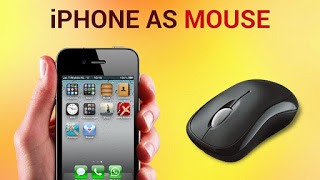
Have you ever wondered of the possibility of using your iPhone device as a mouse? This guide would not only introduce the possibility but also guide you on how to get this done. Table Of Contents Step 1: Install a touch mouse in your iPhone Step 2: Install a touch mouse software in your computer Step 3: Choose your OS Step 4: Installation Step 5: Launch / Connect Touch Mouse On iPhone to Computer Step 1: Install a touch mouse in your iPhone Now, to install a touch mouse into your iPhone, go to the app store on your device home screen, after a successful launch of the app store, search for "touch mouse" and click on the download icon on the right corner of the results display. Step 2: Install a touch mouse software in your computer Now that you have successfully downloaded and installed the app, turn on your computer, locate an internet browser on your desktop, lauch and search for touch mouse software for PC or you can simply download the touch mouse software here. Step 3: Choose your OS Before downloading the software Into your computer,you would have to choose your OS. Here you would have varieties to choose from but, make sure you choose an OS compatible with yours. Mine is windows 10, if yours is Mac OS X, choose just that. When this is done, download it. Step 4 : Installation After downloading the Touch mouse software to your PC, locate the file folder, open the .dmg file or .exe file depending on the extension. Note that the setup process of my windows 10 might be quite different from your Mac set up. But I don't think you will need a special guide to go through that. When the setup and Installation is done, drag the iTouch Server to your desktop for easy access. Double click on the touch mouse icon to launch. Step 5: Launch Touch Mouse On iPhone At this point, you must have been done with the Installation of the correspondent software on your PC. Now, launch the Touch mouse on your iPhone, find the server to your computer on the app and connect. After a successful connection, Congratulations you can now use your iPhone as a mouse. If this guide have in any been of help, kindly comment and share also, follow us on Twitter @out_guide.
6 comments
Hi Bestie, welcome to Read.Cash. I really appreciate your first post. Useful and creative one 😌😌 Keep up your good work, we will be supporting you :)
Iphobes are really leveling up, huh. But welcome to Read.Cash! This is great for a first post
I really appreciate 🙏
All the best luck with your succeeding articles, friend
it really helps thanks for the advice :)
This is awesome! I just recently bought a new macbook, but I don't want to spend another 200$ on a mouse as well so this solves my problem perfectly! Thank You =)