Testing SmartBCH network in new "Brave Wallet"
Today I noticed a new icon for "Brave Wallet" in my Brave Browser. Brave Wallet is a kind of web3 wallet which interacts with dApp (Decentralized Application). So basically it's like Metamask, but it's "native" (that is, built-in) wallet in Brave Browser.
So I wanted to try its functionality and tried SmartBCH network and transactions in this new wallet.
Overall the Brave Wallet is NEW, so there some minor UI bugs such as flickering, but looks like basic functionality is working fine. Let's take a look...
1) First, when clicking the new Brave Wallet icon, it goes to Get Started screen, setting up wallet password, and shows new 12 mnemonic words, as most of wallets do. Once it's done, it creates new "Account1" for you and by default pointing to Ethereum network (just like Metamask). We will add SmartBCH network here.
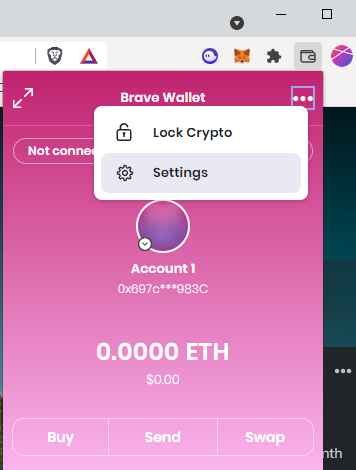
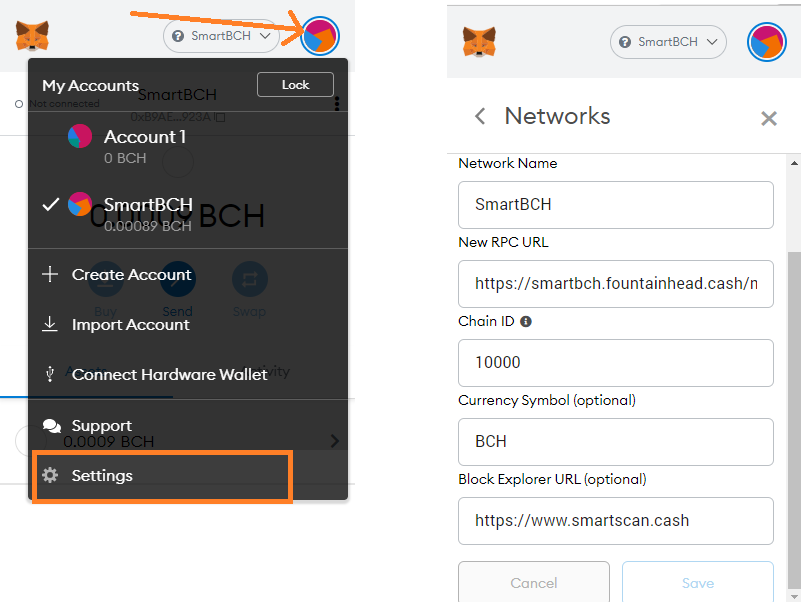
2) Now when clicking Brave Wallet icon, you will see 3 dots (...) on upper-right corner. Click [Settings] to set up SmartBCH network.
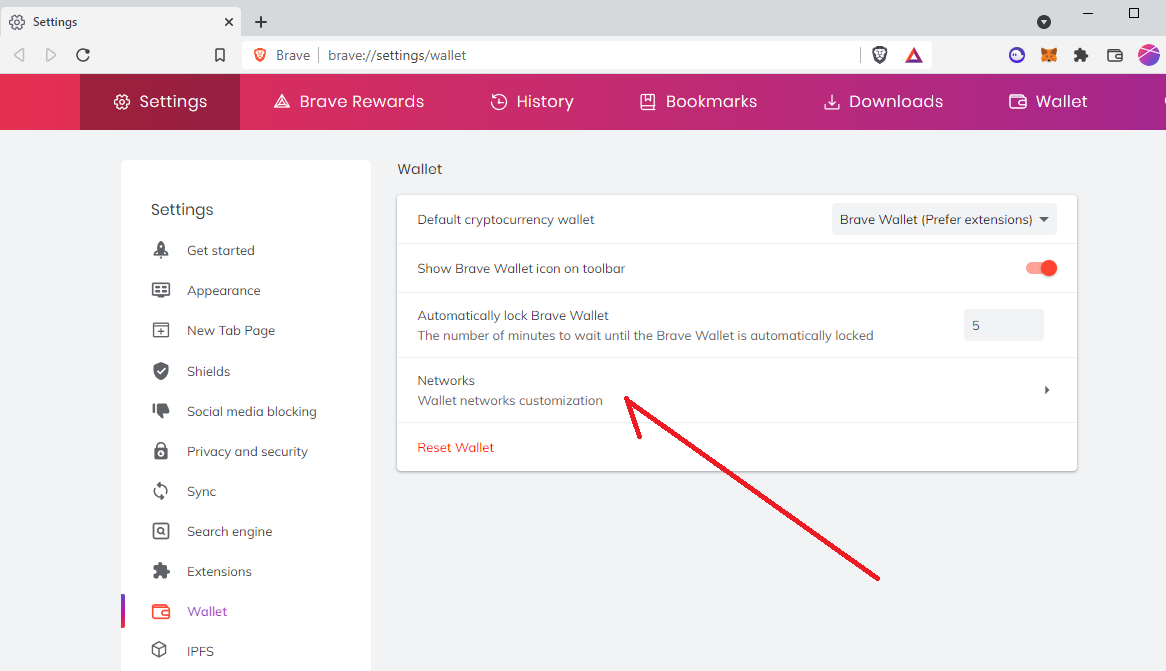
3) It will open [Settings] tab, and you will see "Networks" as below.
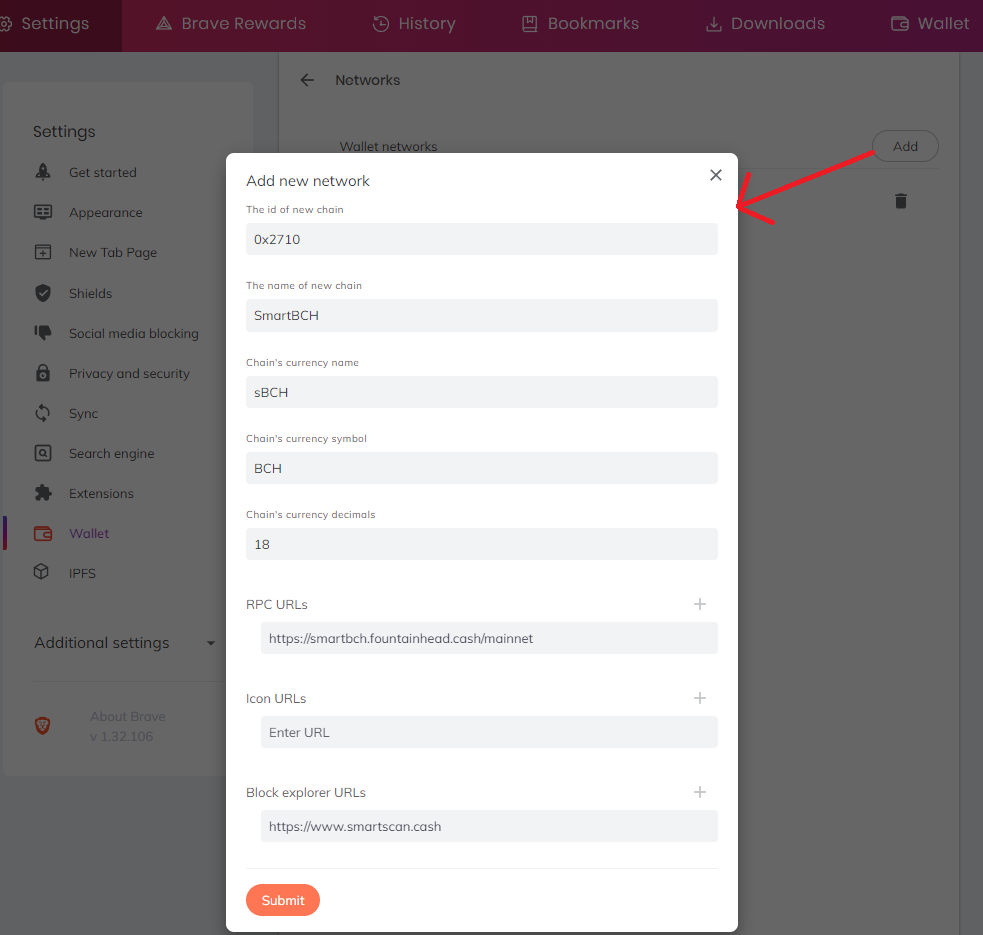
4) At first, there will be no networks. Click "Add" button and fill out SmartBCH network settings. It looks like the wallet wants to have hexadecimal chain ID (0x2710).
5) Once SmartBCH network is registered, you will see SmartBCH and sBCH account (I named it sBCH here, but you can name it BCH) as below.
I sent small BCH to this account for testing purpose and it worked fine.
Brave Wallet shows account balance in dollar and also BCH price chart can be shown. Well, this is better than Metamask :-)
6) Now I wanted to test SEND feature, just checking if I can send my BCH to other wallet. During SEND, I noticed that it requires "SPECIAL attention" in GAS FEE. By default, Brave Wallet is using Ethereum's gas fee rate, so default value is like 150 gwei (huh~~).
Here I tried to send 0.0005 BCH ($0.30) to other wallet. The Gas Fee that Brave Wallet shows was 0.00315 BCH ($1.90). So we need to lower the Gas Fee by clicking [Edit] link.
7) When I click "Edit" link, Gas price was 150 gwei, so I changed it to 1.05 (or you can use 1.046739556 as in Metamask).
8) Now I see "normal" fee in SmartBCH. Yeah~~
9) Once I hit the [Confirm] button, the 0.0005 BCH was successfully sent to other wallet. So far, so good.
10) Now I wanted to try SmartBCH SEP20 token transaction. In order to use SEP20 token, we first need to add token to the wallet (as we do in other wallets). In (5) picture above, you can see "+ Visible Assets" button at the bottom. Click this button to add new SEP20 token. Then you will be able to add new SEP20 token. I added Konra token as an example here.
11) Once the token is added, I tried to send Konra token from other wallet. As I expect, the SEP20 token was successfully arrived into my wallet.
One thing to note is that Buy and Swap sections are disabled for SmartBCH, but for Ethereum, those are enabled at this point of time.
Since Brave Wallet is just firstly released, just like many other products, it's not perfect, but... it was fun!
DOTORI SEP-20 token is launched in SmartBCH
New SEP-20 token "DOTORI" was launched on the SmartBCH.
DOTORI (symbol "DOTO") token contract address is:
**0x2999B9d5f6402514ED29441dbd7b4469C2e182B6**
DOTORI main website is:
**http://dotoricoin.com**
And its application website you might want to checkout is:
**http://cryptoquiz.org**
If anyone is interested in DOTO airdrop, please add your address in comments.
Airdrop post: SIM card or WiFi adapter when visiting Korea
Tips: When you visit Korea, you can get domestic SIM card or WiFi adapter
right at the Airport (Incheon-Seoul INTL Airport).
If you choose SIM card, it has domestic phone number,
so it will be very convenient. In many cases, you will need domestic phone number in Korea.
If you choose WiFi adapter, you will still be able to get any call from your original country
since it does not change phone number. With this option, you can use internet or internet-based phone calls.
But sometimes it will be a little inconvenient. When you visit restaurant, they require your phone scan due to COVID.
You won't be able to do that with this option.
Anyway pros and cons you might want to consider.
SmartBCH address: 0x549019276D07D9243317E8986F2Bd73eEbCA1bcd
Bitcoin.com Wallet: how to use WalletConnect
Bitcoin.com Wallet now supports WalletConnect to DApp!
Here is how to use WalletConnect in Bitcoin.com Wallet.
1) Go to any website supporting DApp such as Uniswap, Sushiswap, 1inch.
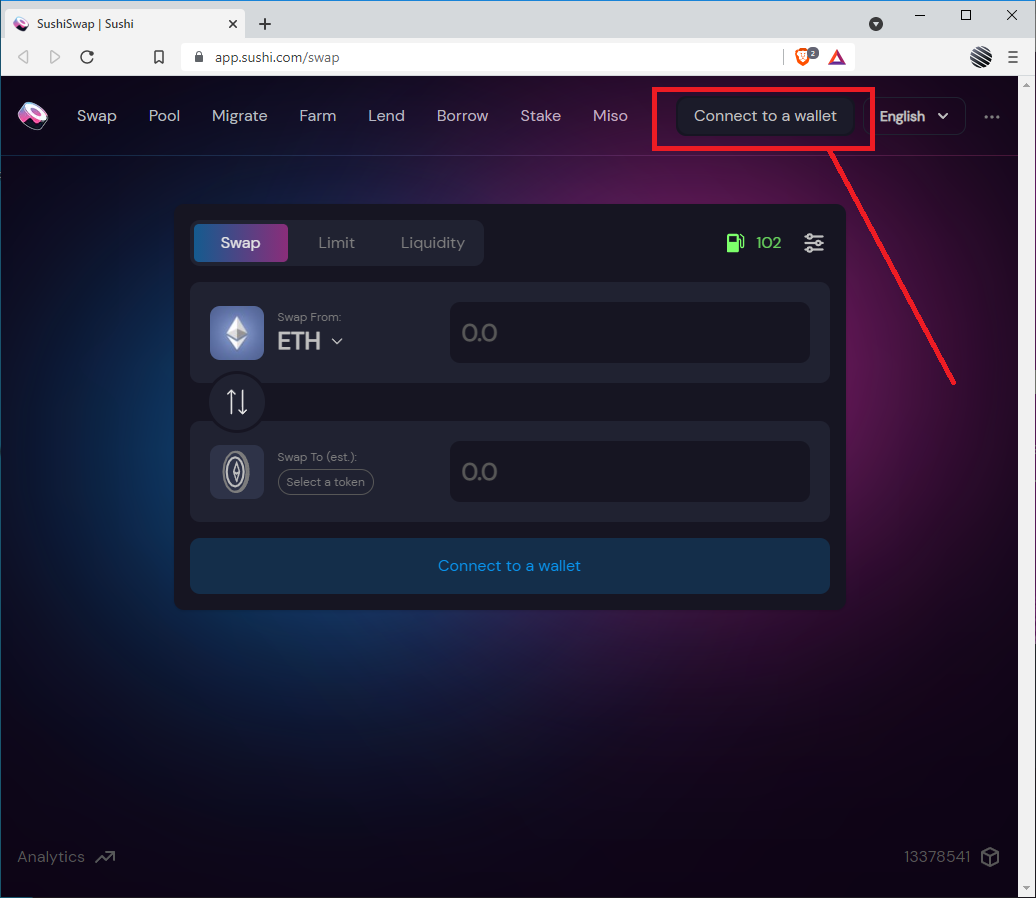
2) Click "Connect to Wallet" button (typically in right-upper corner).
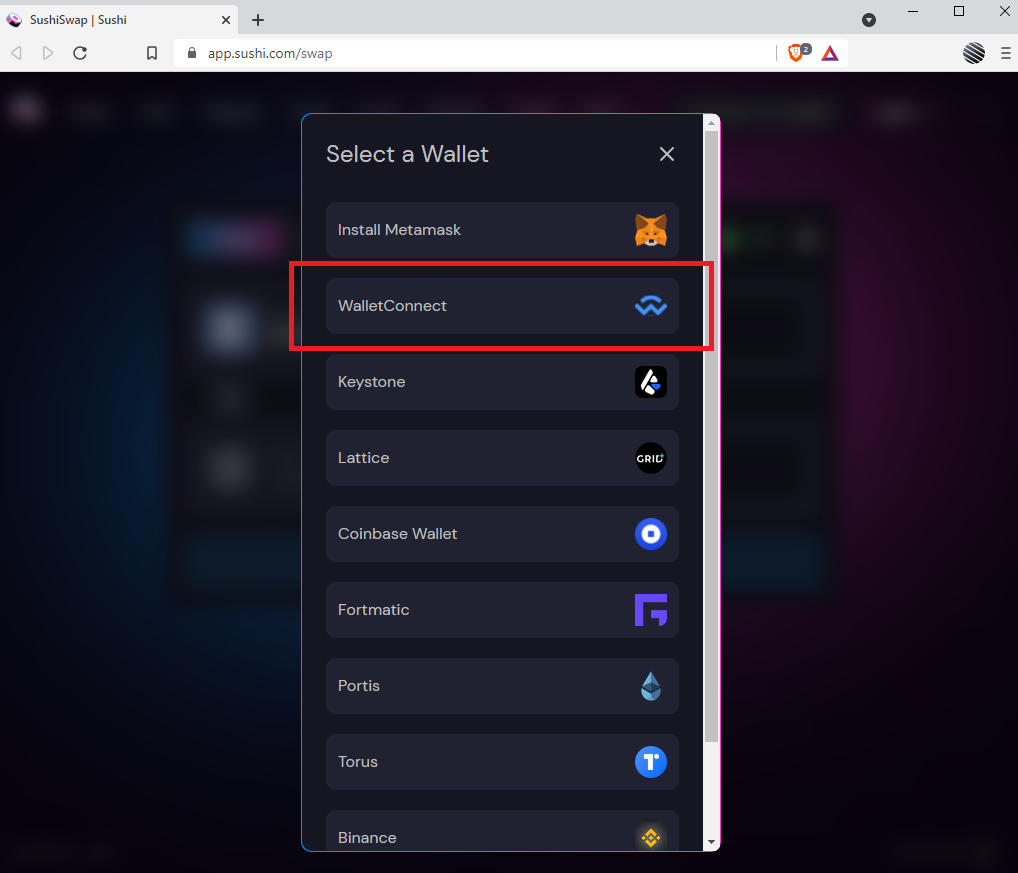
3) If the DApp website shows various Wallet options, choose "WalletConnect."
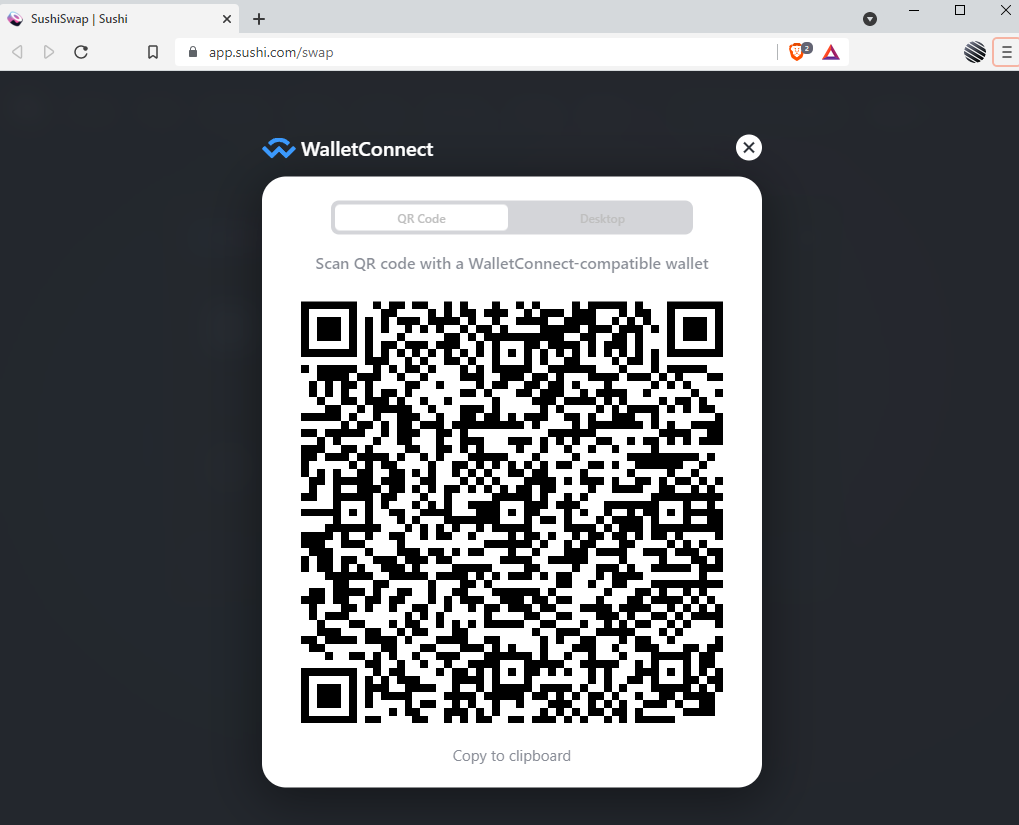
4) It will present QR code like this:
5) Open your Bitcoin.com Wallet mobile app and tab QR code icon in main page and scan the QR code in step 4.
6) Once you scan QR code, Bitcoin.com Wallet will show the "Connect Wallet" screen as below. Click "Connect" button.
7) Once connected, Bitcoin.com wallet will show some connection information and Disconnect button. If you want to disconnect, just click "Disconnect" button.
8) Now in your DApp website (Sushiswap in this case), your wallet is connected and you will see the account balance. Afterwards you should be able to do something like token swap or add liquidity.
Good luck!
How to setup Online Wallet in noise.cash
Recently noise.cash added new feature called online wallet. So far in noise.cash we only have had recipient BCH address which was used by noise.cash to send tips. If we want to give tips directly to other user, we used QR code in noise.cash. Now by adding online wallet, we can give tips to others directly from our online wallet and keep BCH tips in noise.cash online account. This is just like read.cash (which already has online wallet); when we have some balance in read.cash online wallet, we can give tips directly to others, and maintain BCH balance in our online wallet.
If you don't want to use online wallet in noise.cash, currently you don't need to do anything. It will work as is. *(NOTE: I am not sure if noise.cash will completely move to online wallet in the future, but so far existing mechanism still works).*
If you don't have this background information, however, you will likely get confused by noise.cash UI. I was confused, too. Let's take a look further...
First, if you go to Settings (previously My Wallet), you will see this message. Precisely, you will see this message when you use Brave browser.
Basically this message means you will now need to turn off Brave Shields. Click the lion icon in your Brave browser, and turn it off.
Once you turn it off, you will be able to see your current BCH address where you currently receive noise tips. Again, if you are not interested in using your online wallet, you are good. You don't have to set online wallet at this point. noise.cash will send tips to your current cashaddress shown here.
If you want to use online wallet feature, you can click [Import your Bitcoin Cash wallet]. There is two ways of creating online wallet. I recommend the #2 method below because it's easier and kind of safer.
(#1) If you have external wallet (such as bitcoin.com wallet, electron cash), you can add seed phrase here to import the wallet. But I strongly recommend NOT to use your main wallet having big amount. I strongly recommend you to create new wallet, move small amount to the new wallet, and use its seed phrase. Even if I trust noise.cash, generally, there is always a risk for online wallet.
(#2) If you click "Cancel" in above screen, it will show two buttons: Create Wallet and Import Backup. If you click Create Wallet button, noise.cash will generate new online wallet (that is, new 12 word seed phrase) for you.
When you click Create Wallet button, this screen will show up.
Basically noise.cash will create new seed as below.
You will need to write down this seed phrase and derivation path on paper. Do NOT save it in a file since it's not a good practice.
For security reason, noise.cash might send you confirmation email. Check your email Inbox, and click Confirmation link to approve wallet address change.
*It is worth noting that noise.cash uses single BCH address (m/44h/0h/0h/0/0) even if it uses HD seed phrase. When you use #1 method, there is a chance when your external wallet (ex: electron cash) has your BCH amount in other address such as m/44h/0h/0h/0/1. In that case, noise.cash UI will show 0 BCH because noise.cash only use m/44h/0h/0h/0/0 address.*
Once online wallet is created, your noise.cash recipient address will be changed to your new online wallet address. If you click Open Wallet button, you can deposit BCH to your online wallet (Deposit button) or send your BCH externally (Pay button).
How to Convert BCH to EBEN and How to Stake EBEN
EBEN is governance token for benswap.cash, the first decentralized exchange (DEX) in SmartBCH. You can earn rewards by staking EBEN tokens. This post will briefly explain (1) how to convert BCH coin to sBCH (BCH token in smartBCH network), (2) how to convert sBCH to EBEN, and (3) how to stake EBEN to earn rewards.
(1) How to convert BCH coin to sBCH
BCH is coin in Bitcoin Cash blockchain network. SmartBCH is sidechain, that is separate blockchain network from existing BCH blockchain. Since each belongs to two different networks, it requires conversion. To convert BCH to sBCH, you can use coinflex.com.
Install metamask if you don't have it in your browser.
In metamask, Add SmartBCH network (metamask does not have it by default). To add a network, click big circle button on the top-right, and choose Settings.
In Settings, choose Network and click Add Network button at the bottom. Fill out SmartBCH network information as follows.
(NOTE: New RPC URL : https://smartbch.fountainhead.cash/mainnet )
Register in coinflex.com. For registration, you can use email address or metamask (anonymous way). I used metamask. There is some country restriction. If you live in USA, Cuba, Iran, Syria, Sudan, North Korea, Afghanistan, you cannot use this site. You might consider VPN.
Once registered, login to the site.
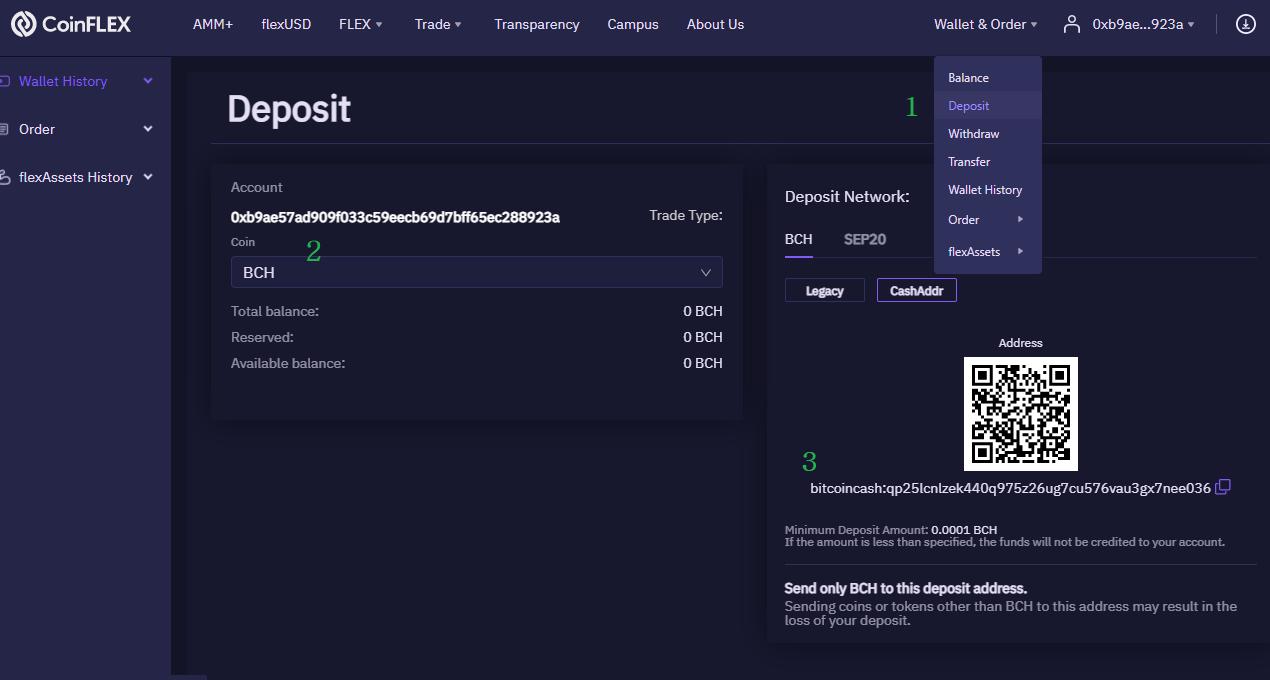
Click [Wallet & Order] on top, choose [Deposit]. Choose [BCH] in Account/Coin, and in Deposit Network section, you will see BCH address where you need to send your coin.
Send your BCH to the destination address above (see 3 in the picture). It will take several minutes; once coinflex receives the BCH, it will show up in Wallet & Order => Balance.
Once you have BCH in coinflex wallet, you can withdraw sBCH. If you have 1 BCH, you will get 1 sBCH, it's 1:1 exchange. Click [Wallet & Order] => Withdraw. Choose BCH in coin combobox and in Network section, choose "SEP20" and fill out your destination address (that is, your metamask address) and amount you want to withdraw. Once you click Submit, it will show "Success" and will take a while for you to see the sBCH in your metamask.
Finally, it will take a while to see the sBCH in your metamask. In metamask, please make sure you choose SmartBCH network.
(2) How to convert sBCH to EBEN
To convert sBCH to EBEN, we can use benswap.cash website.
Visit benswap.cash and click [Connect] button on top-right.
Choose Metamask and unlock your metamask wallet if needed. Once unlocked, benswap.cash will see your sBCH balance.
In benswap.cash, choose [Trade] => [Exchange] menu. By default, it will show [Swap] section. In the Swap screen, choose BCH and EBEN conversion and enter your desired amount.
Once you click [Swap] button, Metamask will show transaction confirmation and if confirmed, the conversion will occur.
(3) How to stake EBEN to earn rewards
You can stake EBEN to earn rewards in the form of EBEN. In order to stake, click [Pools] menu in benswap.cash. You currently can stake either EBEN or WBCH.
To stake EBEN, click [Approve Contract] button, then Metamask will show up to approve the contract. It will ask this kind of question"Allow Https://benswap.cash to spend your EBEN?" and it will show you transaction fee.
Once you confirm [Approve Contract], you will see [Stake] button. Then you put how much you want to stake, and click [Stake]. Again, Metamask will bring up confirmation, you need to confirm the transaction. Once done, your EBEN will start earning stake rewards! Good luck!!
How to claim 20 XRP reserve token
If you move around all of your XRP tokens, you will notice 20 XRP tokens will remain in old wallets. 20 XRP token is minimum token amount that every XRP account should have.
If you also want to move the 20 XRP tokens to another wallet, you will need to delete the XRP account and there is a website that helps you.
Without further ado, here are the steps that I did:
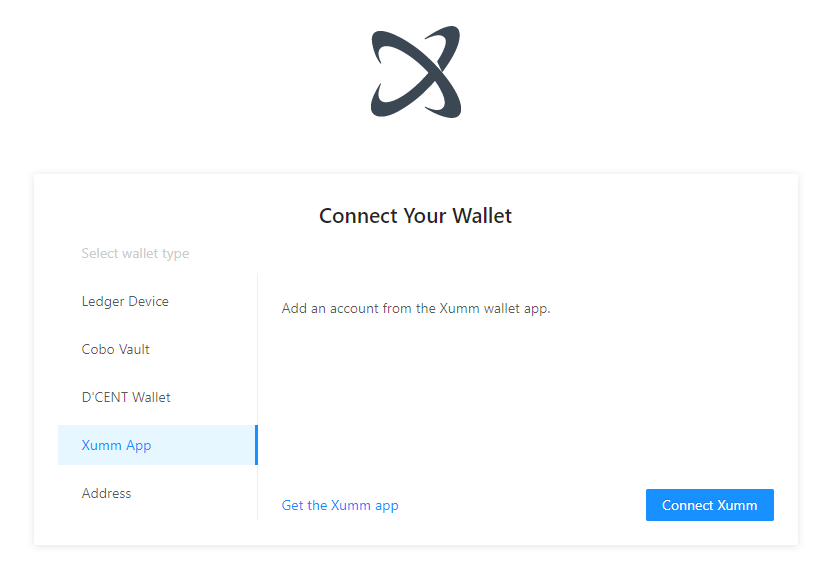
(1) Visit xrptoolkit.com and click [Connect Wallet] on the top-right. You will see the following page.
(2) If your XRP token was in hardware wallet, you can choose the corresponding hardware wallet. In my case, the 20 XRP was in desktop wallet. So I chose Xumm App.
(3) Install Xumm app in Android or iPhone. When you setup the app, you will have chance to import your XRP private key (it's called Family Seed). Once imported, you will have 20 XRP, but Xumm showed 0 in the balance. It's OK, the token is there.
(4) In xrptoolkit.com, choose Xumm App and then QR code will be shown.
(5) In Xumm app, scan the QR code.
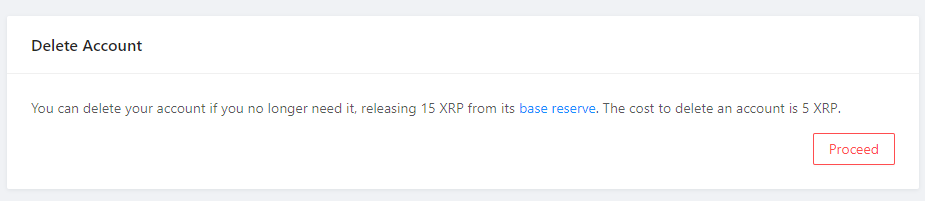
(6) In xrptoolkit.com, goto [Account] menu and select [Properties]. In the following page, choose [Delete Account]. As shown below, 15 XRP will be sent but 5 XRP will be used as fee.
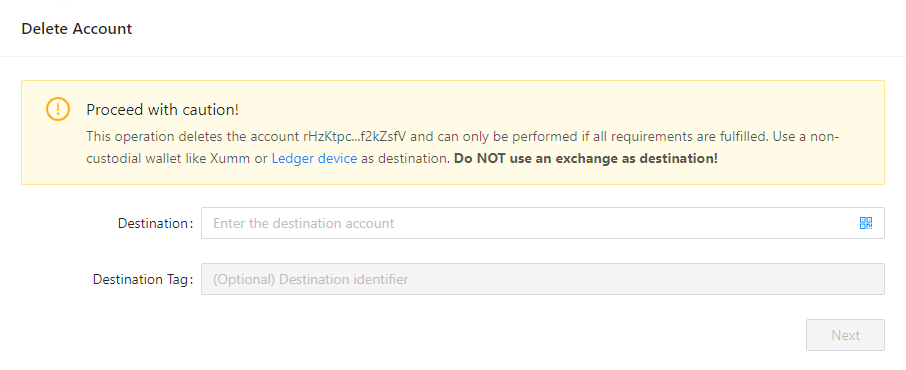
(7) When [Process] button is clicked, you can enter destination XRP address.
(8) After clicking Next, in Xumm app, you will need to accept the request. Once it's done, the 15 XRP will be sent to the destination address.
That's it. One last thing to remember is, you only delete the unnecessary account. Well, I guess you will, but just reminder.
Today Venmo has announced that it has launched the ability to buy, sell and hold Cryptos (BTC,BCH,ETH,LTC) to its 70 million customers.
I was curious and wanna be early adopter(?). So I was gonna try to buy some BCH in Venmo.
I went to Google Play Store (since my phone is Android) and updated my Venmo App as I was already a Venmo user. I updated the App, then tried to find Crypto menu, but it wasn't there.
I searched the info for a while and noticed that "The Crypto feature will be available to all users WITHIN the next few weeks" Well, I will wait for a while, then^^
NOTE: Please note that you cannot move any Crypto purchased from Paypal or Venmo to your wallet and you won't have private key. It is purely custodial. In the meantime, you can have to worry about your wallet management. Might be good or bad depending on how you think or how you will use.
How to generate Bitcoin Cash key and BCH address without Wallet
Bitcoin Cash keys - private key and public key pair - represents Bitcoin Cash account. That is, if you know a pair of private key and public key, that means you can receive BCH coin from someone else and also you send BCH coin to other person.
Public key can be generated from private key and Bitcoin Cash address can be generated from public key. So if you ask me which one of the keys you absolutely need to have, I would say private key. Generally, you will have private key for spending and Bitcoin Cash address for receiving.
Bitcoin Cash keys and its BCH address are typically generated by Wallet. And of course, developers can generate the keys with programming language. Without Wallet or programming, we can also use a tool or website. In this post, I will show you how to use cashaddress.org website that generates new Bitcoin Cash keys and BCH address.
https://cashaddress.org is a simple but useful website that generates new Bitcoin Cash address and keys. After generating new BCH address, you can also print keys and address information, which is so-called paper wallet. https://cashaddress.org/
cashaddress.org is a open source JavaScript BCH wallet generator, which is well known. It is using client side JavaScript only, so not sending data to server. The entire source code is JavaScript (with bare minimum HTML), which can be inspected from "View page source" menu of your browser.
HOW TO GENERATE BCH Keys and BCH Addresses
In order to create BCH keys and address, I would do the following steps.
(1) Open browser and visit https://cashaddress.org website
(2) Save web page as cashaddress.org.html in your local computer
(3) Close browser
(4) Disconnect Network Connection on your local computer
(5) Doubleclick cashaddress.org.html in your local computer. This will load local html file in your browser without internet connection. Here you will see the same cashaddress.org web page as the real website.
*NOTE: Step2 ~ Step5 is for extra caution. I sometimes skip those steps, but if you're cautious, you might want to follow those steps*.
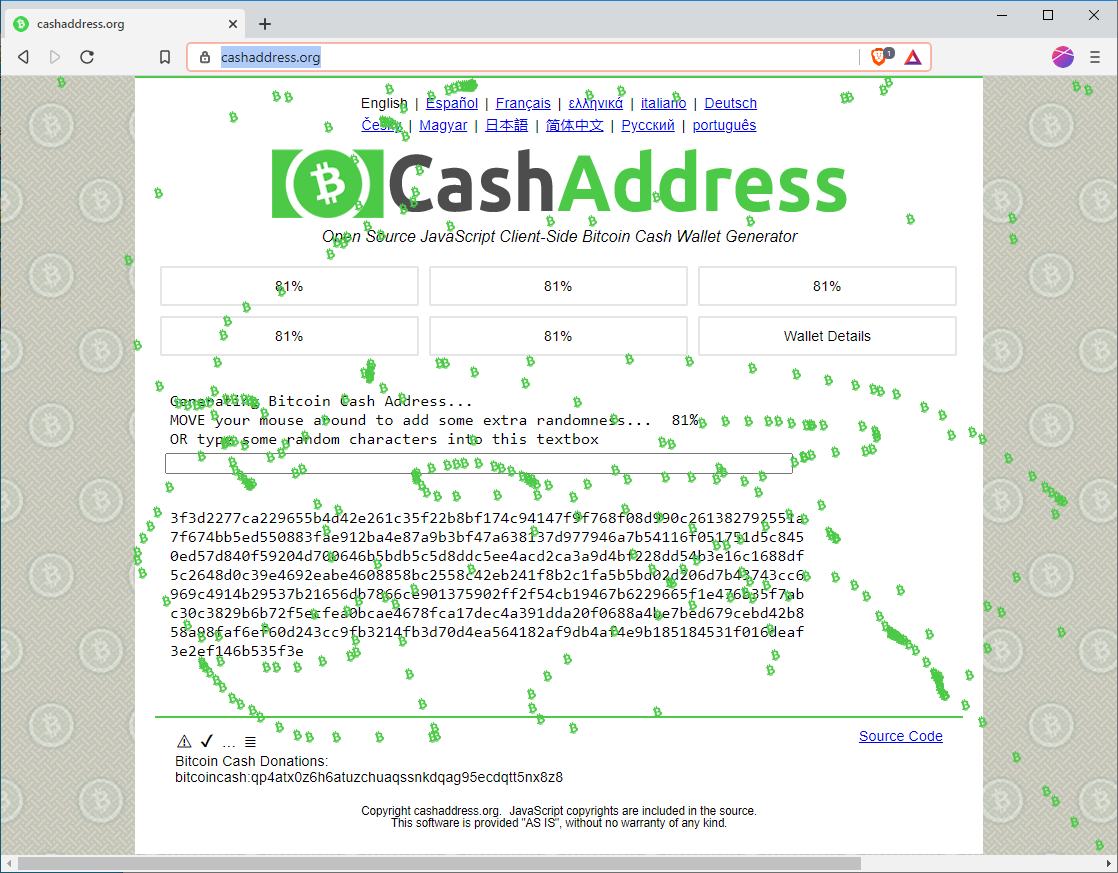
(6) Move your mouse to add extra randomness until it reaches 100%.
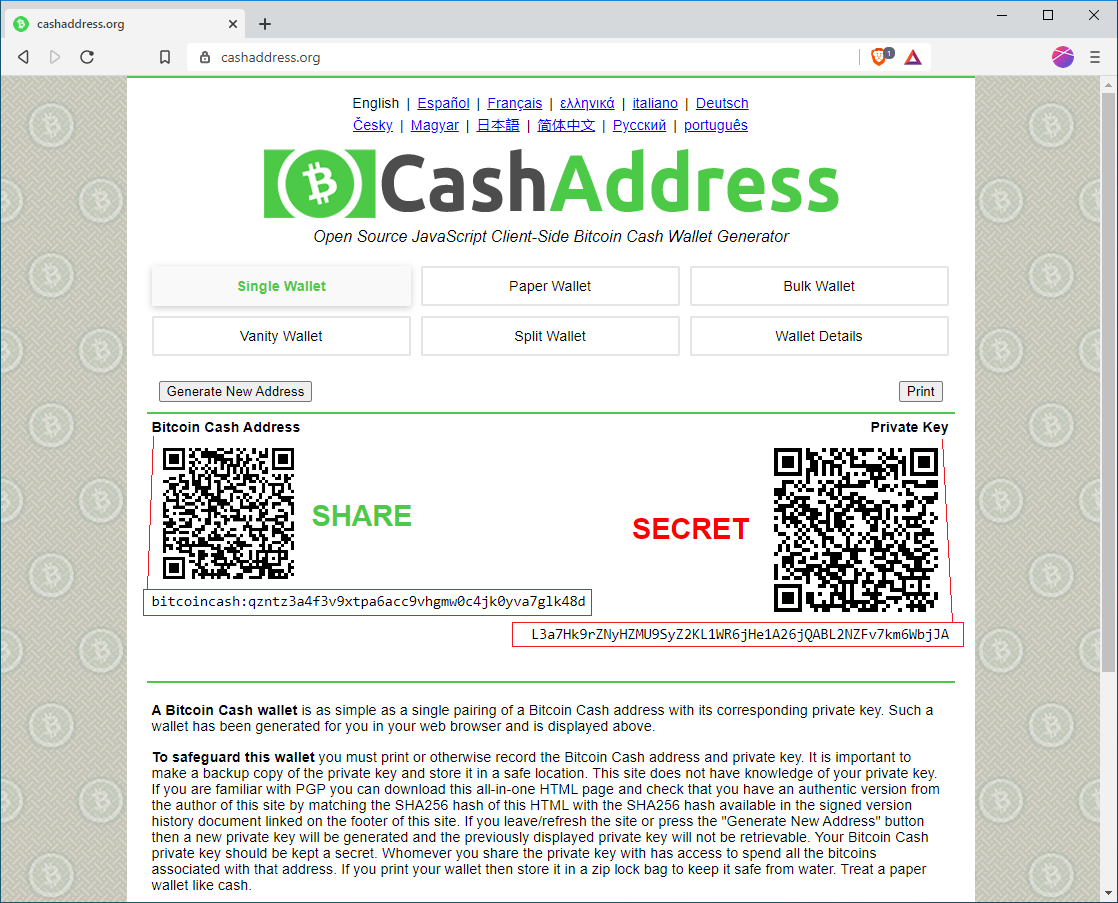
(7) Once it reaches 100%, you will see new BCH keys and BCH address. In the picture below, Bitcoin Cash address is shown on the left, starting with "bitcoincash:q" and private key is located on the right, starting with "L". You can click "Print" in this screen in order to print(or screen capture) the private key and BCH address. If you can use a printer directly connected to your PC via USB connector, that will be more secure. And once printed, this will be your BCH Paper Wallet.
Bitcoin Cash is using two different main address formats.
One format is legacy address format that is the same address format as Bitcoin's P2PKH/P2SH address. This legacy address starts with "1" (P2PKH address) or "3" (P2SH address) such as 1GCPYUwvjnPqB6ZJRikMRfBzwWiVH6wggV. Bitcoin Cash is a hard fork of Bitcoin, so it supported this original legacy Bitcoin's address format.
The other format is Cash Address (Cash Addr) format, which is most common address format in Bitcoin Cash. The Cash Addr format was introduced to avoid any confusion between BTC address and BCH address. Cash Address always starts with "q" or "p".
Most of time we use Cash Address format, but for old coins the address might be original legacy address format. And rarely you might see a BCH address starting with "C", which is BitPay's BCH address format.
If you want to change address format between Legacy Address and Cash Address, you can use https://cashaddr.bitcoincash.org website. https://cashaddr.bitcoincash.org/
(8) (Optional) If you want generate paper wallet having multiple BCH addresses, you can choose "Paper Wallet". By default, it will generate 3 new addresses and keys, but you can choose different number in "Addresses to generate". This paper wallet has BCH address on the left and private key on the right, with QR codes. *Please note the addresses generated here in Paper Wallet are different from BCH address of Step7.*
(9) Close browser (*Just in case, this will ensure nothing will be sent to outside since any JavaScript in HTML cannot be run once Browser is closed*).
(10) Enable Network Connection.
Instead of Step9 ~ 10, you can reboot PC (and turn off your printer if used), which is better.
From above steps, you now have BCH address and the corresponding private key. You can send BCH address to someone else, so that you can receive BCH coins. You can check transactions in BCH Explorer website such as https://explorer.bitcoin.com/bch
In the BCH explorer website, you can just enter your BCH address in search box to check your balance.
If you want to check Bitcoin Cash address and public key from your private key, you can use "Wallet Details" in cashaddress.org. In Wallet Details, you can put your private key and click "View Details", then Bitcoin Cash address (compress/uncompressed), public key (compress/uncompressed), private key (compress/uncompressed) information will be displayed.
As a side note, if you use compressed BCH address, you need to use compress private key and for uncompressed BCH address, use uncompressed one.
About Electron Cash error "The transaction was rejected because it is too large"
In one of comments for my previous post "For noise.cash users: How to reduce Bitcoin Cash network fee," someone said his transaction was rejected because it is too large in Electron Cash wallet. https://read.cash/@coiner/for-noisecash-users-how-to-reduce-bitcoin-cash-network-fee-50c43d44
I know the error occurred due to long transaction size, but what is the maximum transaction size to be valid? As a developer, I was kind of curious...
So I dig into the Electron Cash source code, found the following section:
// Electron-Cash\electroncash\network.py
elif r"tx-size" in server_msg or r"bad-txns-oversize" in server_msg:
return _("The transaction was rejected because it is too large (in bytes).")
The "server_msg" is coming from bitcoin cash server, not from Electron Cash client.
So I looked for "bad-txns-oversize" in bitcoin cash server code and found some kind of transaction limit in consensus section.
// bitcoin-cash-node\src\consensus\tx_check.cpp
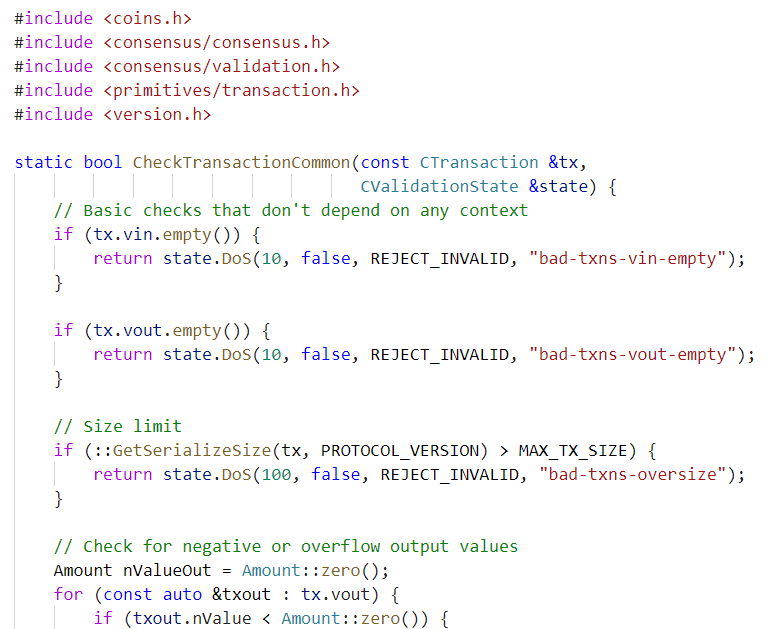
static bool CheckTransactionCommon(const CTransaction &tx,
CValidationState &state) {
...
// Size limit
if (::GetSerializeSize(tx, PROTOCOL_VERSION) > MAX_TX_SIZE) {
return state.DoS(100, false, REJECT_INVALID, "bad-txns-oversize");
}
MAX_TX_SIZE is defined in consensus.h as follows:
/** The maximum allowed size for a transaction, in bytes */
inline constexpr uint64_t MAX_TX_SIZE = ONE_MEGABYTE;
So basically the max transaction size is limited to 1MB.
If someone has too many transaction inputs or too many transaction outputs in a single transaction AND so if the transaction size is greater than 1MB, the transaction will be invalid.
Noisers (noise.cash users) can get various amount of tip (for example, $0.01, $0.05, $0.10). It doesn't matter how much is received per tip. What it matters is the number of tips you received. Because each tip becomes a "transaction input" within a spending transaction and each transaction input will increase the size. So if you have too many transaction inputs, you might want to move your fund multiple times instead of moving all at once.
For noise.cash users: How to reduce Bitcoin Cash network fee
One of my friends happened to use Exodus Mobile Wallet for his noise.cash wallet address. When he was trying to withdraw Bitcoin Cash tips from Exodus to another wallet, he noticed that he needs to pay 1/3 of total amount as network fee. The total amount was small, so it was not a big deal, but he was wondering why.
Before looking into the Exodus Wallet fee, let's quickly take a look at the Bitcoin Cash(BCH) transaction.
Typically noise.cash sends a lot of Bitcoin Cash micro-transactions, which potentially can lead to relatively more network fee when spending or moving the fund. Every time noise.cash user gets a tip, it creates a new transaction in Bitcoin Cash blockchain. (Maybe, there might be batch transaction for optimization, but let's not go there).
Now after a few weeks, if the user wants to move or spend all the BCH coins, all the transactions should be signed individually and each signature should be inserted into signature script section (of transaction inputs) in a new transaction. Basically the more transaction inputs, the bigger the total size of new transaction will be. Well, the size can vary but generally speaking, each transaction input (including digital signature) seems to occupy 120 ~ 140 bytes. So interestingly if you give someone a tip of 150 Satoshi, it literally means nothing to the receiver.
In case of my friend, he had about 353,000 Satoshis from 140 tips (meaning 140 transactions). If someone asks me what is the most significant advantage of Bitcoin Cash, I would say "very low transaction fee." The typical low BCH network fee is about 1 sat/byte. So with 1 sat/byte BCH network fee, my friend's network fee should be around 140 tips * 140 bytes = 19600 Sats (Note: there is a transaction output and other minor data, but those are not big). If my friend would receive 353,000 Satoshis in a single transaction, moving fund will cost him about 200 Sats, but since he got 140 micro-transactions, lowest network fee will be around 19600 Sats.
So now let's look at Exodus Wallet fees. When my friend was trying to move all the BCH (353,000 Satoshis) to another wallet, Exodus showed about 120,000 Satoshis for BCH network fee. I know Exodus Wallet is a great wallet and it is one of my favorite wallets, but in this case it didn't work that well.
The problem is not all wallets are charging low transaction fees. Actually many wallets are intentionally charging more fees in order to ensure their transactions get in fast. Unfortunately, Exodus is one of them.
Some wallets provide so-called "Custom Fee" feature, with which you can adjust network fee rate. The Custom Fee feature is very useful because not everyone wants fast transaction confirmation. Well, we can wait for a hour or so if it'll give us lower fee, right?
Exodus Wallet has Custom Fee feature for Bitcoin, but it does not have the feature for Bitcoin Cash. I think Bitcoin.com wallet also has Custom Fee feature for Bitcoin only, but not for BCH.
So now we know all the details... How can we save some BCH by not wasting it for network fee?
Well, since we know the reason, now we can fix it. We move the BCH coins from Exodus wallet to another wallet that supports Custom Fee for BCH. A wallet that comes to my mind is Electron Cash wallet. We can import BCH private key directly to Electron Cash wallet and send BCH to somewhere else (Well, if you don't want to keep it in Electron Cash). In Electron Cash, when you send BCH, you can select (or probably already selected by default) 1 sat/byte Custom Fee.
Exodus Mobile Wallet does not have provide BCH private key directly. So in my friend's case, he needed to "Restore Wallet" from mobile wallet seed on Exodus Desktop Wallet. In Exodus Desktop Wallet, go to "Home" screen and select "Restore from Backup" link in the middle and then enter your seed.
Once the wallet is loaded, find "BCH" in wallet, and choose "View private key" from the right-top menu.
Now go to (or install from https://electroncash.org) Electron Cash wallet, create new wallet file, and then choose "Import Bitcoin Cash addresses or private keys" menu. https://electroncash.org/
Click Next and enter your private key (that you copied from Exodus above).
Now you have your BCH in Electron Cash wallet. If you're OK with the wallet, then that's all. But if you want to send it to another wallet or other user, you can click Send tab where you can find Custom Fee slide bar, as shown below. Set it to lowest fee to save your coins.
That's all for today. Hope it helps.
Related article : https://read.cash/@coiner/about-electron-cash-error-the-transaction-was-rejected-because-it-is-too-large-cfa7d89b
 @coiner