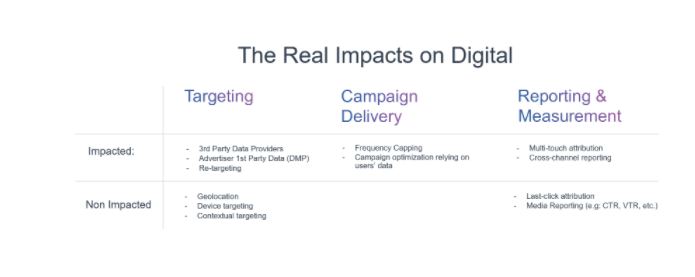
Does the abolition of cookies mean the end of the digital advertising?
The world of advertising has made good use of the data, especially through the use of cookies, in order to better adapt the target groups to the wishes of advertisers. But various data collection breaches have raised user concerns.
**Questions began to be asked, such as:**
-Who collects the data?
-How do they use the data?
-Is the data processed with due regard for privacy compliance?
All such ambiguities have led to a number of changes that favor the privacy of users. The General Data Protection Regulation (GDPR) has led Facebook and Google to voluntarily change the collection of data based on cookies, the most recent being the removal of third-party cookies from Internet browsers. Apple’s Safari blocked these third-party cookies as early as 2017, followed by Mozilla Firefox late last year. Google Chrome,which accounts for about 62% of browsing, however, recently announced a two-year transition period.
***So we will no longer be able to programmatically advertise based on the collected cookies. What does this mean for digital advertising?***
Maybe to begin with **I would like to explain to you what third party cookies actually are?** These are cookies created by domains visited by users, and these are typically used for tracking and online advertising. It is used to collect various user information such as user behavior on the site, location, type of device, etc.
**But what will be the impact on everyone involved in the digital industry if these cookies are blocked?**
***1. IMPACT ON ADVERTISERS***
At times, advertisers depended on third-party data. In order to target the reach of relevant users, they had to make an effort to create information about the target groups and to connect with the appropriate publisher.
There comes a time when it is necessary to focus on alternative strategies to target the right users. Creating the latest, most recent own data, using contextual advertising, compiling lists, developing a universal ID, etc. These are the ways a company can develop its software advertising for the future.
***2. IMPACT ON PROGRAMATIC ADVERTISING***
When it comes to digital advertising, third-party cookies are its backbone. Consumer privacy laws, such as the GDPR, CCPA (California Consumer Privacy Act), seek to ensure that user data is tracked with their consent and transparency. Users are then re-targeted with their consent based on their past online activity, which, however, bothers most users.Effect:
• Collected data based on cookies will be more expensive and competitive.
• DSP (Demand Side Platform) will begin efforts to provide targeted online campaigns. Greater pressure on InApp login and registration or. login on the website. In this way, websites and applications will build up a source of stock to target context / interest online.
• Supply and demand will be closer, as in this way they offer a better alternative for the user.
***3. WHAT IS THE FUTURE OF PUBLISHERS?***
Providers of platforms and Ad Exchange technology will not be able to identify users on websites in the same way as they do now using third-party cookies.
They will need to focus on:
• Encouraging users to create accounts on websites.
• Require users to turn on cookies to visit their websites.
• Spend more time testing unique solutions to self-identify users.
***4. WHAT WILL HAPPEN TO DATA PROVIDERS?***
Adtech platforms will not be able to map the appropriate user to display ads in the browser, as cookie synchronization will no longer be possible, so their targeting, targeting frequency, and conversion tracking will need to be treated differently.
The end of third-party cookies in web browsers means that DMPs will not be able to create target groups that advertisers can later use to activate and target the target group.
So it will:
• There will be a drop in their revenue, probably in proportion to the rate of cookie removal.
• It will be necessary to invest in new solutions: contextual targeting, InApp data, logins on websites.
***5. TRADEMARKS***
Strong brand emphasis is anticipated in the upper part of the funnel, in the brand awareness phase.
So:
• Advertising (own) 1-st party data will mostly be used to find similarities to data already collected, rather than directly targeting customers / site visitors.
• They will need to make it impossible to disable the collection of 3 -rd party data from other manufacturers.
**ALTERNATIVES TO COOKIES WILL CONTINUE.**
Google's cookie removal situation will certainly be challenged, both legally and commercially. The industry, led by the IAB, is expected to propose a new standard for replacing cookies (the “Rearc” project).
InApp will follow the same path. The use of device IDs will gradually be based on login (Apple in September 2020, followed by Android).
Of course, changing the reduction of cookies will have both positive and negative impacts on the advertising industry, but as an audience and advertisers, do we have to decide what is more important to us, personalized and traceable ads or audience data?
It will no longer be so important who the user is for a particular device, but the sustainable moment in which the user finds himself. At this point, all platforms that develop contextual targeting will have a big advantage, which will ensure that the ad is placed in the right place at the right time. The user will be placed in the moment when he needs something, so he will be able to choose the option that will be created for him "The right placement at the right moment."
Thank you for reading my article.
Greetings to you from @Zlatolaska
Basic and advanced Windows keyboard shortcuts
If you use Windows regularly, the shortcuts described below will make your life much easier and increase your productivity.
I present to you a list of twenty-five key shortcuts, some of which you certainly know, and others you will get to know and immediately notice their added value. Once you get used to using them, you'll find out how easy it is to manage Windows.
***BASIC WINDOWS KEYBOARD SHORTCUTS:***
These are the most basic shortcuts you probably already know. They make up the bulk of everything we do on a daily basis within Windows.
**1. Ctrl + Z: Undo**
You will probably all agree that the shortcut in question is the one that often saves us. No matter what you do, the "Ctrl + Z" key combination takes you back to the last change. So a shortcut that saves time and worries quite a bit when you take an unforeseen step.
**2. Ctrl + A: Select all**
No matter which program you use, the shortcut selects all files, folders, text, and other items within the program or page. Instead of wasting time with the mouse, simply press "Ctrl + A" and everything is highlighted.
**3. Ctrl + C: Copy**
You have selected everything you wanted and now you would like to copy the tag. The combination "Ctrl + C" is probably the most commonly used shortcut in Windows, as it really simplifies the work.
**4. Ctrl + V: Paste**
Immediately after the above is the combination "Ctrl + V", with which you can easily paste what you have copied. This can be text, a file, a photo, or a folder. Regardless of the content selected, the shortcut in question is extremely useful. If you want to paste "blank" text, ie without formatting, just add "Shift" - "Ctrl + Shift + V" to the shortcut.
**5. Ctrl + X: Cut**
Don't want a specific piece of text / table, image / file in a specific location? Simply select this part and use the shortcut "Ctrl + X". The selected part will be removed and copied. You can then use the "Paste" shortcut again and paste the cut part to the desired location.
**6. Alt + Tab: Replace screen / tab**
This shortcut has been with us for quite some time, and has undergone quite a few upgrades in recent updates. Simply select "Alt" and then "Tab" and you can already choose between any screens or tabs. A shortcut that comes in especially handy for multitasking.
**7. Ctrl + Alt + Del: Launch "Task Manger"**
What to do when the app starts running slowly or stops responding? What to do when Windows "freezes"? Use the shortcut "Ctrl + Alt + Del". When you press all three buttons at once, "Task Manager" appears. Here you can check which applications or. which programs caused the shutdown, you can also shut down the computer and restart it.
**8. Alt + F4: Close the application**
This shortcut has been active for decades. All you have to do is select “Alt + F4” and the app you are using closes. Fortunately, the feature is so smart that it asks you if you want to save your work before closing, and it’s compatible with virtually everything from browser games to more advanced apps.
**9. Ctrl + F: Search**
You’ve probably already found yourself in a situation where you wrote a sentence and then you just couldn’t find it anymore. Or did you really need a keyword in a document or browser? "Ctrl + F" is a useful shortcut to open a search engine where you enter a keyword and find all the results within the document.
**10. Ctrl + H: Search and replace**
You’ve just finished writing an essay, article, or document and you’ve found that you’ve misspelled the name of some scientist all along. Now, of course, you have to find the right name first, and then replace all the misspelled words. If this sounds like a big problem, we have good news for you. Using the shortcut "Ctrl + H" can solve the matter quickly. When you enter a shortcut, a window will open in which you simply enter the wrong word. The shortcut works for most document types.
**11. Ctrl + E: Select a search box**
Whether you are in a file browser or a web browser, "Ctrl + E" opens a search / navigation box where you can type directly. If you need a quick search, this shortcut can make your life easier.
**12. Ctrl + N: Open a new window**
The key combination "Ctrl + N" will open a new window or folder, depending on whether you are in a web browser or you are "off-line".
**13. Ctrl + mouse wheel: "Zoom In / Out"**
Is the text too small? Want to take a closer look at certain things? Are you looking at an infographic where certain things shown are very small? With this shortcut, you can quickly adjust the size of things on the screen. If you are in documents, the "Ctrl + mouse wheel" combination will make files and folders larger (or smaller). But if, say, you are in a browser, it will simply zoom in on the page.
***ADVANCED WINDOWS KEYBOARD SHORTCUTS:***
**1. Win + L: Lock the screen**
You accidentally walk away from the computer for a few minutes, but don’t want to put the device to sleep? The combination of Win + L (Win is a key on the keyboard with an icon for Windows) is just right for that. The screen is locked and can only be unlocked by entering a password.
**2. Win + D: Look at the desktop**
This is basically a quick minimization option. No matter how many tabs / windows you have open, the shortcut quickly minimizes everything and shows you the desktop.
**3. Win + Tab (+ Shift): The most commonly used programs**
This shortcut is very similar to the aforementioned "Alt + Tab", but is slightly more advanced. When you enter this combination, all open and most frequently used programs open. You can skip between these programs by pressing the "Shift" key again.
**4.Win + C: Cortana opens**
Are you a fan of voice commands or do you enjoy using Cortana? You can call up the voice assistant with the "Win + C" shortcut.
**5.Win + Prt Sc: Save the screenshot**
While the "Prt Sc" button can be used to capture a screenshot, an additional click on the "Win" button can save the image directly. There is a "Screenshot" folder in the "Pictures" folder, where screenshots are saved directly in PNG format.
**6.Win + I: Open settings**
Do you need settings quickly? No worries, you don’t need to click on three or four places from now on. Just press "Win + I" and the settings will open directly from the Windows menu.
**7.Win + S: Windows search engine**
Do you often look for a file or application on your computer, but simply can't find it? That's what Windows did with the search engine. You can access it using the "Win + S" shortcut. To find the file you are looking for, enter a name or keyword in the search engine.
**8.Fn + F2: Rename**
Depending on the hardware manufacturer, the F2 key allows various activities such as lowering / increasing the volume, turning off / on the "Wi-Fi" connection, etc. It also allows you to quickly rename a file or folder.
**9.Fn + F5: Refresh**
If you overload the processor for a moment, a "Refresh" problem is a good method. The shortcut "Fn + F5" is also a good choice if, say, you are working in a web browser.
**10.Win + X: Hidden menu**
Did you know that Windows has a hidden menu? Select the combination "Win + X" and it will appear. This hidden menu provides access to all key areas of the system.
**11.Win + V: Navigate through notifications**
If you have well-organized notifications and alarms in your system, then this shortcut can help you manage them. This shortcut is especially useful for all those who receive a larger amount of notifications.
**12.Win + Ctrl + B: Open the application in which you received the notification**
You are right in the middle of work and a notice appears asking for your attention. Use the shortcut Win + Ctrl + B and the application for which you have been notified will open.
**You probably agree that all of the above shortcuts are at least somewhat useful, right? My advice is to try them out, and then decide for yourself which ones are right for you based on how you use Windows.**
Thank you for reading my article.
I wish you Happy Sunday.@Zlatolaska


How to care for sofas?
Sofas are certainly not just a fashion or decorative accessory of our home; they are also an important zone of comfort and relaxation, because we relax on them after a busy day or hang out with friends over a good glass of wine. However, with improper and irregular cleaning, dust mites, dirt and unwanted stains can appear on them, which can dry out and then be difficult to remove. Mites and dirt also have a bad effect on our well-being and health. That is why any advice on how to take care of the seating in the fastest and easiest way is welcome.
**When caring for the seat, pay attention to the type of material**
Each type of sofa requires its own type of maintenance and care. The sofas can be made of different materials. It is important, you know, what material your seat is made of and what is suitable for the maintenance of such material. Seating sets can be made of leather, natural, artificial or mixed materials.
**Clean the leather seat only with a damp cotton cloth; for more demanding stains, use dedicated cleaners**
Leather sofas are very popular. The leather stays beautiful and does not crack only if the seat is properly cared for. Leather is a great material in itself because it breathes, is long lasting and durable. Minor stains on it can therefore only be removed with a damp cotton cloth; for more demanding stains or for preventive cleaning, it is recommended to use a cleaner designed specifically for leather. It is also recommended that the leather on the seat be coated before the winter, as heating draws moisture from it.
**For fabric sofas, use water-based preservatives**
Use a water-based agent for the most effective protection of the fabric sofa. This creates a protective layer on the seat, which prevents, for example, spilled liquid and other dirt from getting into the fibers. You can also choose from quality fabric cleaners on the market. When caring for and cleaning, use a suitable cloth to clean stains.
**Stains on the seat should be dealt with immediately**
If you want to restore the leather or fabric on the seat to its original condition, you need to deal with the stains immediately. Therefore, remove stains as soon as possible. Be careful not to rub it into the fabric. To remove stains, we especially recommend an ecological fabric cleaner. Such cleaners are extremely gentle, but at the same time they work extremely effectively on all types of stains. Simply spray the cleaner on the stain and wipe with a damp cloth.
**Use an odor neutralizer**
If you are not able to deal with the stain on the seat immediately or the amount of spilled liquid was too large to be absorbed completely, use an odor neutralizer. This one is designed to remove unwanted odors from all types of fabrics and leather. It is made from environmentally friendly ingredients that are safe for animals and humans. The neutralizer is also welcome as an air freshener because it removes the smell of cigarettes, sweat and other unwanted odors.
You can also clean the sofa with a vacuum cleaner with a soft brush attachment. All purchased cleaners intended for cleaning sofas must first be tested on a small area of the sofa. Make sure that the cleaner does not contain alcohol, acetone or is not based on nitro.
**Prepare a seat cleaner at home**
You can easily and quickly make a sofa cleaner at home. You will only need vinegar, water and a little fabric softener or essential oil as desired. Mix vinegar and water in a 1: 1 ratio in a bowl, then add a little fabric softener or your chosen essential oil for a refreshing war. This way, your sofa will always have a pleasant smell. If you don’t want to use artificial stain removers, baking soda is also a great solution.
**You can clean it once a week to prevent and maintain your sofa. This will preserve the wonderful scent and its original appearance. Also use covers designed for sofas, as they will prevent dirt or stains from penetrating the sofa.**


Hello,I am new here.I hope i will write good articles to get yours support.
 @Zlatolaska