 @Myt.24
more from that month
@Myt.24
more from that month
How to create your personalized GIF using Canva?

Hello everyone. How's your day? I am back with another tutorial on how to create a GIF. This one is requested by @mgf2394. I can't ignore his request so here I am now... Just created a step by step tutorial. So what we need to use now is the: **Canva** **app** and the **GIF Maker-Editor**.
So let's start! `Using Canva:` **1. Go to Animated Social Media**. There you can find different styles and designs that are already created... So all you need to do is search for the one you think is cute and suit your taste.
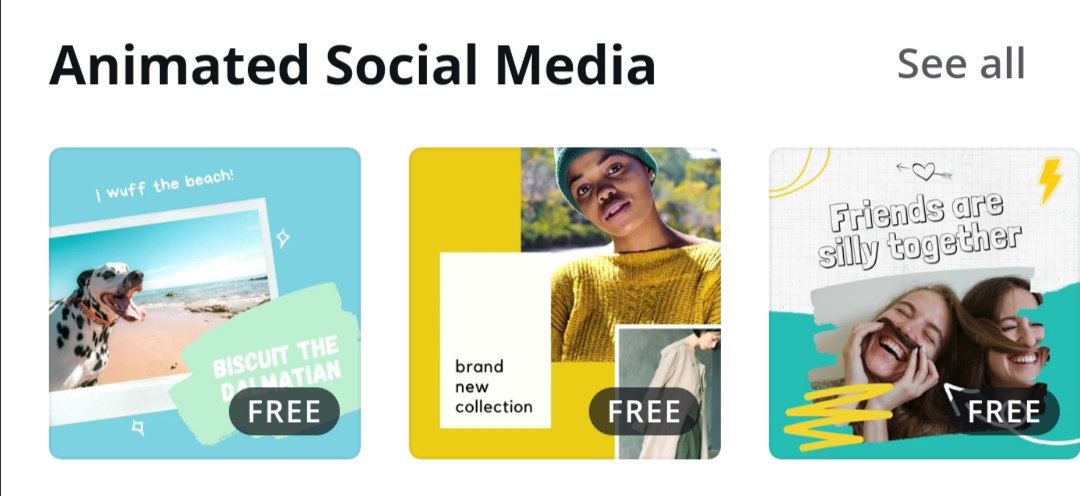
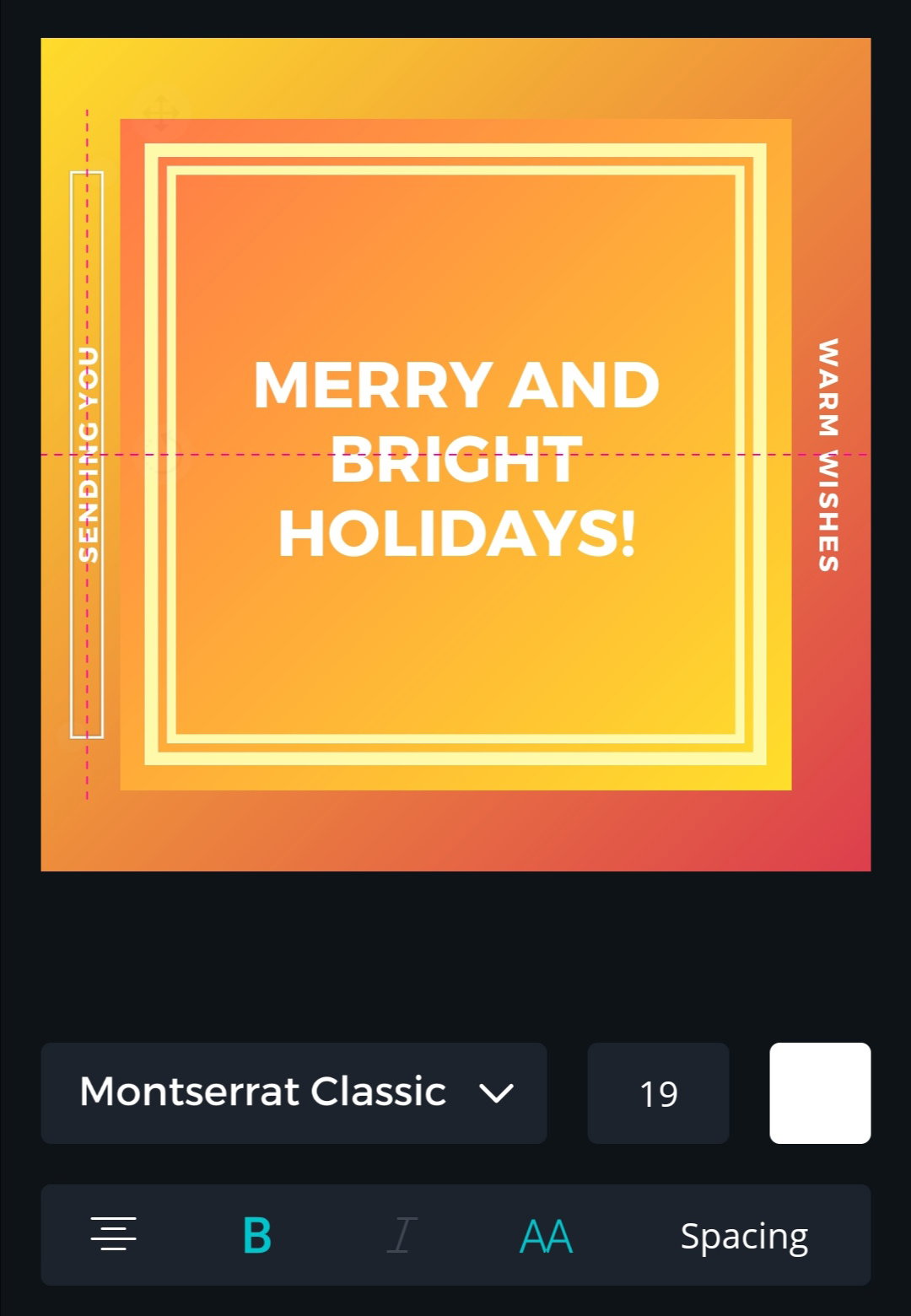
**2.** After choosing one, you can now start **editing the text**. Just simply click it, and type whatever text you want. (You can also change the font and the font size. And also the color of the text.)
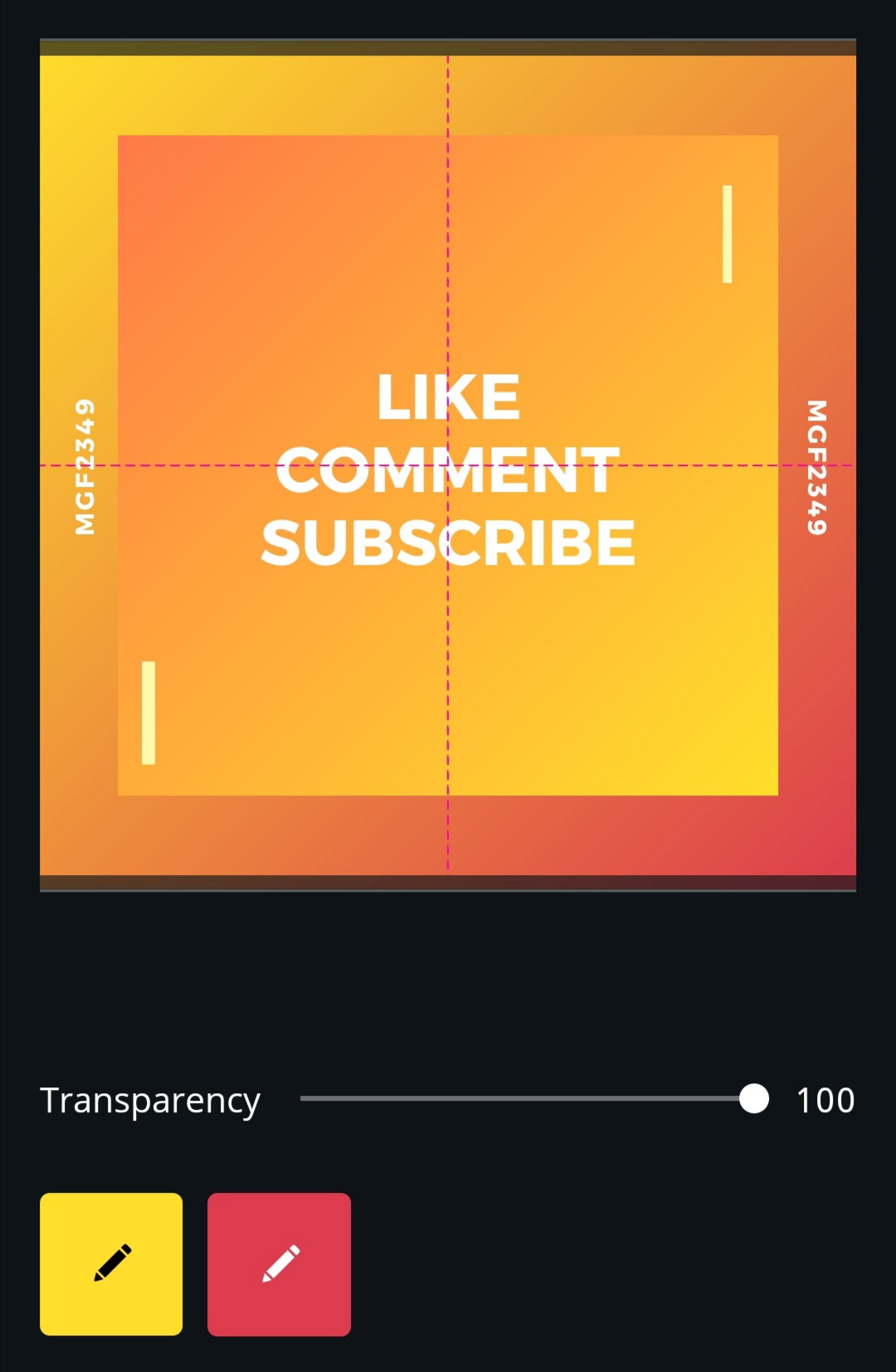
**3.** After editing the text, you can also **change the color of the background** depending on your taste and style. Just click the box that you want to change the color, then change it at the bottom part.
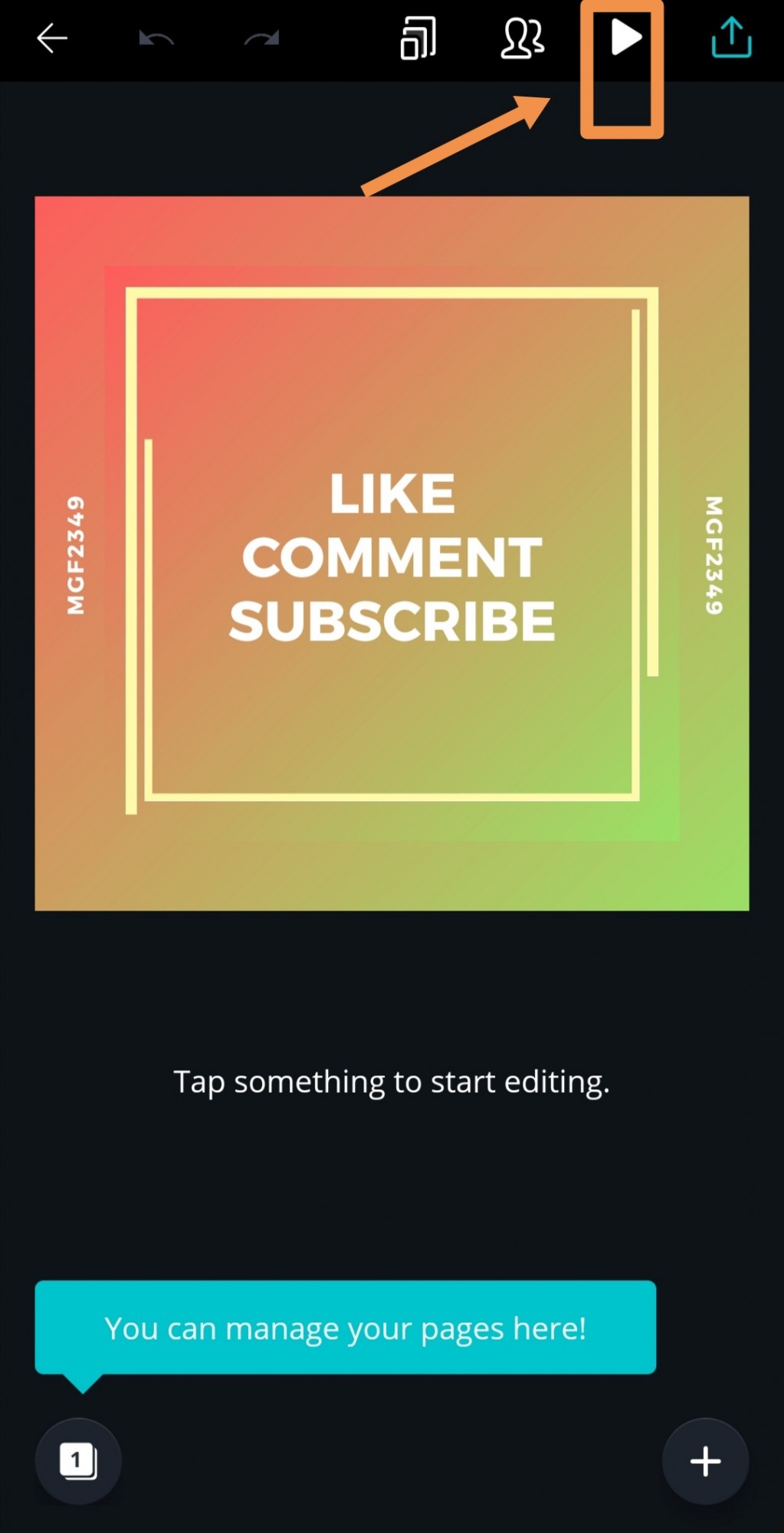
**4.** After that... You can now click the **save** button, *(see the image below).*
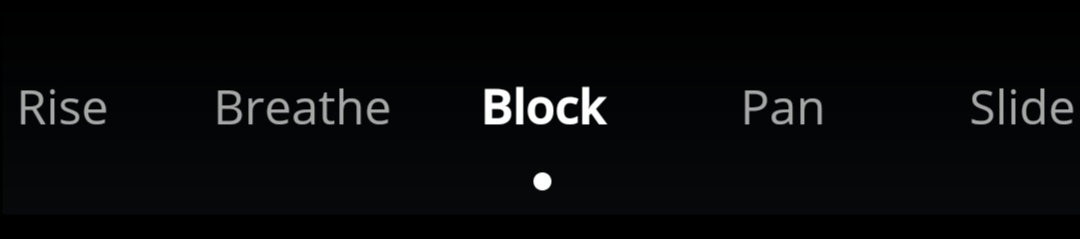
**5.** You can also choose different **transitions.**
**6.** Then save. (Sorry if I can't upload the video. Let's just turn it into a GIF now 👇) After we just created an Animated Video, we need to change it to a **GIF.** So we will use the **GIF MAKER-EDITOR**. `Using GIF Maker-Editor:` **1.** This is so simple. All you need to do is **click the Video 👉 GIF.**
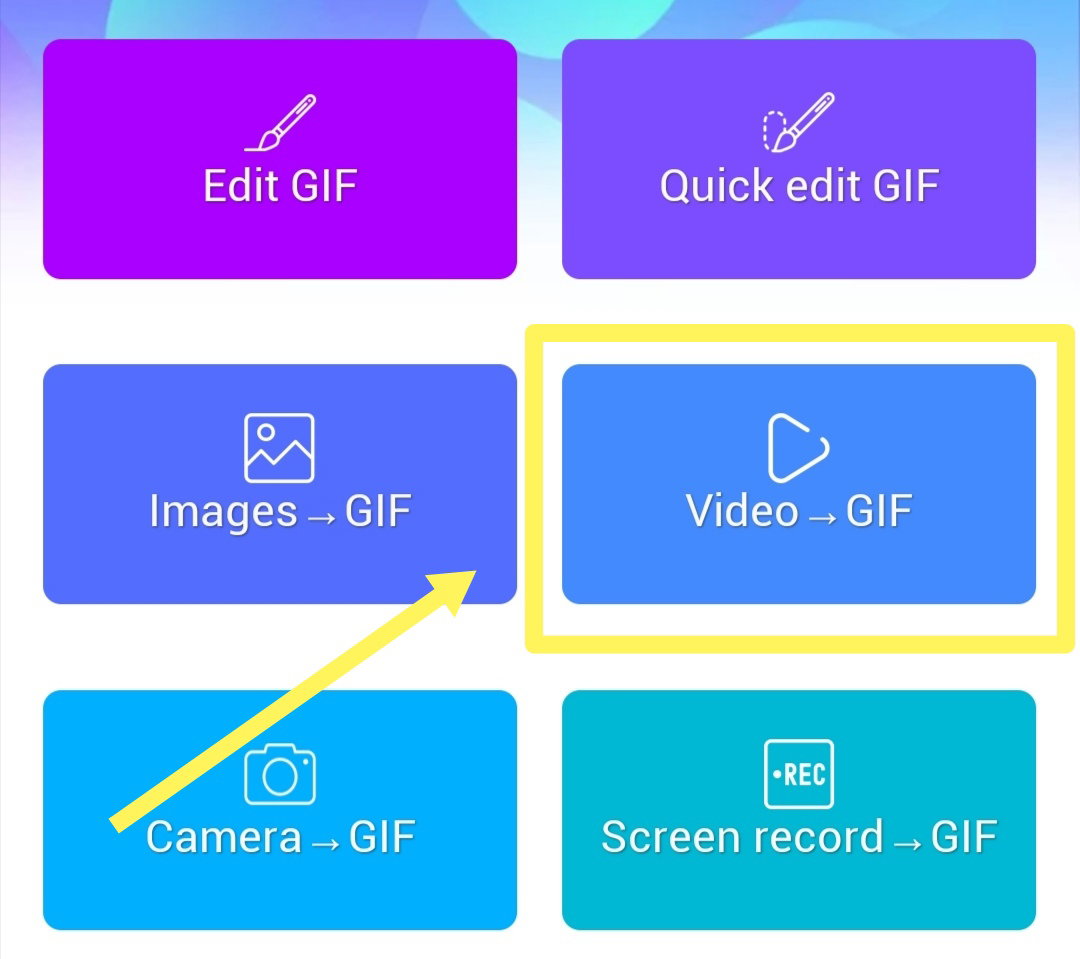
**2**. Then just click **done**, **save**, etc. And here's the result.

@mgf2394 sorry if I shifted 2394 to 2349. 🤪 I didn't notice it. You can just create yours now. I hope this helps. Also, this can be created on your computer or laptop. **PS. To all read.cash users who still experienced difficulties in making their own logos and gif. You can try these simple steps.** `Thanks for watching and reading.` Don't forget to like, comment, and SUBSCRIBE!! ☝❤
19 comments
Thanks for sharing this easy method with the screenshot I learned it and I have been this thanks for your help 😊
Yw. Happy to help you guys with this simple tutorial. I hope to see your GIF soon. 😍
Yeah you can see it Soon 😊
Just mention me to it. 😊
Yes hope why not I just now subscribe you and save your username in my notepad .. see its coming soon
Great. I'll just wait for it. 🤗
I use a different feature of that app. Instead of animated social media, I used the presentation feature 😅
Really? I'm not familiar with that. Gonna try it soon.
Ow ganon pala yon HHAHAHAHA ma try nga pero papasa muna ng apps muehehehe
Oo ganun lang. Di ba, nagpagawa ka pa? Hahaha
papasa ako nung gif maker editor ate amyt HHAHAHHAHAHA
Come @dyemi... Come, come.
yeey.. it seems so eassy yet I can't even make me one.. I will save this article and go back to it when Im done downloading those apps.. thankz
It's just easy. Just follow those steps. I'm so excited to see your work. 😍
I will try.. due to network connection issues, I can't download the apps this time of day.. I will make one if am done dloading
Thanks for sharing this ate. I learned a lot that I didn't know before. I got to edit and make some logos, covers, booklets and stuff but some of the things here are new to me, especially that transition part. Di mo na lang kasi sakin tinuro personally eh hahahah. Eh di sana di kobna to binasa hahahha
Wahahah. Edi sana wala kang natutuhan ngayon kung tinuro ko na sayo personally.
so useful post.. i wanted to create gif for more than 6 months ago but could not. i could make a gif watching this article. thank you so much for your article... suubscribed you. if possible, sulport me also. go ahead
Thank you for sharing it to us. I have been thinking how users created their gifs, and now I know how to make one.