 @ChrissCrypto
How to add Polygon on MetaMask
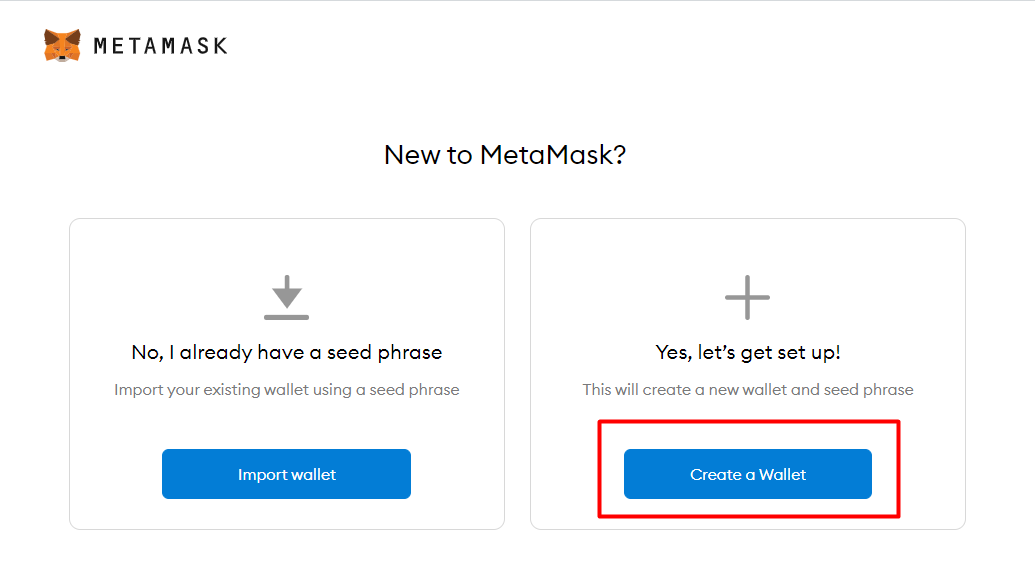
**MetaMask** is a ***browser extension*** (**Chrome**, **Brave**, **Mozilla Firefox**) and also an App on your favorite stores (**Apple Store** and **Google Play Store**) and is also a ***Crypto Wallet***! https://chrome.google.com/webstore/detail/metamask/nkbihfbeogaeaoehlefnkodbefgpgknn?hl=fr https://addons.mozilla.org/fr/firefox/addon/ether-metamask/ https://apps.apple.com/fr/app/metamask-blockchain-wallet/id1438144202 https://play.google.com/store/apps/details?id=io.metamask&hl=fr&gl=US **Launched in 2016**, this extension, this wallet is one of the most used, because it’s very easy to install and configure. With MetaMask you can: ***Buying ETH*** ***Use of dApps*** ***Buying/Storing ERC-20 and ERC-721 tokens*** ***Use of DEx*** (Decentralized Exchanges) ... Since **Polygon Network works as an ERC-20 on the Ethereum Network**, you will be able to receive/send/exchange ***MATIC***, the ***Polygon Crypto***. First, you will need to **install the extension on your Internet Browser**, or **download the App directly from your Store**. Next, you will **need to create a Wallet**. *****This step is one of the most important*****, if not the only one *****that requires 100% of your attention*****, because this step is crucial, to store your funds, to access them and especially to secure them. You will be able to **add the Contract to receive Floyx Coins**, **as soon as they are launched**. **How to Install and Use Metamask** The easiest way is to do it directly on your **browser**, it will be easier to perform all the steps. Once the **extension is installed**, a page will open. I invite you to read it carefully, it is generic information from MetaMask. Click on '**Creat a Wallet**'
Then click on '**I agree**'. **Choose a Password**. A little tip: ***Use a complex password*** ***Do not include your first name, last name or symbolic date*** (birth, marriage ...) ***Use special characters*** ($,£,µ ....) ***and capital letters*** **Write this password down on a piece of paper**, do not take a picture of it with your phone, do not send it to yourself by email, do not print it (think of security above all) Then click on '**Next**'. Take the time to **watch the video**, which will give you important tips on how to secure your Wallet. Once this is done, click on '**Next**'. *****This step is the most important*****, it is what will allow you to access your funds from the Mobile App, Browsers, etc... And it is the **WORDS NEVER TO BE GIVEN TO ANYONE! This is your** '***Private Key***'.
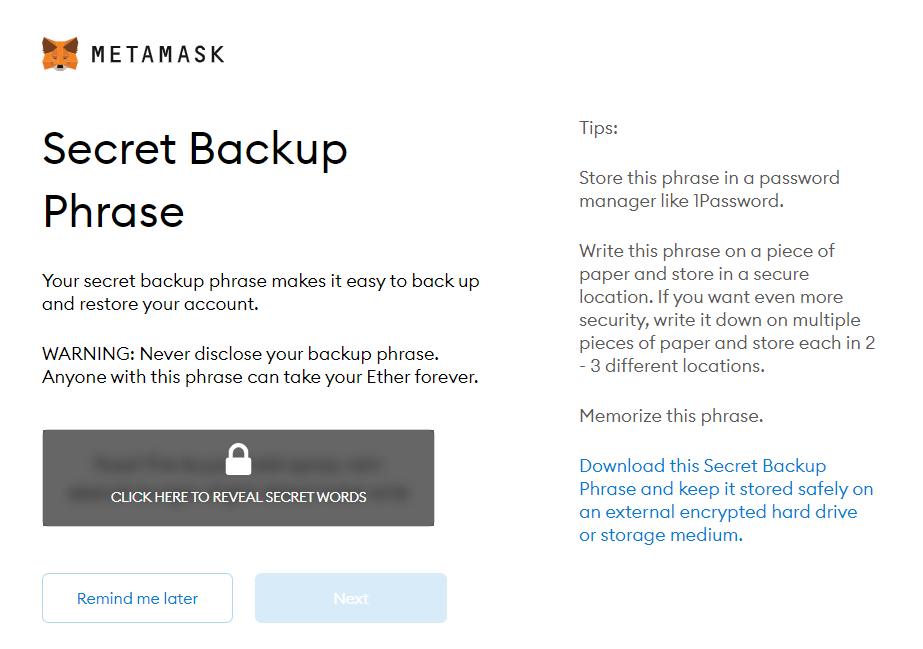
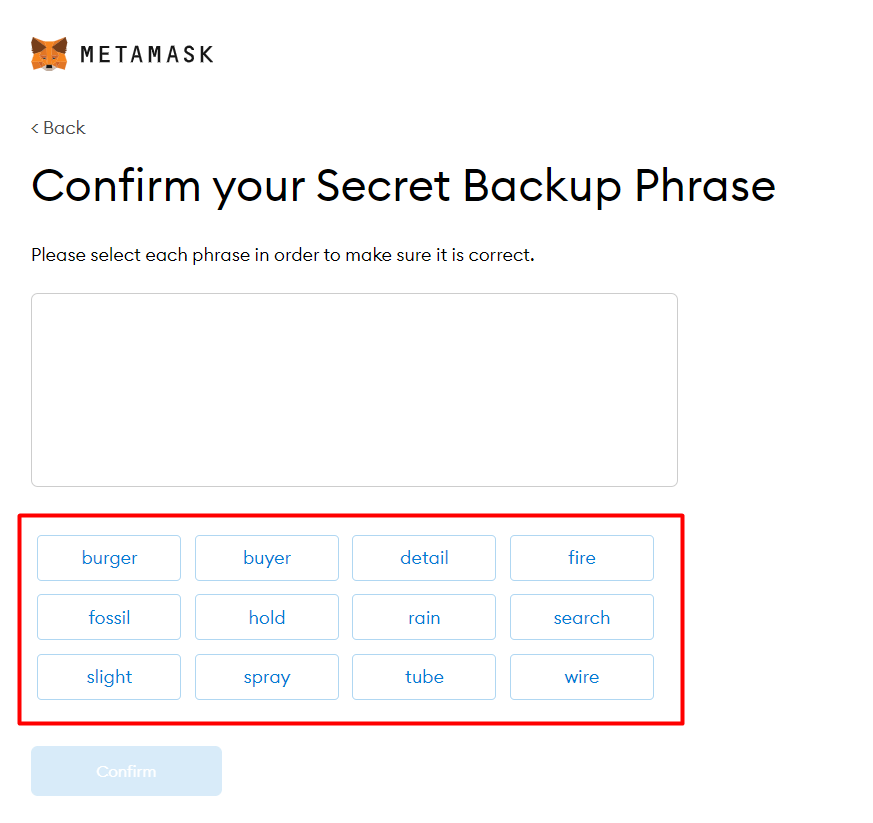
**Write them down on a piece of paper**, **don't copy them**, **don't print them**, **don't take a picture of them**! If you forget these WORDS, you will definitely lose access to your funds, if someone has these WORDS, they will be able to empty Crypto Wallets on MetaMask. **Once you have secured all 12 words, click on** '**Next**'. Then you will need to select the words in the correct order. Click on '**Confirm**'.
And that's it, your MetaMask is up and running. **How to add Polygon Mainnet to MetaMask** The easiest and fastest way is to go through **ChainList**, unfortunately on March 5th of this year, the developers announced that they will *stop the service on April 3rd 2022*. But I reassure you there are other ways to add Polygon to MetaMask. https://chainlist.org/ **ChainList**: Once you are on the **ChainList site**, search for '***Polygon Mainnet***' and simply click on '***Connect Wallet***'. A MetaMask window will open, click on '**Next**' and then '**Connect**'. https://chainlist.org/ Then click on '**Add to MetaMask**' on Polygon Network, a new window will open, click on '**Approve**' and then '**Change Network**'. And that's it, ***Polygon Mainnet appears in the list of MetaMask Networks***. **Manual Configuration**: Go to the **MetaMask extension**, click on '**Networks**' at the top, middle of the window. Then click on '**Add Network**'.
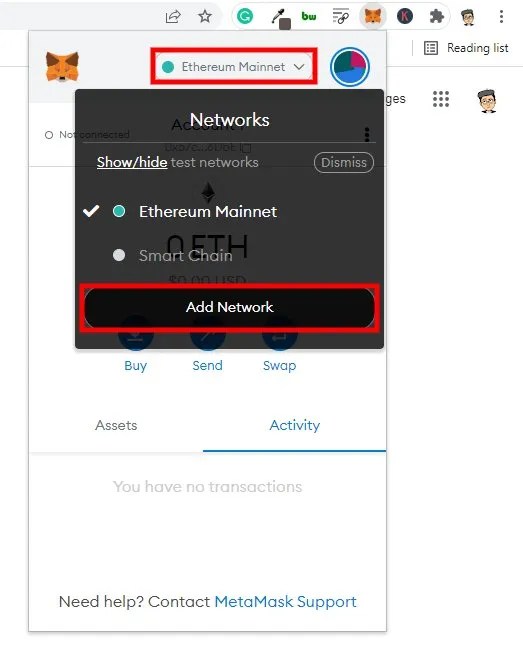
A new page will open in your browser, you will need to fill in the information below: Name on Network: ***Polygon*** New RPC URL: ***https://polygon-rpc.com*** Channel ID: ***137*** Currency Symbol: ***MATIC*** Block Explorer URL: ***https://polygonscan.com***
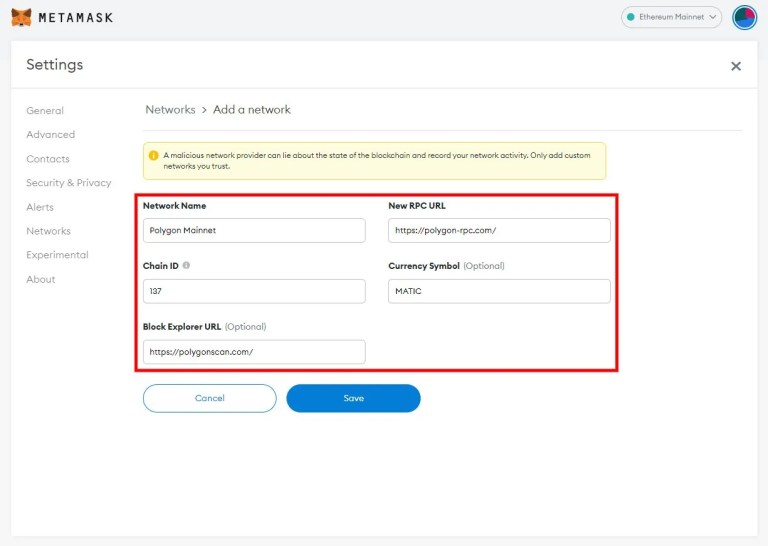
Click on '**Save**'. And that's it, **Polygon is added to your list of Networks on MetaMask**.
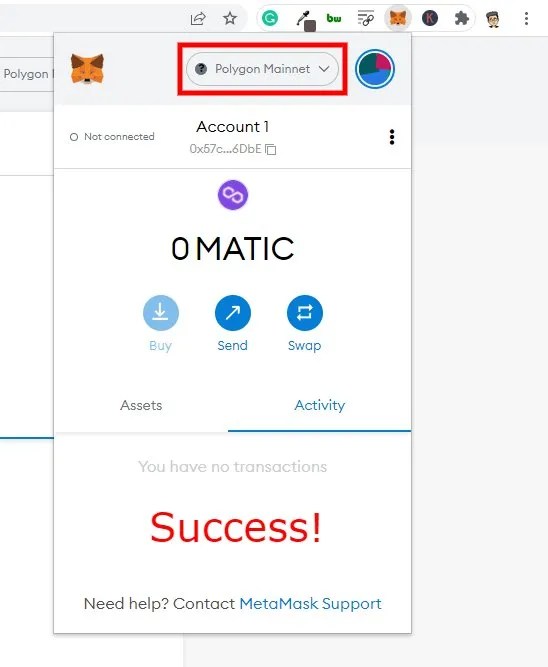
**Accessing MetaMask on your smartphone is simple**. **Download the App** from your store, **use the same password**, **and the same 12 words** from your Private Key to access your funds. Enjoy **Christophe WILHELM**
No comments yet