 @francis105d1
more from that month
@francis105d1
more from that month
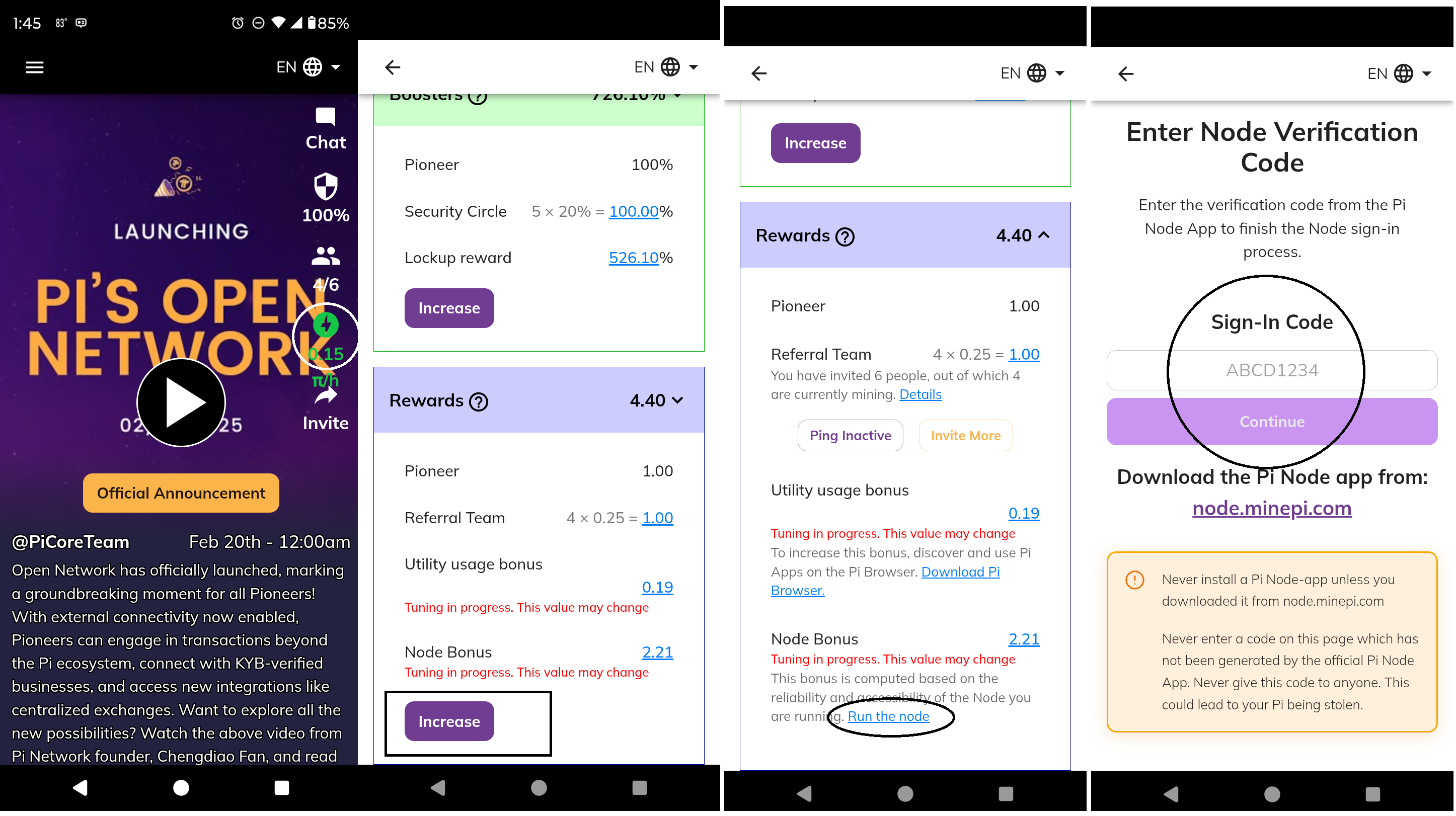
How to Mine Pi Network for Free: A Step-by-Step Guide At the time of writing this article, Pi is valued at $2.50 on centralized exchanges. However, no decentralized exchange (DEX) offers legitimate Pi at this moment. Any DEX listings claiming to trade Pi are fake, and you risk losing your money. **Getting Started with Pi Mining** To mine Pi, you need to: **Download the Pi Network App** Available for both **Android** and **iOS** devices. Sign up using your real name as it appears on your ID. This is crucial to pass **KYC verification** and claim your mined Pi. **Use a Referral Code to Get Started** You can use my referral code **francis105d1** to claim your first Pi. Sign up here: minepi.com/francis105d1 https://minepi.com/francis105d1 **Activate Mining Daily** Set a reminder to **tap the mining button** every 24 hours to continue earning. **Running a Pi Node on a Computer** While mining Pi on mobile is simple, running a **Pi node** on a computer requires additional steps: **1. Check Your Internet & Port Forwarding** Pi Network nodes require **ports 31400 to 31409** to be open. Check if your **Internet Service Provider (ISP) supports port forwarding**. Search on Google: *"How to open port forwarding on [your router model]"* If ports don’t open, contact your ISP or use a **VPN with port forwarding**. **2. Download the Required Software** Install the **Pi Node software** for Windows or Mac. https://minepi.com/pi-blockchain/pi-node/ Install **Docker**, as it’s needed to run the node. Sync your mobile app with the desktop node: In the Pi app, go to the **mining section** and select **Run a Node**. The desktop node will provide a code that must be entered in your phone’s Pi app.
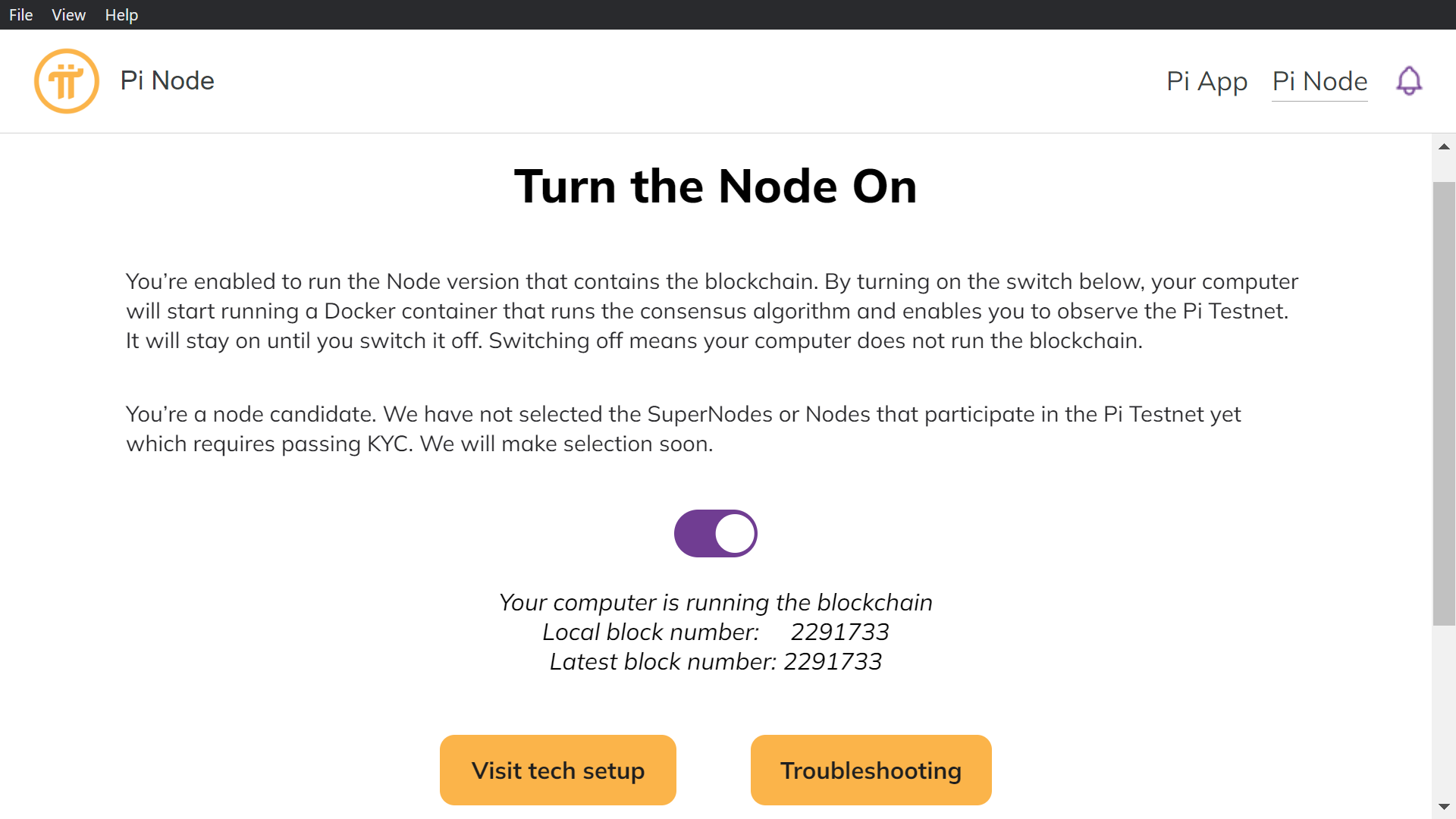
**3. Use a VPN if Necessary** If your ISP does not allow port forwarding, use a **VPN service with port forwarding support**. I recommend **TorGuard**, which currently offers a 70% discount: TorGuard VPN https://torguard.net/vpn-promo/ Follow their port forwarding setup guide. https://torguard.net/indexori.php?rp=/knowledgebase/276/Getting-Started-with-TorGuard-Port-Forwarding.html **4. Configure Firewalls & Security Settings** If your **Pi Node cannot detect open ports**, check your firewall settings: **Disable or create exceptions** in your antivirus and Windows Firewall. Avast, in particular, **blocks Pi connections even with permissions**, so disabling its firewall may be necessary. **Final Steps** Once your **ports are open** and **firewalls configured**, your Pi node should start running. The **port checker should confirm open ports**, and you should see that your node is **sending and receiving connections** 24/7.
No comments yet