 @effgee
edited
more from that month
@effgee
edited
more from that month
How to completely disable disk cache in Chrome, Firefox, Edge, Opera & Brave web browsers (Windows).
A common request for many users is the ability to disable disk caches in their browser. The reasons for this could be for developing, or for extending the life of your SSD, or perhaps **JUST BECAUSE**. Regardless, almost every single browser no longer exposes this option easily to the end users. Chrome based browsers including Opera **do not expose this ability to the end user.** My opinion, regardless of your reasons, is that it is your pc and you should be able to do with it, what you want. **To quote Rage Against The Machine** ~~**Beastie Boys**~~**,** (thanks, @mtrycz !) **Fuck you, I won't do what you tell me!** However, Chrome based browsers **DO allow the changing of the cache location** and a common technique to accomplish this is to set the disk cache location to /dev/null (Linux) or nul (in Windows, a reserved device name) via command switch. The following is the required steps for disabling disk cache completely in chrome based browsers + Firefox (which does expose the ability to do so in the advanced settings.) in Windows. Instructions for Chrome, Brave, MS Edge & Opera For each chrome based browser, there will be two (2) places where tweaking will be needed. Place #1 : Editing the launch shortcut. The first and easiest place is the actual shortcut used to launch the browser. For each shortcut, you must add the following to the shortcut properties. --disk-cache-dir=nul So for example, the properties of the Google Chrome shortcut you use to launch your browser, the default **Target** looks something like this: "C:\Program Files\Google\Chrome\Application\chrome.exe"
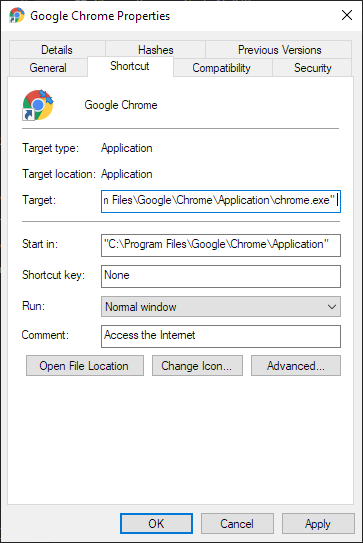
Edit the target and add --disk-cache-dir=nul to change it to look like this.
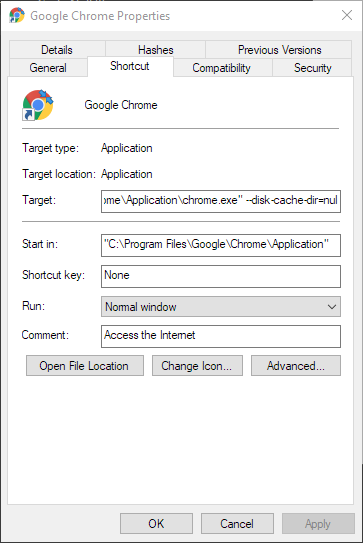
Apply / OK and you are done. This step is required for Chrome, Brave, MS Edge & Opera. Do it for each of their respective shortcuts that you use for launching. ****For it to take effect, you must completely close all of the browser processes and launch it again from that shortcut.**** *****Special note about Opera. For the Opera shortcut, it doesnt launch Opera.exe directly, but instead uses a "Launcher.exe" in the shortcut. Even so, still put the --disk-cache-dir=nul in front of the launcher.exe target, it properly passes it to the opera.exe when it runs it.***** Place #2 : Registry edit to control the browser cache when OTHER applications launch each browser respectively. This step is a bit more tricky. Each browser has a different registry setting to pass command line switches to it, when it is launched by another program or the Windows shell. For each of these browsers registry settings, it is recommended to export the key we will be editing so you have a backup in case something goes wrong. Brave **Registry Key** HKEY_CLASSES_ROOT\BraveHTML\shell\open\command And change the **Default** value from "C:\Program Files (x86)\BraveSoftware\Brave-Browser\Application\brave.exe" --single-argument %1 to "C:\Program Files (x86)\BraveSoftware\Brave-Browser\Application\brave.exe" --disk-cache-dir=nul --single-argument %1 Screenshot

The process is essentially the same for every other chrome based browser. For other browser please grok and continue. Chrome **Registry Key** HKEY_CLASSES_ROOT\ChromeHTML\shell\open\command MS Edge Special note about Edge, Edge has two places, one for normal shell launches, and one for being "launched as". I am a bit unclear to when each key would be read, regardless I disabled the cache for both. **Registry Key** HKEY_CLASSES_ROOT\MSEdgeHTM\shell\open\command HKEY_CLASSES_ROOT\MSEdgeHTM\shell\runas\command Opera **Registry Key** HKEY_CLASSES_ROOT\OperaStable\shell\open\command **Again for this to take effect, YOU MUST CLOSE ALL BROWSER PROCESSES COMPLETELY AND LAUNCH THEM AGAIN. If you launch a browser process without the --disk-cache-dir=nul option, all other processes launched after will continue to use the default disk caching options.** Registry Files **You may copy and paste the following text boxes and save them into .reg files for quick editing of the registry.** **Brave** Default Settings Windows Registry Editor Version 5.00 [HKEY_CLASSES_ROOT\BraveHTML\shell\open\command] @="\"C:\\Program Files (x86)\\BraveSoftware\\Brave-Browser\\Application\\brave.exe\" --single-argument %1" Disk Cache Disabled Windows Registry Editor Version 5.00 [HKEY_CLASSES_ROOT\BraveHTML\shell\open\command] @="\"C:\\Program Files (x86)\\BraveSoftware\\Brave-Browser\\Application\\brave.exe\" --disk-cache-dir=nul --single-argument %1" **Chrome** Default Settings Windows Registry Editor Version 5.00 [HKEY_CLASSES_ROOT\ChromeHTML\shell\open\command] @="\"C:\\Program Files\\Google\\Chrome\\Application\\chrome.exe\" --single-argument %1" Disk Cache Disabled Windows Registry Editor Version 5.00 [HKEY_CLASSES_ROOT\ChromeHTML\shell\open\command] @="\"C:\\Program Files\\Google\\Chrome\\Application\\chrome.exe\" --disk-cache-dir=nul --single-argument %1" **MS Edge** Default Settings Windows Registry Editor Version 5.00 [HKEY_CLASSES_ROOT\MSEdgeHTM\shell\open\command] @="\"C:\\Program Files (x86)\\Microsoft\\Edge\\Application\\msedge.exe\" --single-argument %1" Disk Cache Disabled Windows Registry Editor Version 5.00 [HKEY_CLASSES_ROOT\MSEdgeHTM\shell\open\command] @="\"C:\\Program Files (x86)\\Microsoft\\Edge\\Application\\msedge.exe\" --disk-cache-dir=nul --single-argument %1" Default Settings (Run As) Windows Registry Editor Version 5.00 [HKEY_CLASSES_ROOT\MSEdgeHTM\shell\runas\command] @="\"C:\\Program Files (x86)\\Microsoft\\Edge\\Application\\msedge.exe\" --do-not-de-elevate --single-argument %1" Disk Cache Disabled (Run As) Windows Registry Editor Version 5.00 [HKEY_CLASSES_ROOT\MSEdgeHTM\shell\runas\command] @="\"C:\\Program Files (x86)\\Microsoft\\Edge\\Application\\msedge.exe\" --disk-cache-dir=nul --do-not-de-elevate --single-argument %1" **Opera** Default Settings Windows Registry Editor Version 5.00 [HKEY_CLASSES_ROOT\OperaStable\shell\open\command] @="\"C:\\Program Files\\Opera\\Launcher.exe\" --disk-cache-dir=nul -noautoupdate -- \"%1\"" Disk Cache Disabled Windows Registry Editor Version 5.00 [HKEY_CLASSES_ROOT\OperaStable\shell\open\command] @="\"C:\\Program Files\\Opera\\Launcher.exe\" --disk-cache-dir=nul -noautoupdate -- \"%1\"" Final Special Note about these particular chrome based browsers. *****It is possible for the registry settings and shortcut settings to get reset back to default.***** This can happen during the browser update process, or as well when switching your Windows default browser. (Specifically this happened to the Opera registry setting, WHILE setting Opera as a default browser.) Keep this in mind that you may need to re-apply the tweaks. Final Instructions Firefox Open Firefox Type in the address bar **about:config** and press Enter In the "Search preference name" enter **browser.cache.disk.enable** Change its value to "false" (Via double click)

And done!

No comments yet