 @KomalWaheed
more from that month
@KomalWaheed
more from that month
Allocate more RAM to Specific Programs in Windows 10
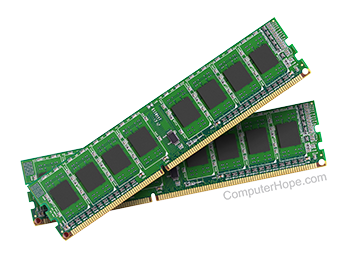
**How to allocate more RAM to Specific Programs in Windows 10 using Task Manager?** Since I am new to blog writing and especially read. cash I have been trying to lean and provide informative article. Being a student of computer science and a girl who sew clothes when home from university or do online job (freelancing) I could only provide my field related contents in my blogs/article. However, I will in future try to write on some other topic. ****You support in form of BCH can support and encourage me a lot. I am student who helps her parents and study.**** Now coming to the point . You can use the Windows 10 Task Manager to prioritize certain applications. If you want or need to allocate additional RAM to a specific application (software), you need to elevate its priority on the Task Manager. If you follow me on the given simple steps given you can give some extra RAM to a specific application: Step 1:- First of all, **Right Click** on the taskbar and select **Task Manager** Step 2: The Task Manager will open. Find the application you want to allocate some extra RAM. Step 3: Again **Right Click** on the process whose priority you want to elevate and select the **Go to details** options. Step 4: On the Details page, once again **Right Click** (on the process), and select the option **Set Priority**. Step 5: From multiple option provided, select anything above normal. Y For example you can select **Above Normal, High, or Realtime.** Step 6: it will ask you for confirmation. On the Confirmation box, click on the **Change Priority** option. That’s it! You are done. This is how you can use Task Manager to allocate more RAM to specific applications in Windows 10 Keep supporting me. Your small donation can encourage me a lot to search for the best contents and topic, to share with you. If interested, please don't hesitate to encourage me, my BCH address is: `bitcoincash:qpy7dxlgxq29rgq8y4jpdwmz2kupndn3nuzrlrmlaa`
No comments yet